Adjudica source release 2026.08.24 · runtime and legal approval not implied
Skip to main content
Product Tour

SOURCE RELEASE 2026.08.24 — NOT APPROVED FOR DISTRIBUTION. Screen descriptions are source-observed, not runtime-verified; capability, completeness, authorization, isolation, automation, and saved effects require current validation.

See Adjudica in action

A source-observed tour of selected Adjudica screens for California Workers’ Compensation attorneys — intended matter views, document intake with source-described OCR review context, proposed form-filling and drafting, knowledge-graph views, and research assistance. Runtime completeness, authorization, and saved effects are not implied.

Shown on a demonstration firm with synthetic seed data — no real client information. A few surfaces are shown in preview where noted.

Where your day starts

Sign in to a workspace built for one practice area

Adjudica is an AI-assisted California Workers’ Compensation platform. Selected workflows provide source and review context; coverage and accuracy vary.
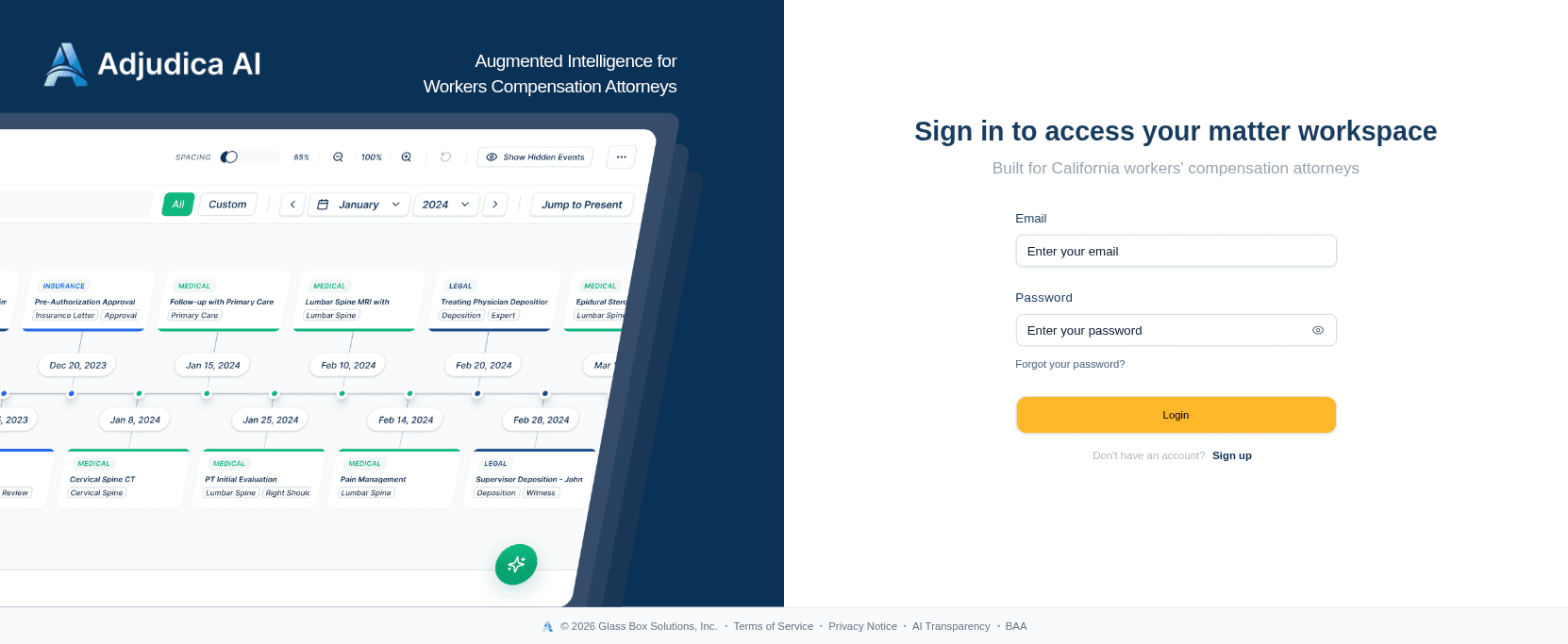
The Adjudica sign-in screen
Getting in

Signing in

Adjudica is designed for California Workers’ Compensation attorneys. Selected workflows provide available source and review context; completeness and runtime availability vary.

  • Session-based authentication (BetterAuth) with org and team management.
  • Terms, Privacy, AI Transparency, and BAA-acknowledgement links are included in the global site footer; their presence does not establish legal approval or executed terms.
  • Direct/public OpenAI routing is prohibited for PHI. Customer-specific contracts, provider coverage, enabled routes, and fail-closed controls must be confirmed before PHI use.
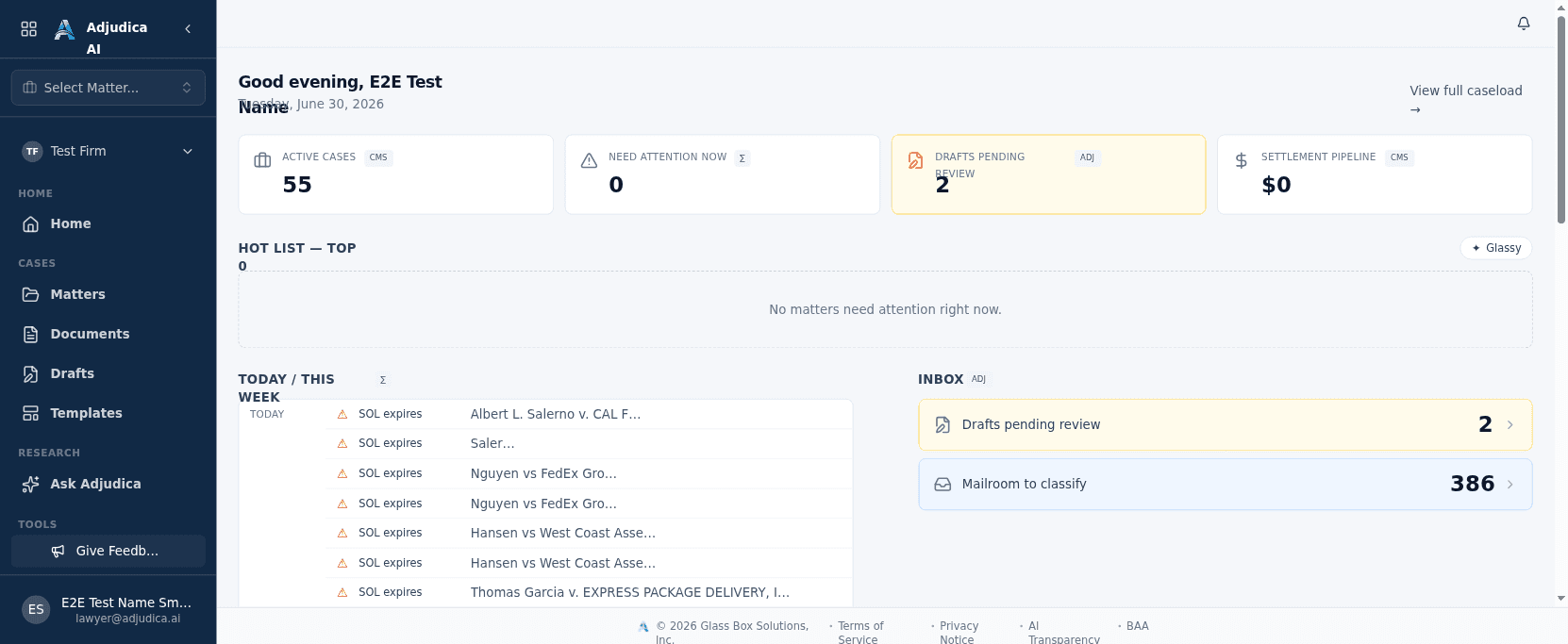
The Adjudica home dashboard with a ranked caseload
Where your day startsNew

Home: your ranked caseload

Source UI shows a dashboard intended to rank selected matters and tasks. Coverage and priority accuracy were not observed; verify against the complete record and firm calendar.

  • Four KPI tiles at a glance: Active Cases, Need Attention Now, Drafts Pending Review, and Settlement Pipeline value.
  • A Hot List surfaces the matters that need you most, each with a plain-language reason it’s ranked where it is.
  • Today / This Week is a source-observed deadline surface. It may omit or misstate dates and does not replace authoritative docketing.
  • The Inbox routes you straight to drafts awaiting review and mailroom documents waiting to be classified.
The intended case workspace

Selected case context in one workspace

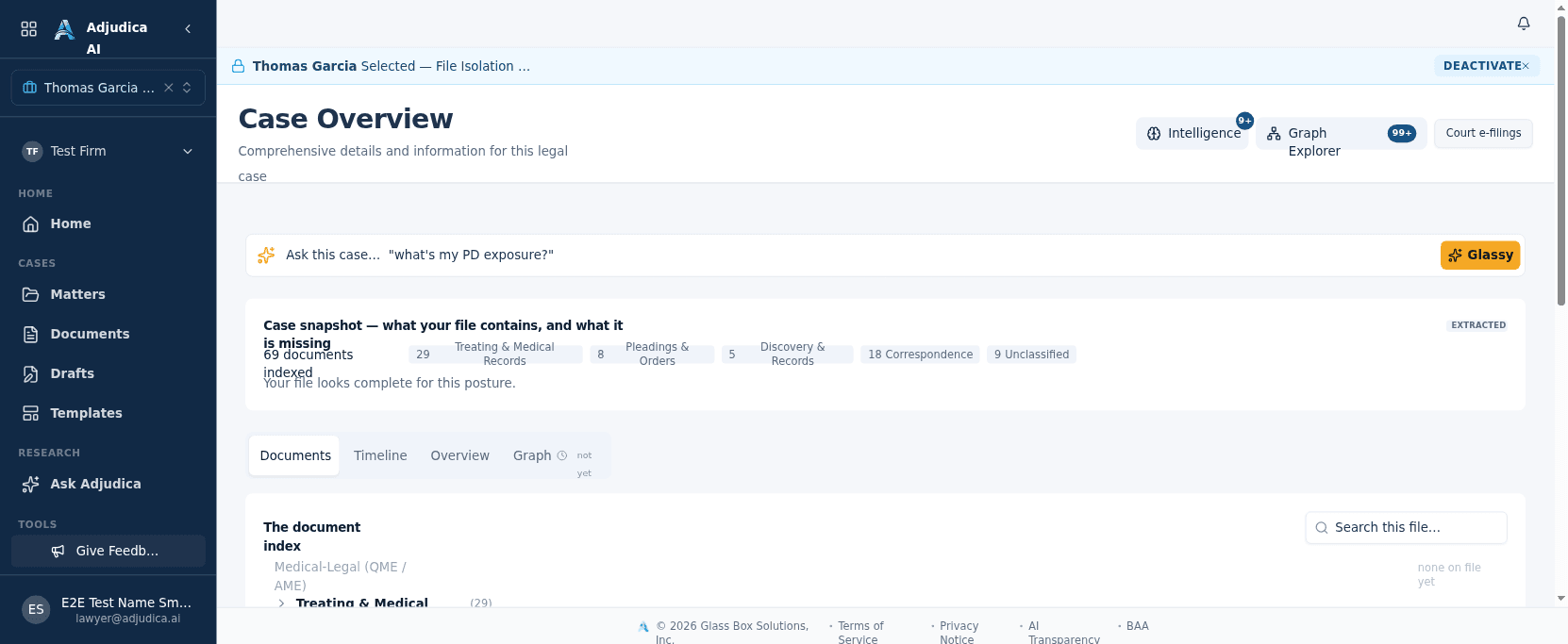
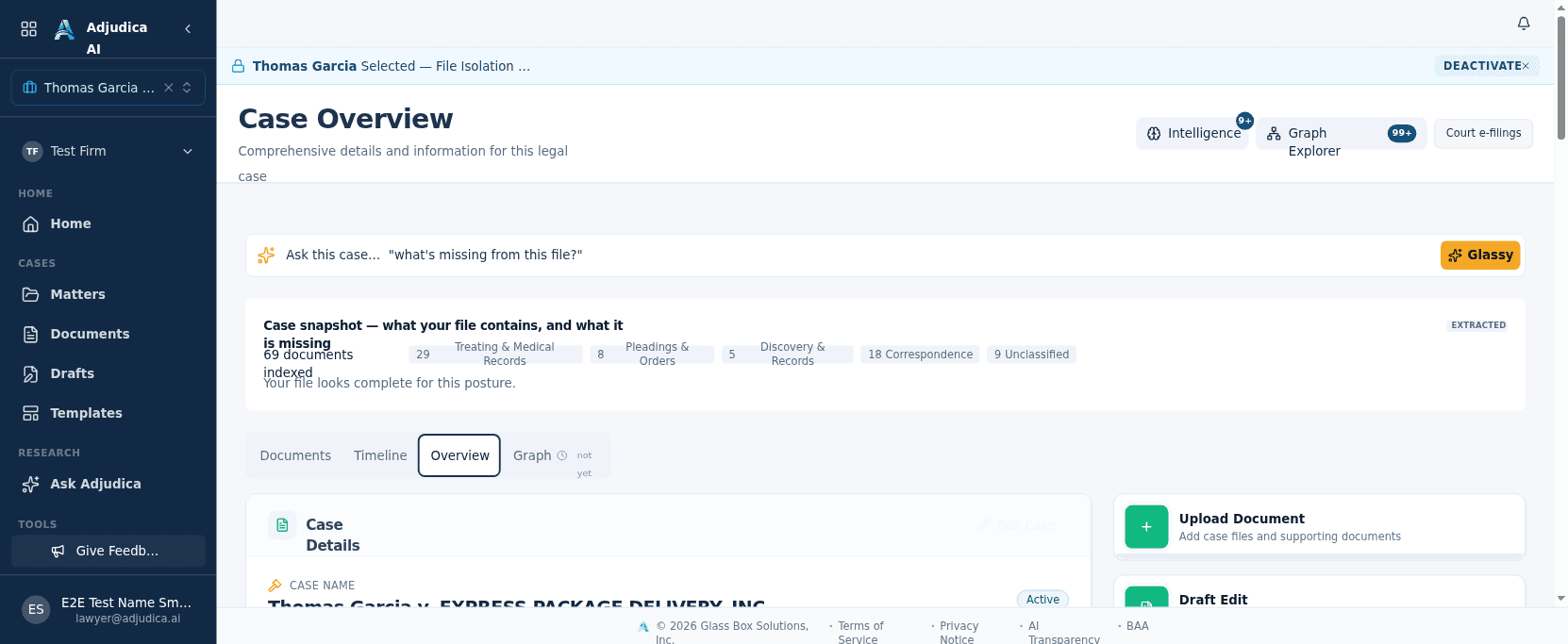
Source materials describe selected parties, injury details, documents, drafts, timeline entries, and knowledge-graph context together in an intended matter workspace. Completeness and runtime behavior were not observed.

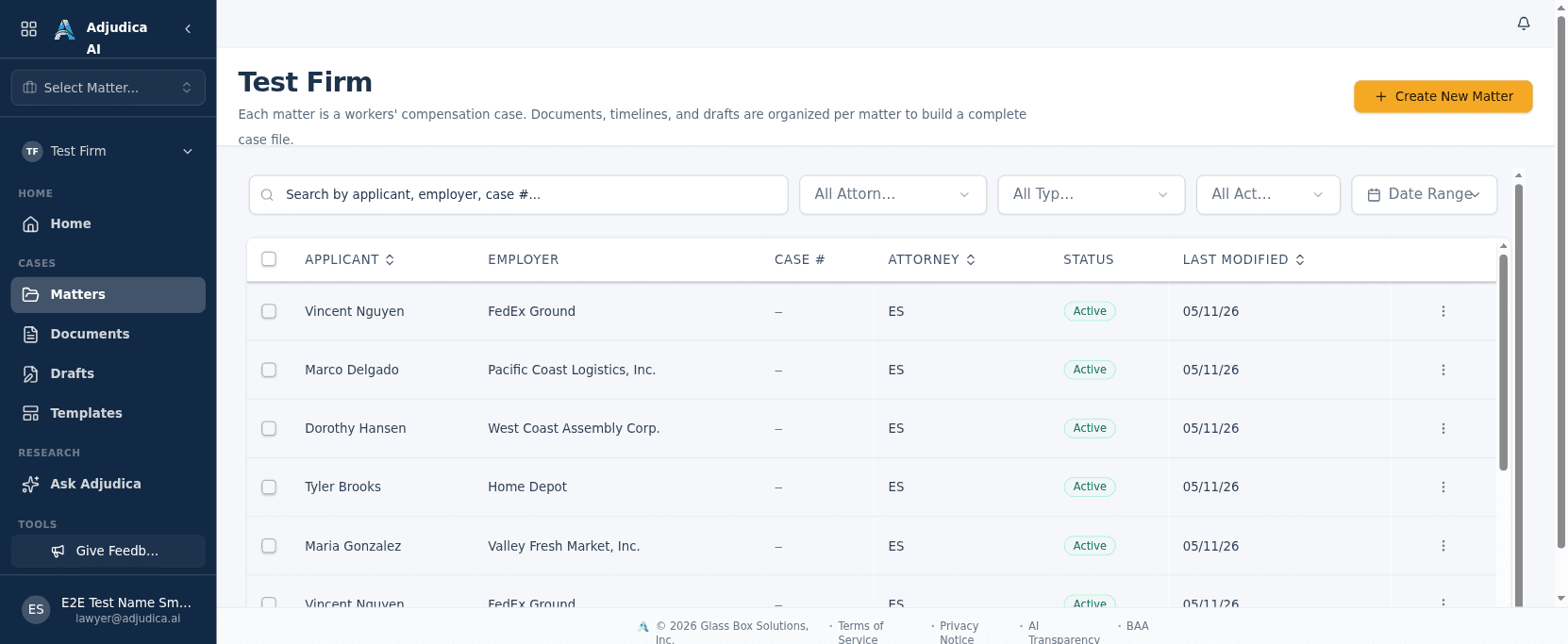
The Matters list with selected case records
Matter list

Matters: the available case workspace

Source configuration presents the firm’s available case workspace and related matter context. Coverage and completeness were not observed; verify it against the firm’s controlling record.

  • Each matter carries its parties, injury details, documents, drafts, and timeline.
  • Source materials describe selected import paths into an intended case workspace. Confirm migration coverage, reconciliation, permissions, and cutover state before changing the firm’s controlling record.
  • Filtering and search make a large caseload navigable; the list is the jumping-off point into any single case.
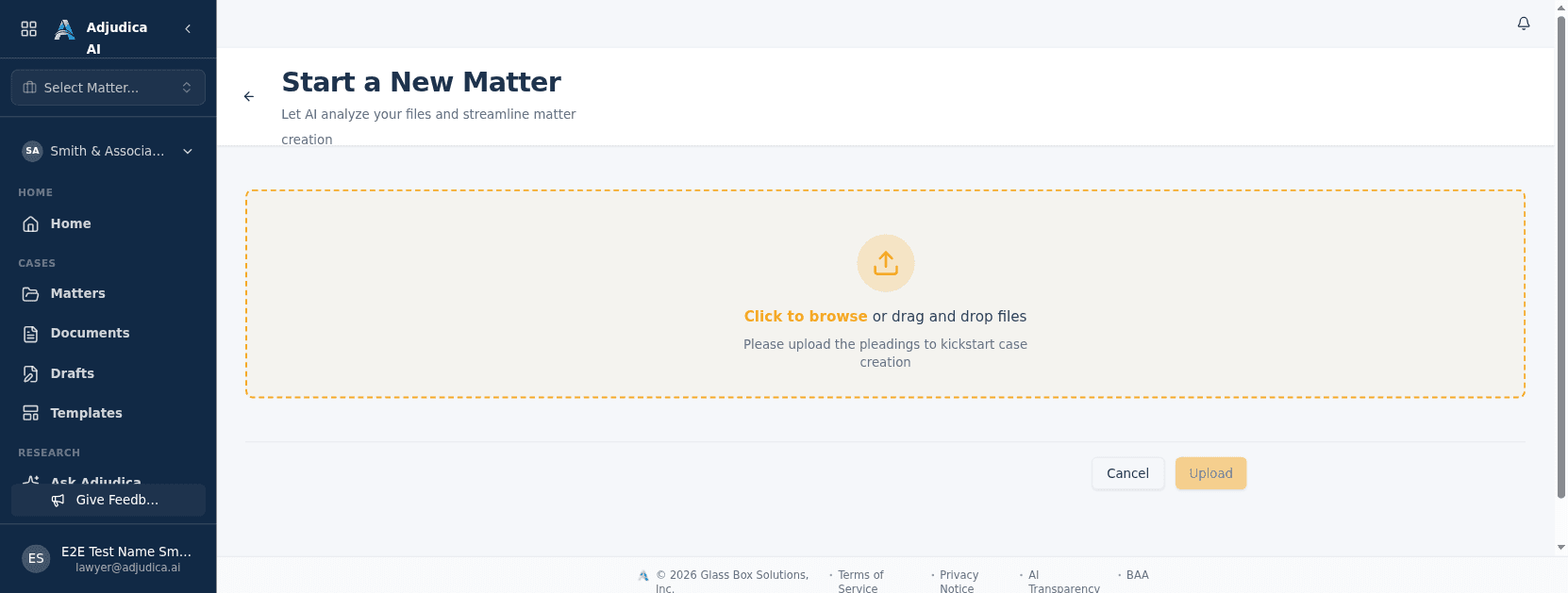
Creating a matter by uploading pleadings
How a case is born

Opening a case from documents

A case can be born from a stack of paper. Drop in the pleadings and Adjudica’s AI reads them, extracts the parties and claim details, and stands up the matter for you.

  • Drag-and-drop pleadings → the AI analyzes the actual document and proposes a new matter, pre-filled.
  • Multimodal AI extraction (Gemini) reads names, employer, injury, and dates, not just the filename.
  • Turns the most tedious part of intake into a review-and-confirm step.
The matter workspace
Inside a case

The matter workspace

Open a case and you get a single workspace for everything about it: parties, documents, drafts, the case chat, and the event timeline.

  • AI case chat lets you ask questions about the matter and get answers grounded in the case’s own documents.
  • Source materials describe selected document-drafting, form-filling, and knowledge-graph paths scoped to a matter. Confirm authorization, record scope, runtime availability, and saved effects.
  • Source configuration includes role-based UI and server capabilities. The server remains authoritative, and this release did not observe enforcement across runtime paths.
Insurance and claim details on a matter
Inside a case · insurance

Insurance & claim details

Each matter tracks the insurance side of the claim: the carrier, adjuster, and policy the case is litigated against.

  • Captures the workers’-comp carrier, claim number, and adjuster.
  • Pulled from the case documents, and imported from MerusCase during onboarding where available.
  • The insurance panel sits in the matter Overview alongside parties and injury details.
The case timeline in chronological order
The case story

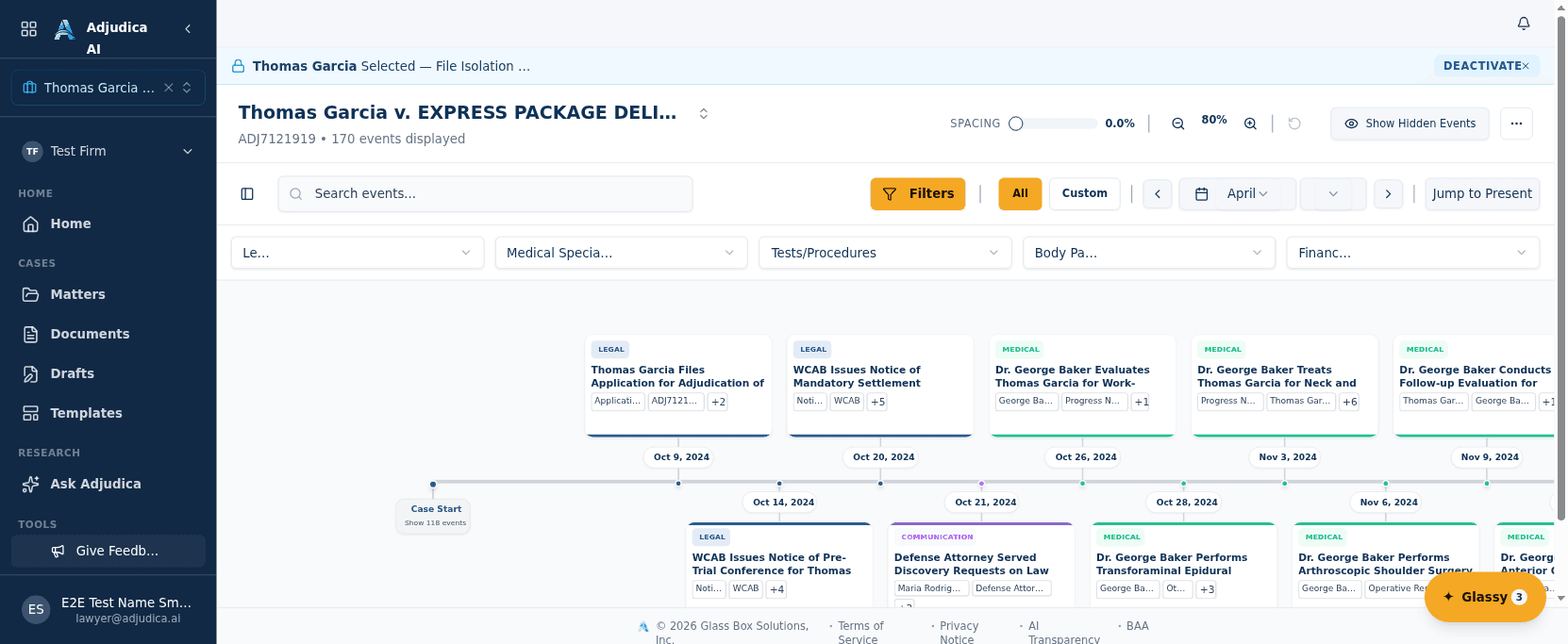
Timeline: the case in chronological order

A configured workflow can propose a timeline from events extracted from processed matter documents. The chronology may be incomplete, duplicated, or misordered and requires attorney review against the record.

  • Events are derived from uploaded documents (medical reports, filings, correspondence) by the OCR + LLM pipeline, the same Glass Box extraction that feeds the rest of the case.
  • Search and tag-filtering make a long case history navigable, and the view stays pinned to the matter you’re focused on.
  • Statute-of-limitations and treatment milestones surface here in date order. This is the chronology a Workers’ Comp matter turns on.
The matter knowledge graph explorer
Case intelligence

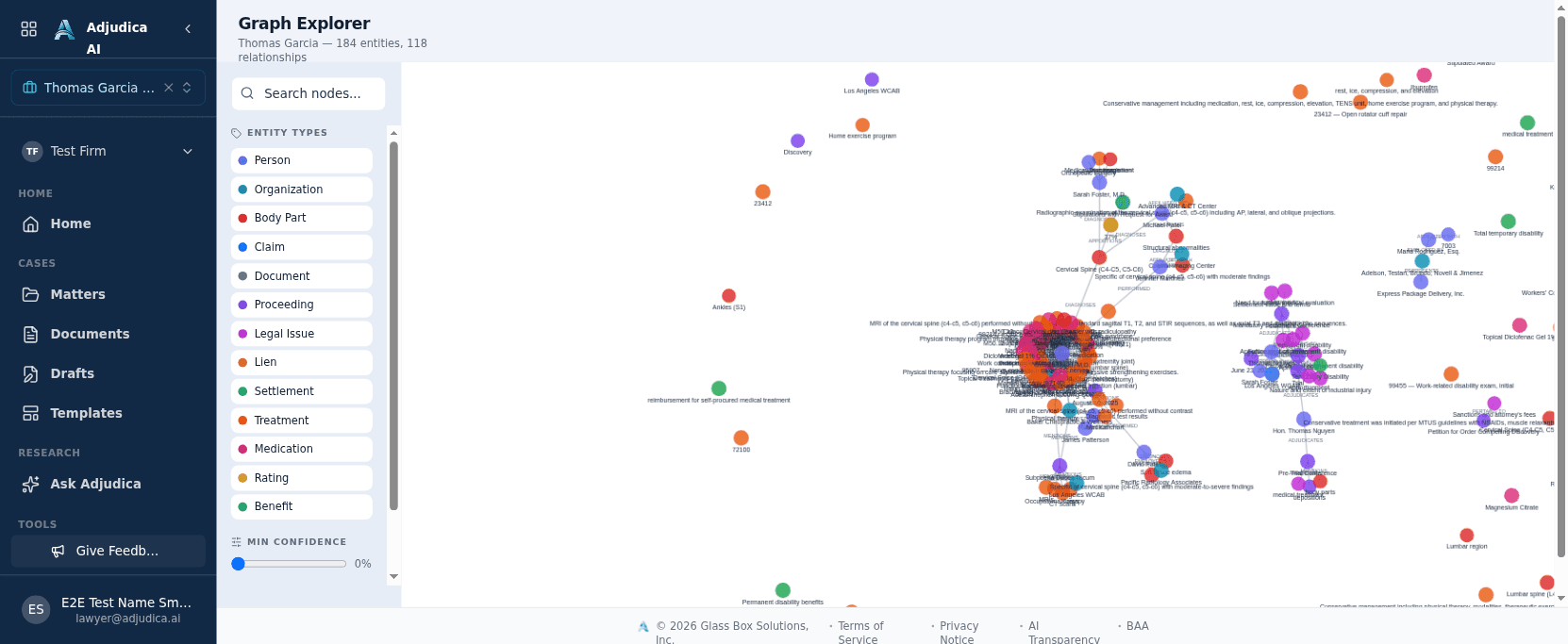
The Matter Knowledge Graph

Adjudica builds a knowledge graph of each matter: the people, providers, employers, body parts, and events, and how they connect. The case’s structure is visible, not buried in PDFs.

  • Entities and relationships are extracted from the case’s documents by the AI enrichment pipeline.
  • An interactive explorer is designed to help traverse a case graph and inspect available provenance; completeness is not guaranteed.
  • Shown in preview. Availability and population of graph edges depend on the enabled environment and were not observed for this release.

Transparent by design

Document intake you can actually see into

Source configuration describes a visible intake pipeline, OCR with correction assistance, and human-review states. Runtime operation and complete step visibility were not observed for this release.

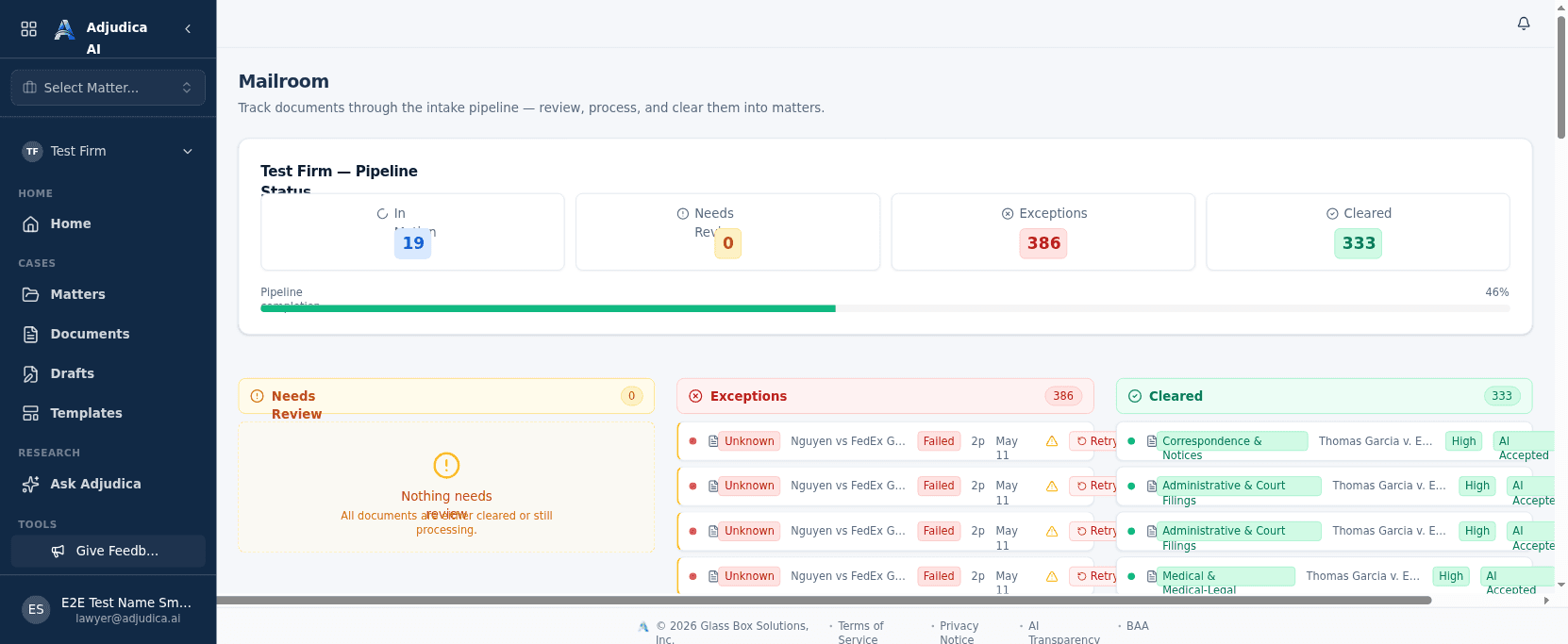
The Mailroom command center with three pipeline lanes
Document intakeNew

The Mailroom Command Center

The configured Mailroom is a transparency-oriented intake pipeline designed to show processing state and review context. State accuracy and completeness require confirmation in the enabled environment.

  • Three lanes make the pipeline legible at a glance: Needs Review, Exceptions, and Cleared.
  • Source configuration includes an Exceptions lane, review-oriented issue labels, and retry handling; exact behavior depends on the failure and environment.
  • OCR runs on Google Document AI with LLM correction; the pipeline narrates each step rather than hiding behind a spinner.
  • Source configuration includes final-disposition context for cleared documents; this release did not observe every processing path.
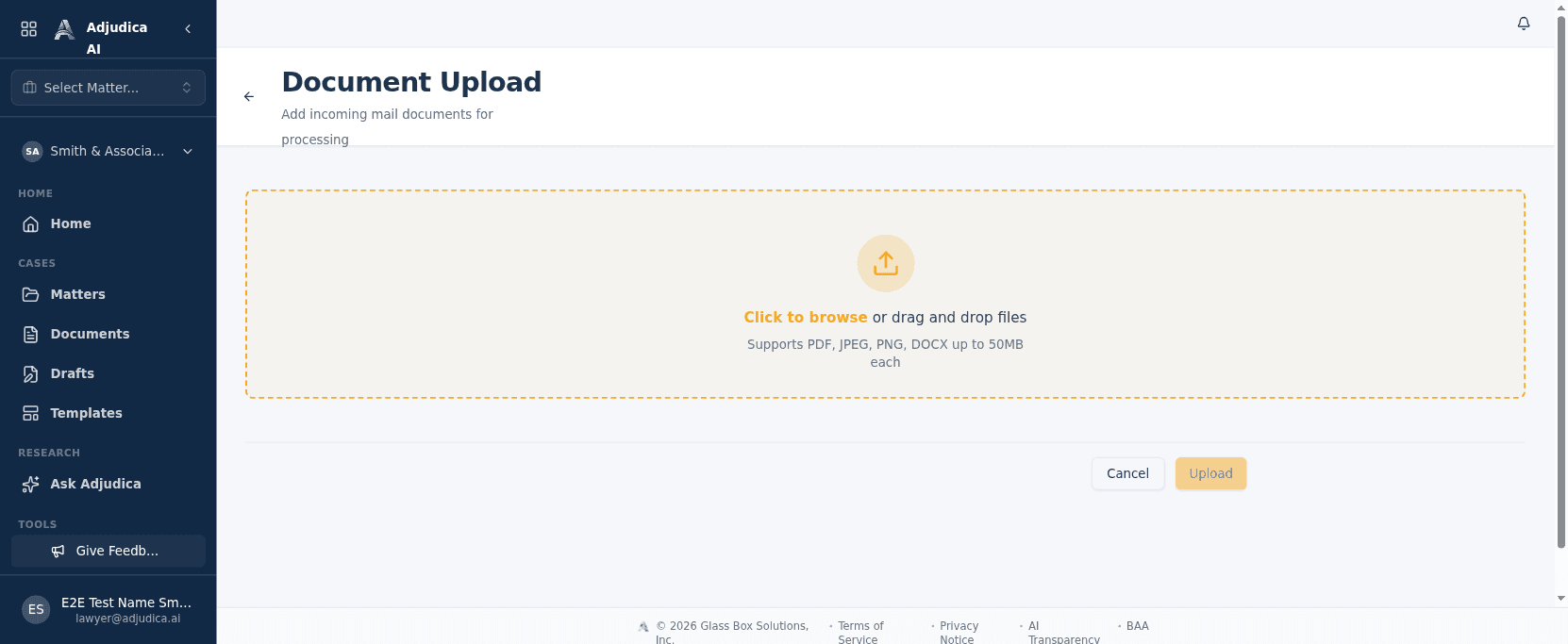
Document upload
How documents arrive

Document upload

Documents can enter through the configured upload workflow and proceed through classification and matter-assignment states. Available Mailroom status details assist review but may be incomplete.

  • Accepts PDF, JPEG, PNG, and DOCX, up to 50MB each. These are the formats a WC practice actually receives.
  • Uploaded files land in the Mailroom pipeline, where OCR (Google Document AI) and LLM correction extract and classify them.
  • Source configuration includes three Mailroom status lanes for cleared, review, and exception states. Runtime status accuracy was not observed for this release.
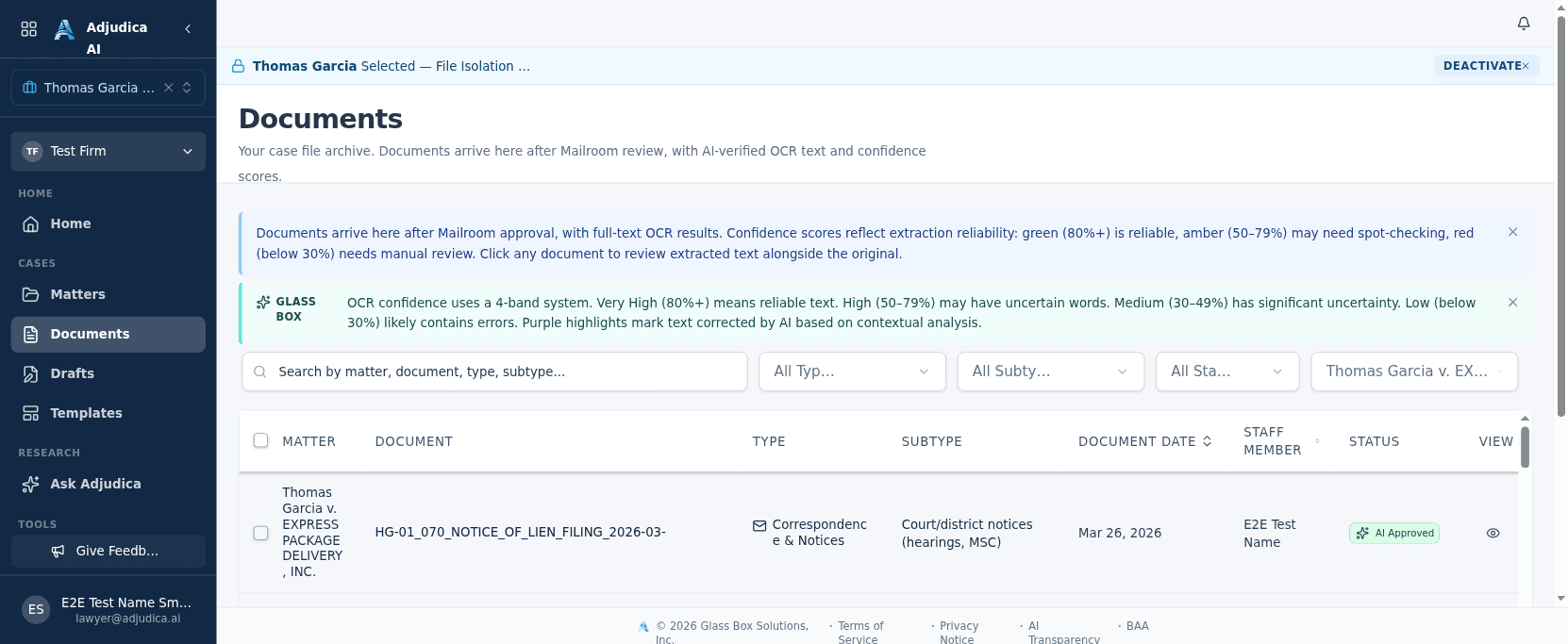
The firm-wide documents library
The evidence library

Documents: the firm-wide library

Source configuration describes cleared documents appearing in a searchable Documents library. Completeness across matters depends on ingestion and assignment and was not observed for this release.

  • Search, filter, and sort across the whole firm’s documents by matter, type, subtype, and uploader.
  • Available classification and OCR-extraction context can assist review and correction; fields and explanations may be incomplete or wrong.
  • Documents flow from here into drafts, forms, and the case timeline. The library is the spine the case work hangs on.
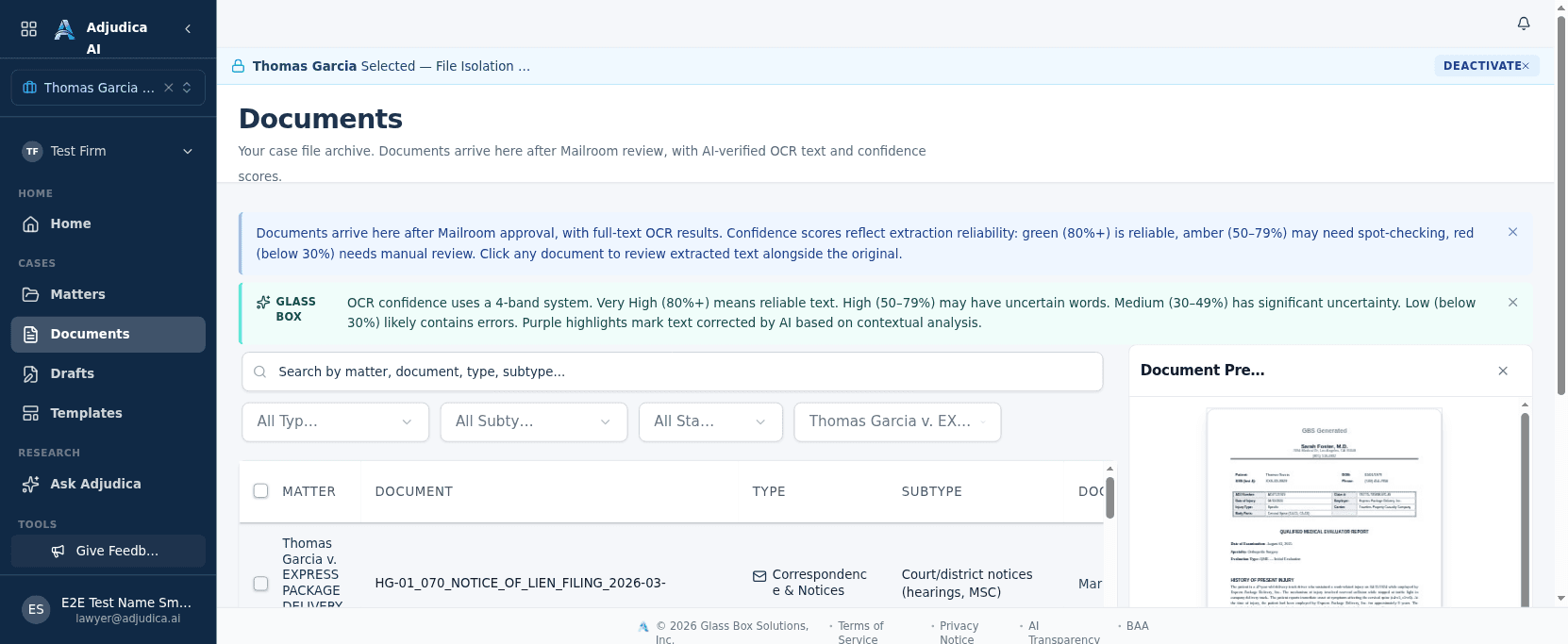
The document viewer with AI-derived metadata
Inside a document

The document viewer

The configured document viewer can place the source alongside available AI-derived type, classification, and extracted evidence for review.

  • The original file sits next to its AI-derived metadata, so you can verify the machine’s read.
  • PHI-sensitive fields (AI reasoning, extracted values) are access-controlled on the server, not just hidden in the UI.
  • Source configuration includes classification context where available. Explanations may be incomplete and must be checked against the document.
OCR review, side by side with the source page
Human in the loop

OCR review: the Glass Box gate

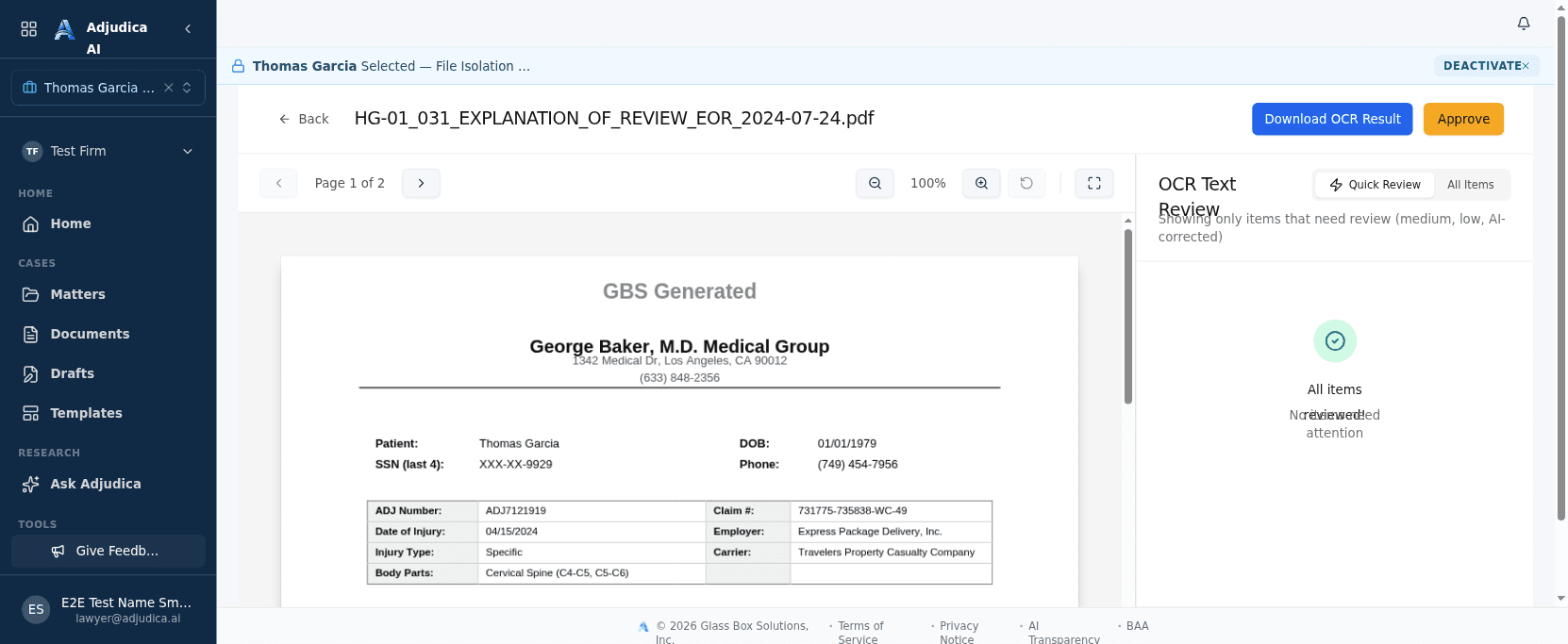
The source UI includes a side-by-side OCR review and correction step. Firms must confirm that their enabled workflow requires and records the intended review before relying on extracted text.

  • The reviewer compares the AI/OCR-extracted blocks against the original PDF and corrects anything wrong before approving.
  • Source configuration includes an explicit approval state and selected audit records; this release did not observe enforcement across runtime paths.
  • Shown here for a freshly-uploaded document awaiting OCR; once the pipeline runs, the corrected text populates this surface.

Augmented intelligence

Research, draft, and file, with the judgment kept human

Multi-model research, template and custom drafting, and AI-assisted form filling for California WC court forms. Outputs require attorney review. Direct/public OpenAI routing is prohibited for PHI; approved Azure OpenAI routing is a distinct fail-closed path.

Ask Adjudica: AI legal research
Research

Ask Adjudica: AI legal research

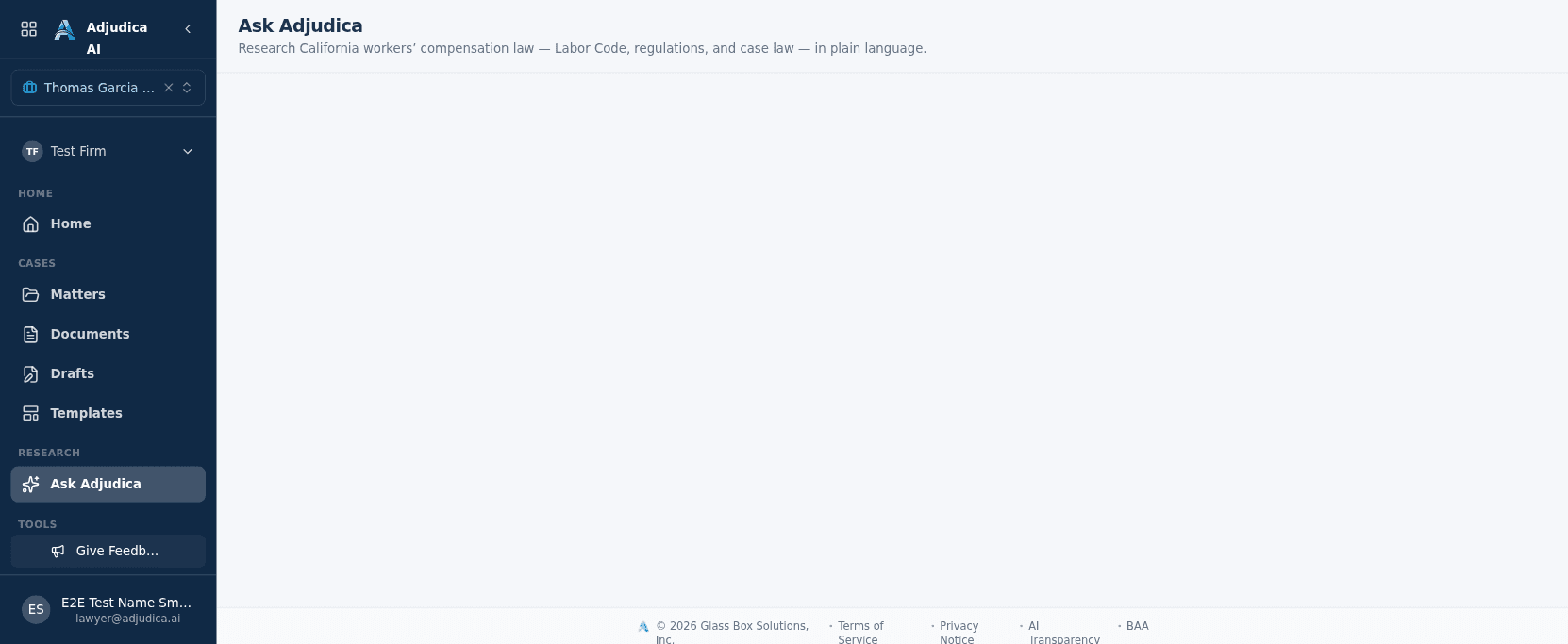
A California Workers’ Compensation research surface designed to provide available sources and review context. Answers, citations, and coverage may be incomplete or wrong.

  • Provider routing is workload- and environment-specific. Production and staging chat are configured for fail-closed Azure OpenAI, development chat for Vertex AI, and form filling for Anthropic. Direct/public OpenAI routing is prohibited for PHI.
  • Answers may include source links where available; counsel verifies the source, quotation, authority, and conclusion.
  • The foundation for deeper research capabilities on the way.
The templates library
Drafting

Templates

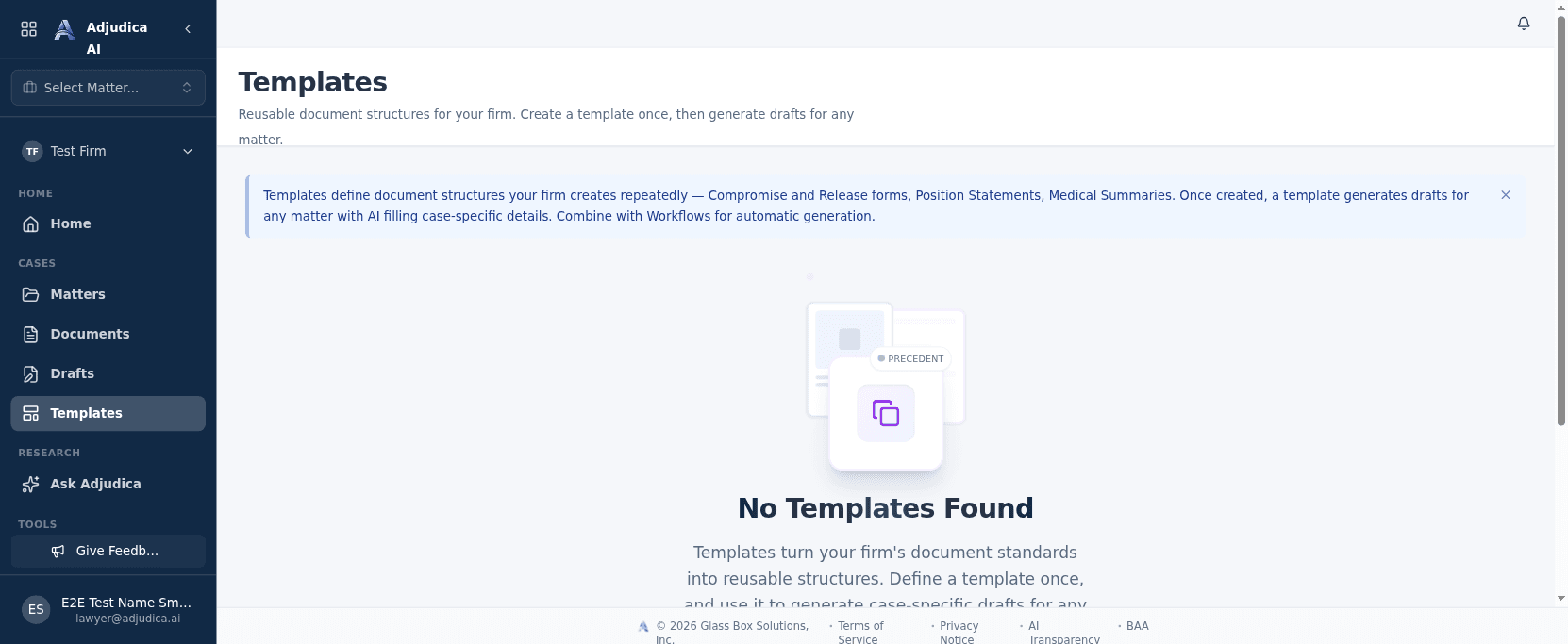
Reusable document templates power fast, consistent drafting across the firm. They are the starting point for AI-assisted document generation.

  • Templates feed the draft editor (TipTap), where AI helps fill and tailor documents to a specific matter.
  • Form filling is AI-powered and provider-aware, with field-level validation on both the client and server.
  • Drafts created here flow back into the matter and into the Drafts Pending Review queue on Home.
The template builder
Drafting · the skeleton

The template builder

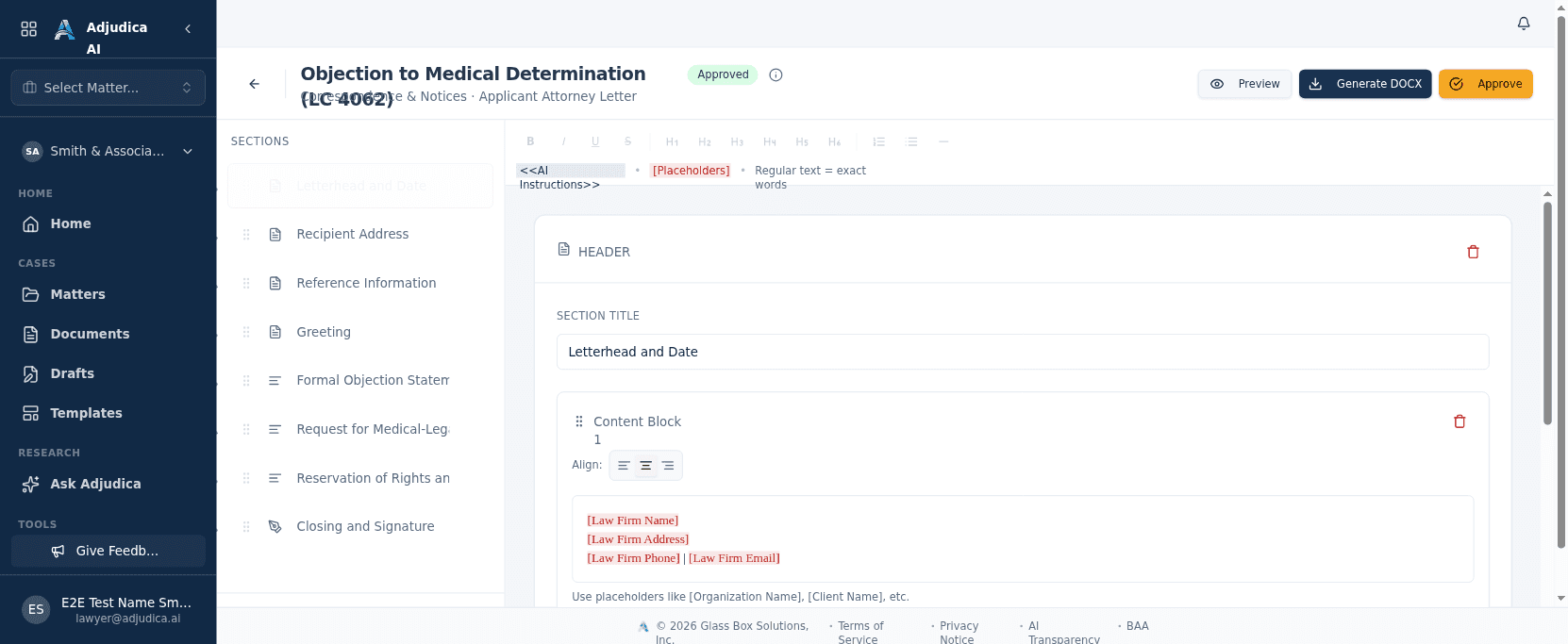
Source materials describe templates as reusable skeletons for selected proposed documents. The builder presents sections, fixed text, and placeholders; confirm current template coverage, generated output, authorization, and saved state.

  • Build sections in a rich-text editor (TipTap); placeholders like [Law Firm Name] and [Date] mark the raw inputs the AI resolves per matter.
  • A template can be AI-generated from sample documents, then edited and approved.
  • Approved templates feed the draft generator and the workflow automations.
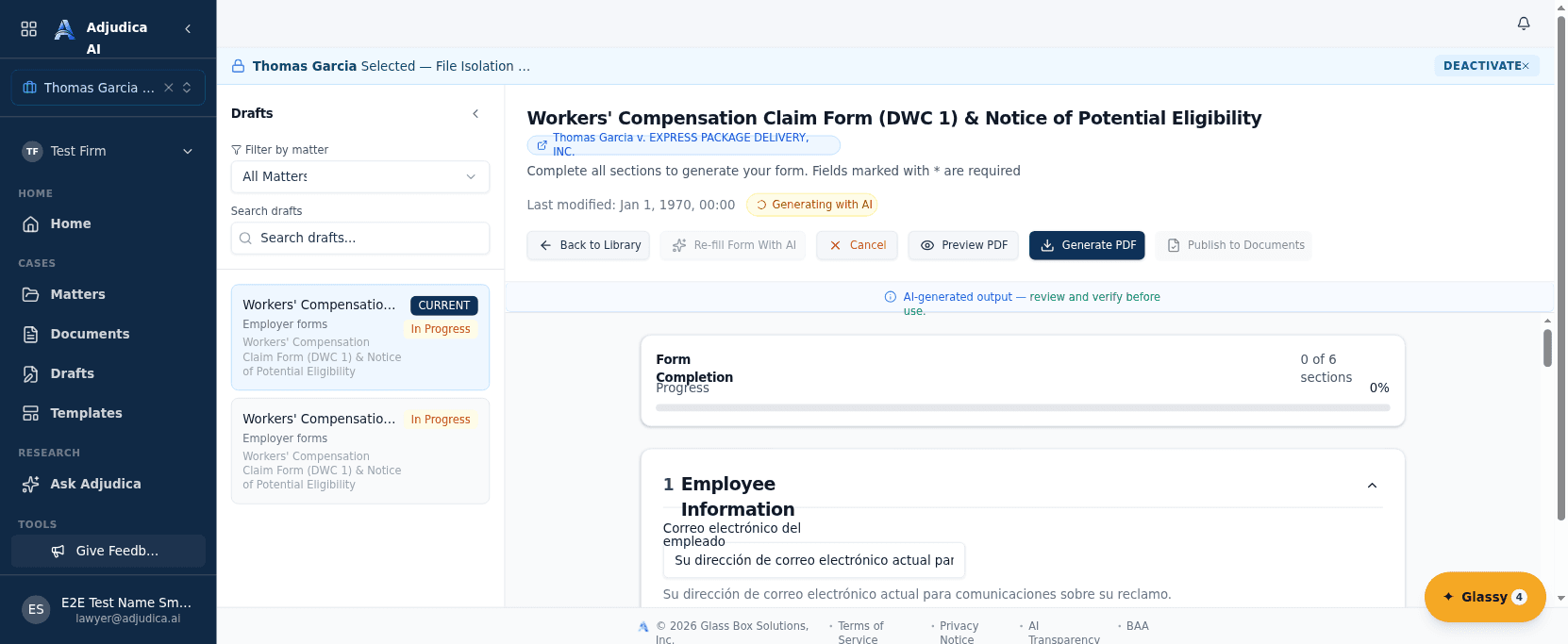
AI form-fill being invoked on a DWC-1 form
Drafting · the AI call

Configured AI form-fill demonstration

The source screenshot illustrates an attorney invoking proposed form values from a demonstration case record. Field accuracy, traceability, and current runtime availability are not guaranteed.

  • The source screenshot shows a synthetic DWC-1 workflow. Counsel must verify each proposed or blank field and the rendered form before use.
  • Form filling is pinned to the configured Anthropic route. Proposed entries require attorney review and source verification.
  • The source interface includes an “AI-generated. Verify before use” disclaimer; counsel remains responsible for verification and approval.
The drafts library
Work product

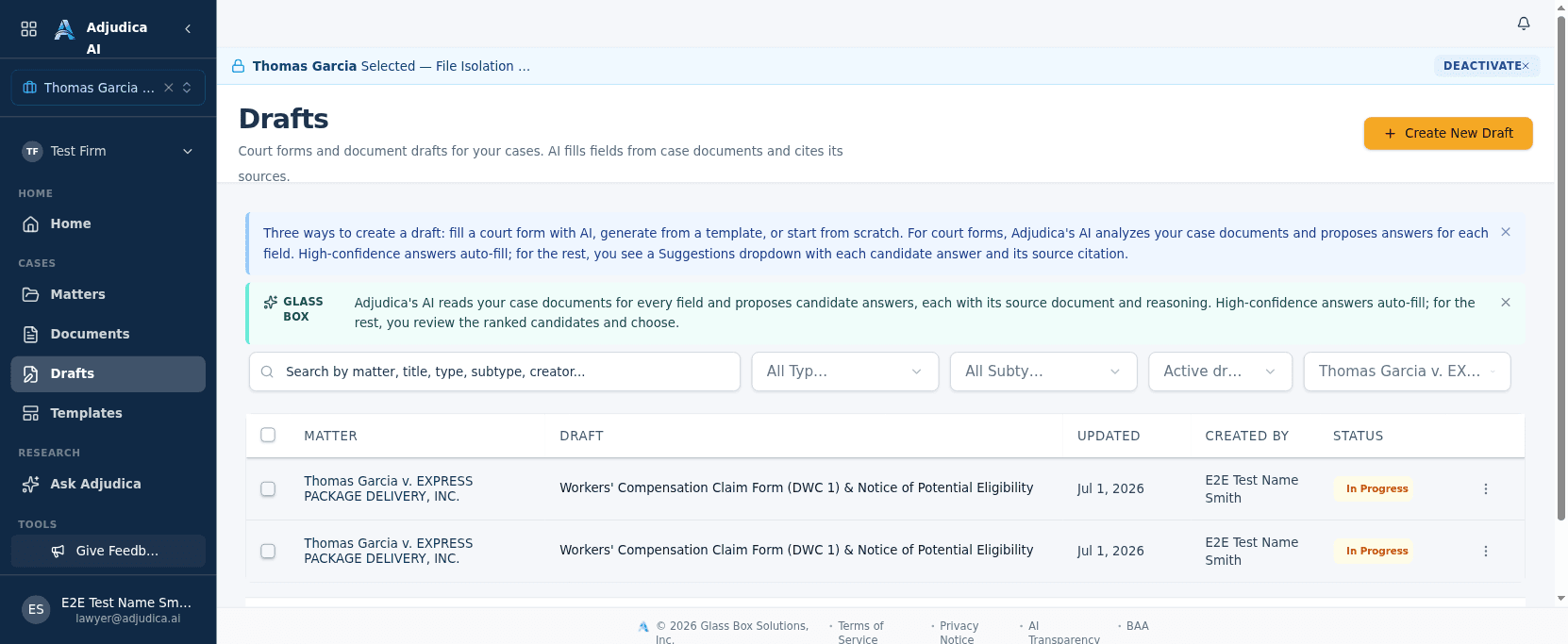
Drafts: configured document work in progress

The Drafts library is where AI-assisted work product lives: court forms, template drafts, and custom documents, each scoped to its matter and tracked from creation to review.

  • Filter by matter, type, subtype, status, and creator; the Active-drafts view keeps in-progress work front and center.
  • Source configuration supports proposed drafts and a pending-review queue. Counsel remains responsible for review and approval; this release did not observe every runtime path.
  • Source UI presents selected court-form, template-based, and custom-draft types in the Drafts library. Confirm type coverage, matter scope, permissions, and saved state.
Court filings and certification
Filing

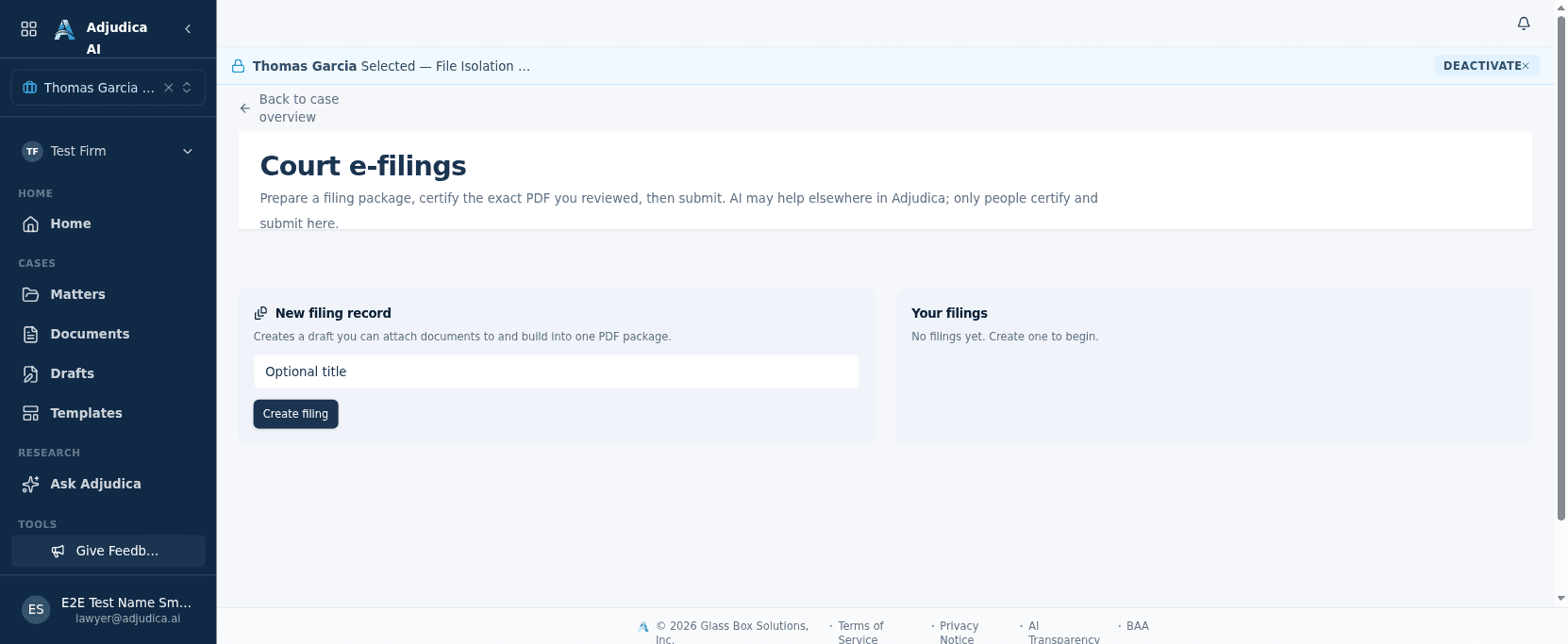
Court filings

When a document is ready to file, Adjudica assembles the package, binds the attorney’s certification to its exact contents, and prepares it for submission.

  • Source configuration supports selecting matter PDFs, building a package, and storing a SHA-256 hash for the resulting artifact. Confirm the enabled workflow and inspect the package before relying on it.
  • Certification is an explicit attorney step, with identity bound to the reviewed bytes, keeping a human accountable for what’s filed.
  • Source UI labels e-filing as a preview or planned integration. This release did not observe runtime availability, readiness, or a delivery date.

Do more, faster

Automate the predictable, track the rest

Turn routine drafting into rules, keep deadlines and tasks in view, and manage the people and vendors a practice coordinates with.

The workflows builder
Automation

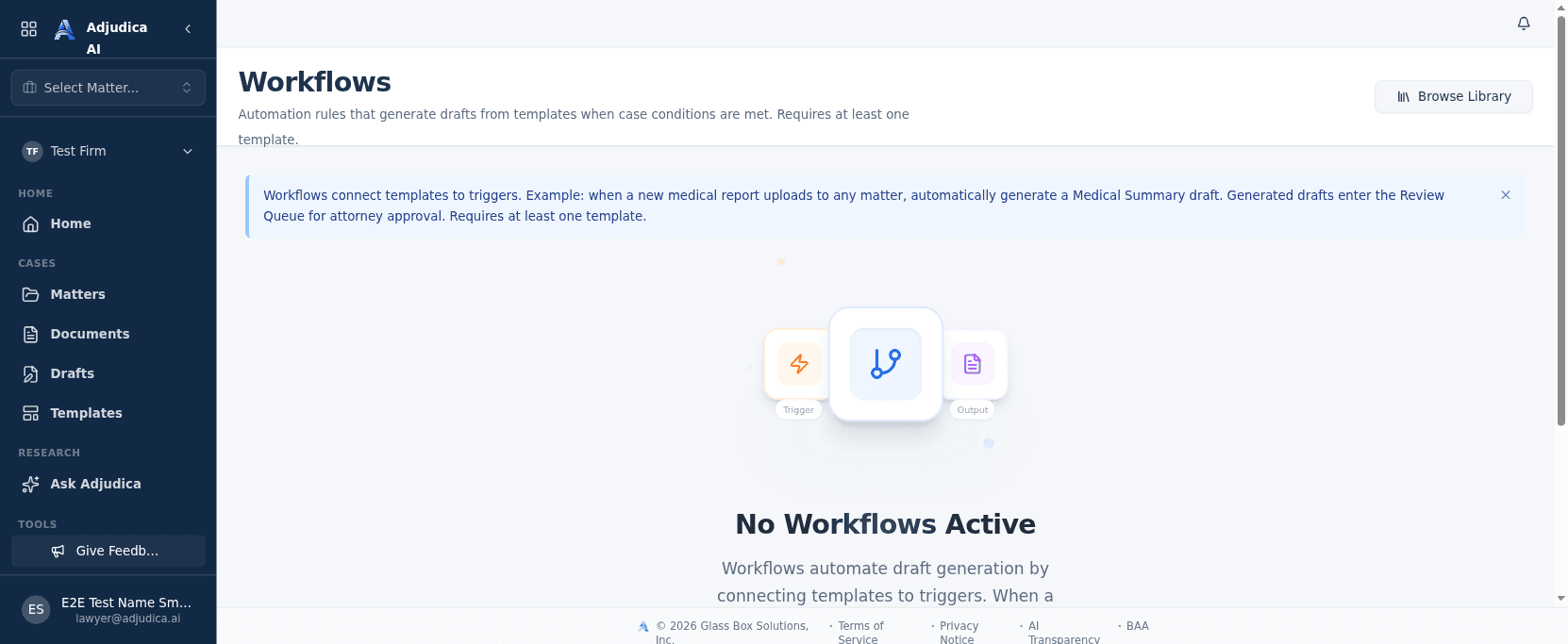
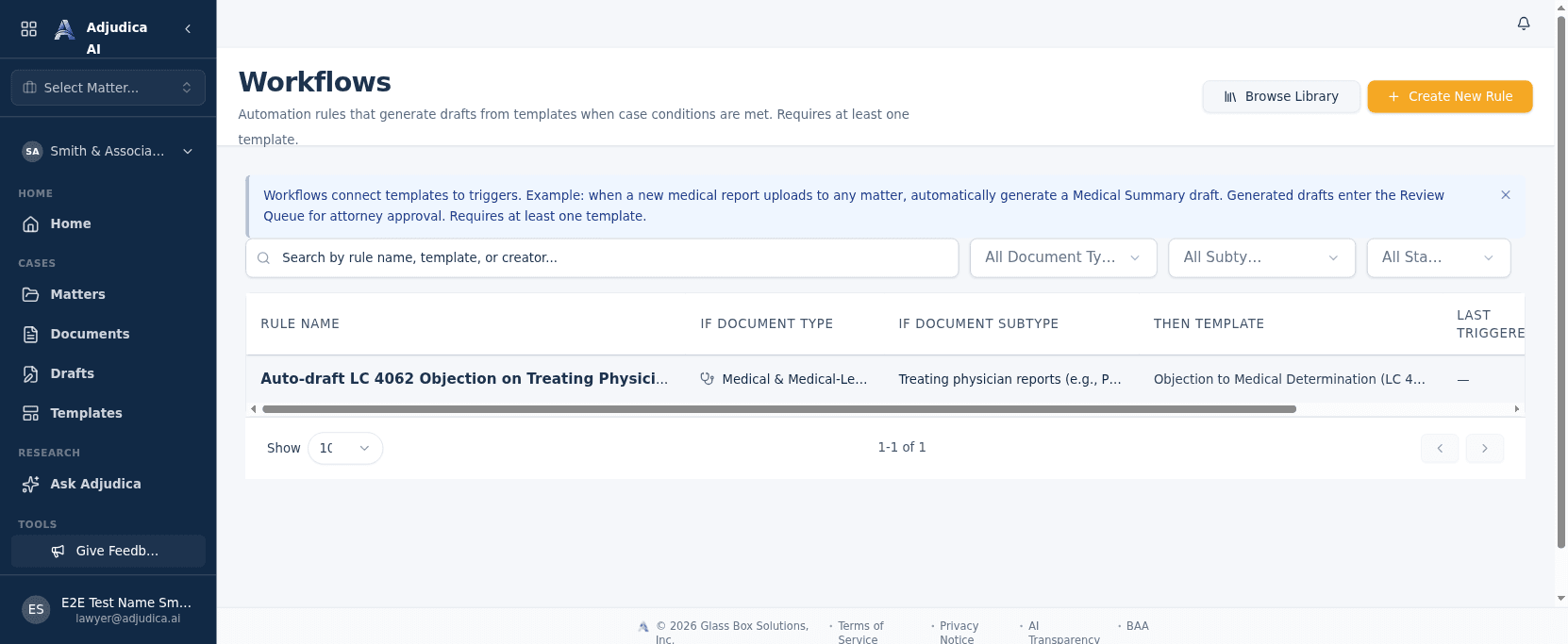
Workflows

Workflows connect templates to triggers, so routine drafting happens on its own. The platform states the rule in plain English: when a case condition is met, generate a draft and route it for human approval.

  • Example configuration shown in source UI, not asserted active: a medical-report approval event may propose creating a Medical Summary draft. Confirm the trigger, scope, review state, failure behavior, and saved result.
  • Source configuration routes generated drafts to review states. Confirm that the enabled workflow prevents unapproved transmission and records attorney approval.
  • A workflow requires at least one template to fire, which is why Templates and Workflows are designed as a pair.
The common workflow library
Automation · library

The Common Workflow Library

A catalog of pre-built California Workers’ Comp workflows a firm can configure for routine drafting. Each workflow produces attorney-reviewable work product; it is not an autopilot.

  • Each entry is a ready-made rule (e.g. auto-generate a Medical Summary when a medical report is approved).
  • Deploying instantiates the rule for your firm; only admins can deploy or retract.
  • Pairs with the Workflows builder, where you tailor or author rules from scratch.
The worklist
Getting things done

Worklist

A consolidated list of what’s on your plate across the whole caseload. This is the task layer that sits beside the ranked Home view.

  • Source configuration can consolidate selected matter tasks into a worklist. Coverage and deadline accuracy are not guaranteed; counsel verifies against the source record and calendar.
  • Capability-gated under Tools, like the rest of the workflow surfaces.
  • Complements Home: Home tells you which cases need attention; Worklist tells you the specific tasks.
The calendar
Deadlines

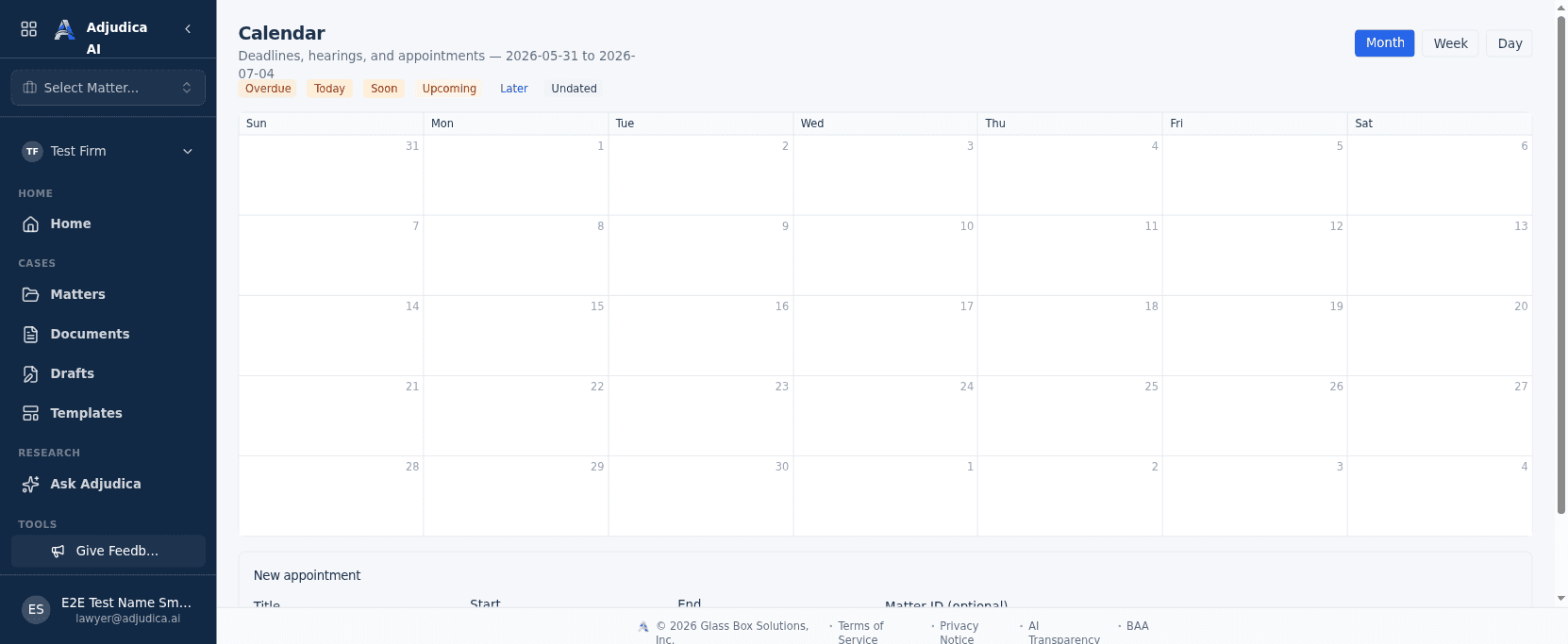
Calendar

The time view of the practice: appointments, hearings, and the statutory deadlines that drive a Workers’ Comp matter.

  • Surfaces the same SOL (statute-of-limitations) deadlines that flag on Home, in a date-oriented layout.
  • Visible only to roles with calendar capability. The nav adapts to permissions.
  • Keeps time-critical WC obligations from falling through the cracks.
Firm reports and analytics
Insight

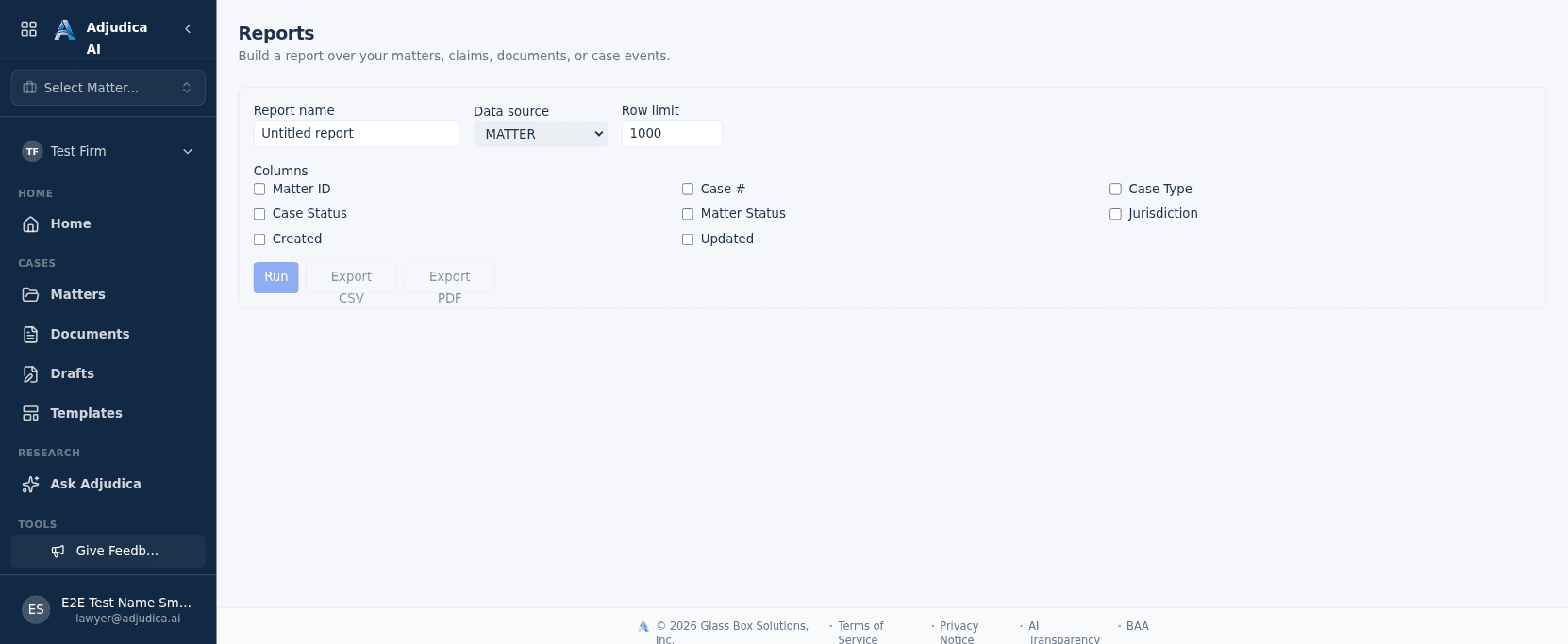
Reports

Firm-level analytics: the metrics a managing attorney uses to see how the practice is performing.

  • Aggregates caseload, pipeline, and throughput into reportable views.
  • Gated to roles with reporting capability (e.g. admins), so line attorneys see a leaner menu.
  • Turns the day-to-day activity captured across the platform into decisions.
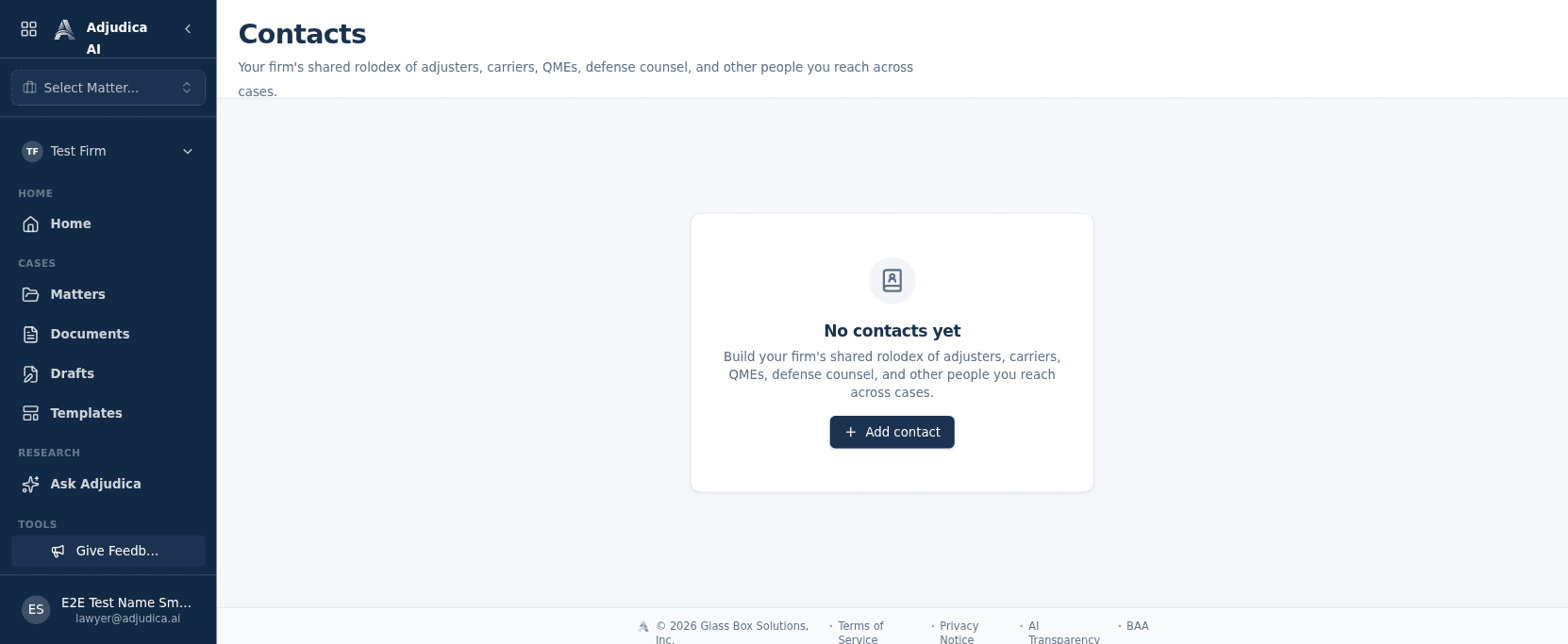
The firm contacts directory
The firm rolodexNew

Contacts

A firm-wide contacts directory for the people and organizations a WC practice deals with, in one searchable place.

  • A recently shipped surface in the firm’s toolkit.
  • Lives under Tools, capability-gated like the rest of the nav so the menu only ever shows what your role can use.
  • Backed by the contacts API, ready to wire into matters, drafts, and correspondence.
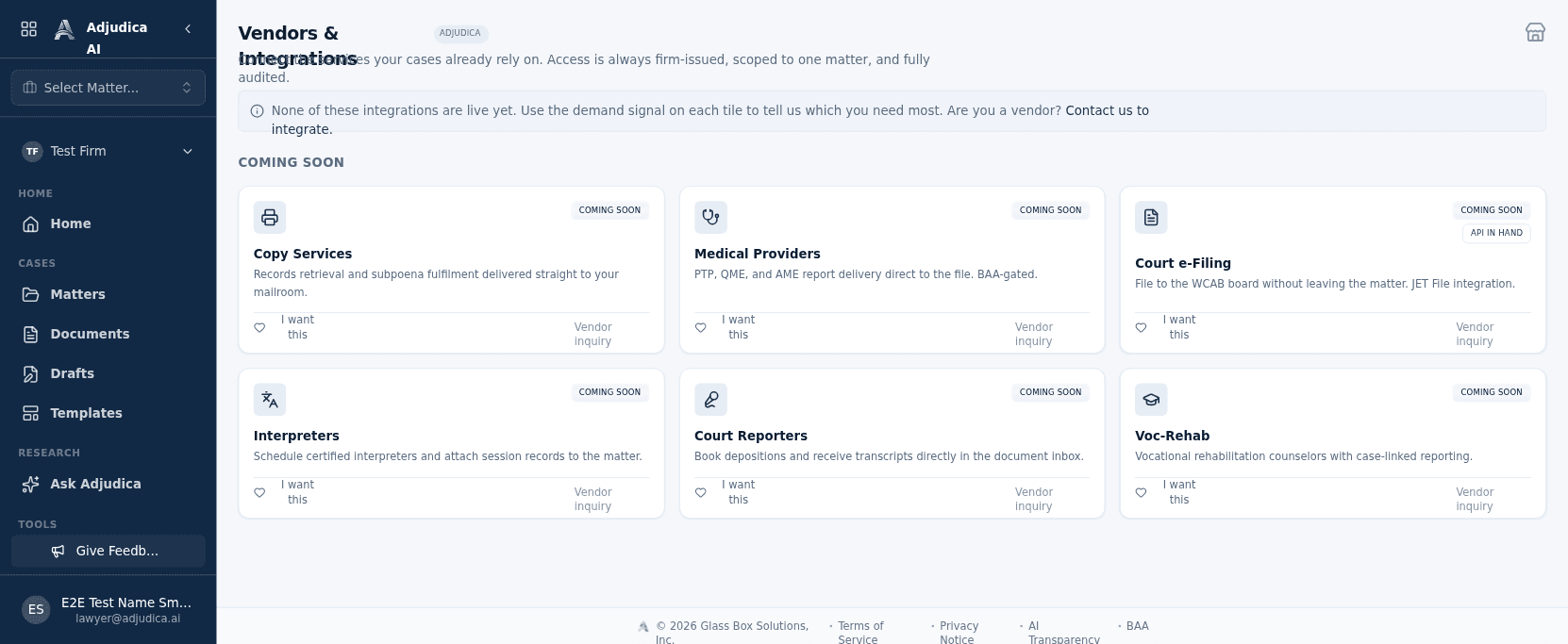
The vendors surface
CoordinationNew

Vendors

A vendor marketplace and management surface for copy services, providers, and court e-filing partners a firm coordinates with.

  • The source screenshot labels scoped vendor access as a preview. Current enablement, audit coverage, and access enforcement were not observed.
  • Source UI labels court e-filing as a preview or planned integration. Runtime availability, readiness, and delivery timing were not observed.
  • Source UI includes planned and unavailable-state labels; this release did not validate every label against runtime capability.

Run the firm

Administration, access control, and integrations

Members and roles, billing, per-matter access boundaries, origination scoring, and the MerusCase import that migrates a firm’s existing cases onto Adjudica.

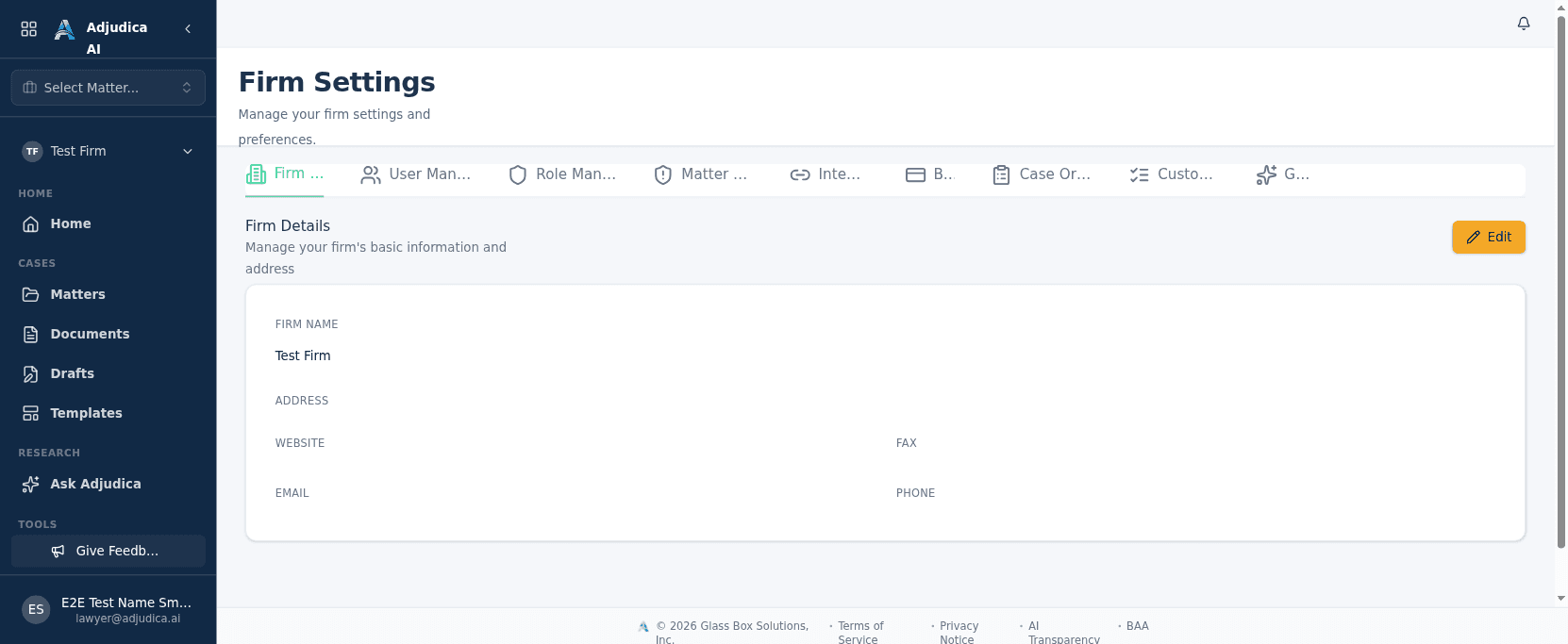
Firm settings
Administration

Settings

Firm configuration for members, integrations, and the controls that tailor Adjudica to how a practice runs.

  • Manage firm members and their roles; role determines capabilities across the whole app.
  • Integrations include MerusCase import to migrate existing cases in, plus the document/OCR pipeline configuration.
  • Firm settings are where the org-level wiring lives, the boring-but-essential foundation under everything above.
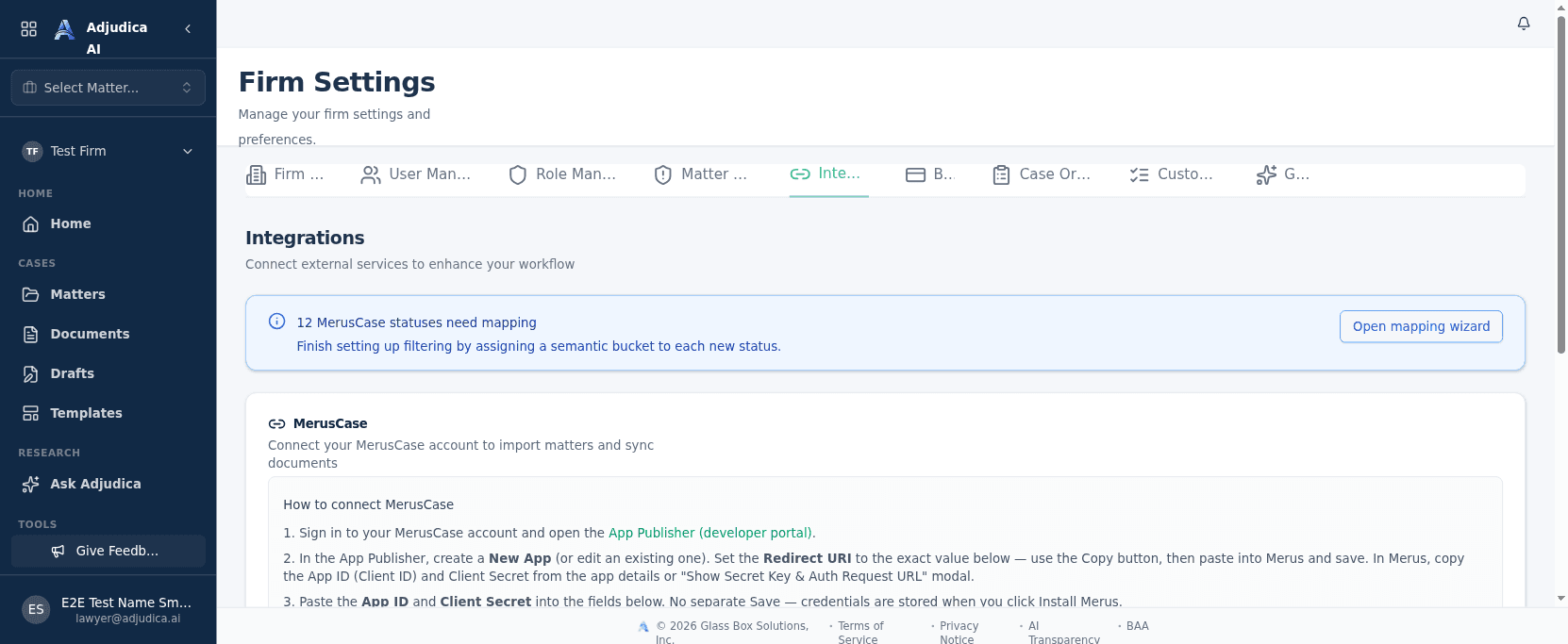
Integrations settings
Settings · Integrations

Integrations

Bring a firm’s existing data into Adjudica. MerusCase import for migrating cases off a legacy system is first-class here.

  • Connect MerusCase via OAuth to import existing cases; per-firm credentials, admin-gated.
  • Drives the case and document import that moves a firm onto Adjudica.
  • The integration surface is where external systems plug into the platform.
User management
Settings · Team

User Management

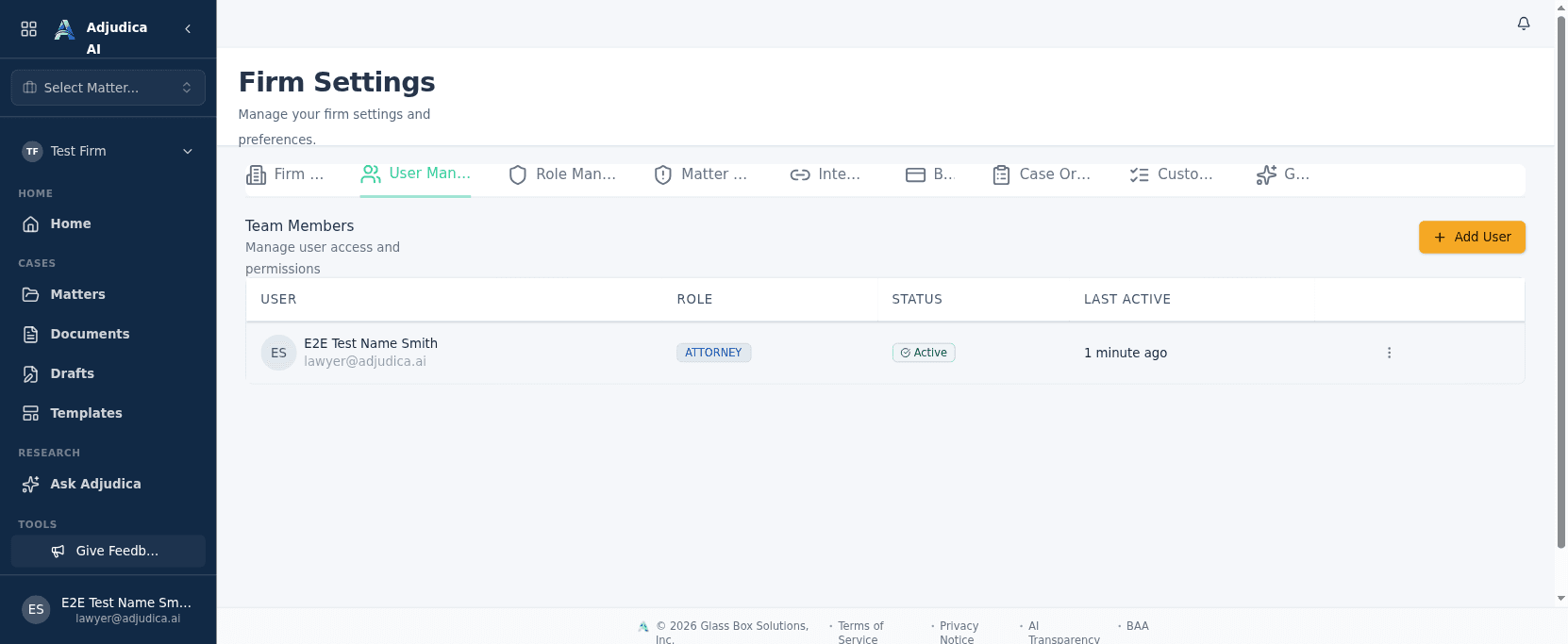
Manage who’s on the team and what they can do. Roles here drive capabilities across the entire product.

  • Invite, resend, and remove members; see pending invitations. Access is admin-gated.
  • Source configuration maps member roles to UI and server capabilities. Runtime authorization was not independently tested for this release.
  • The foundation of multi-user, multi-role firm operation.
Billing settings
Settings · Billing

Billing

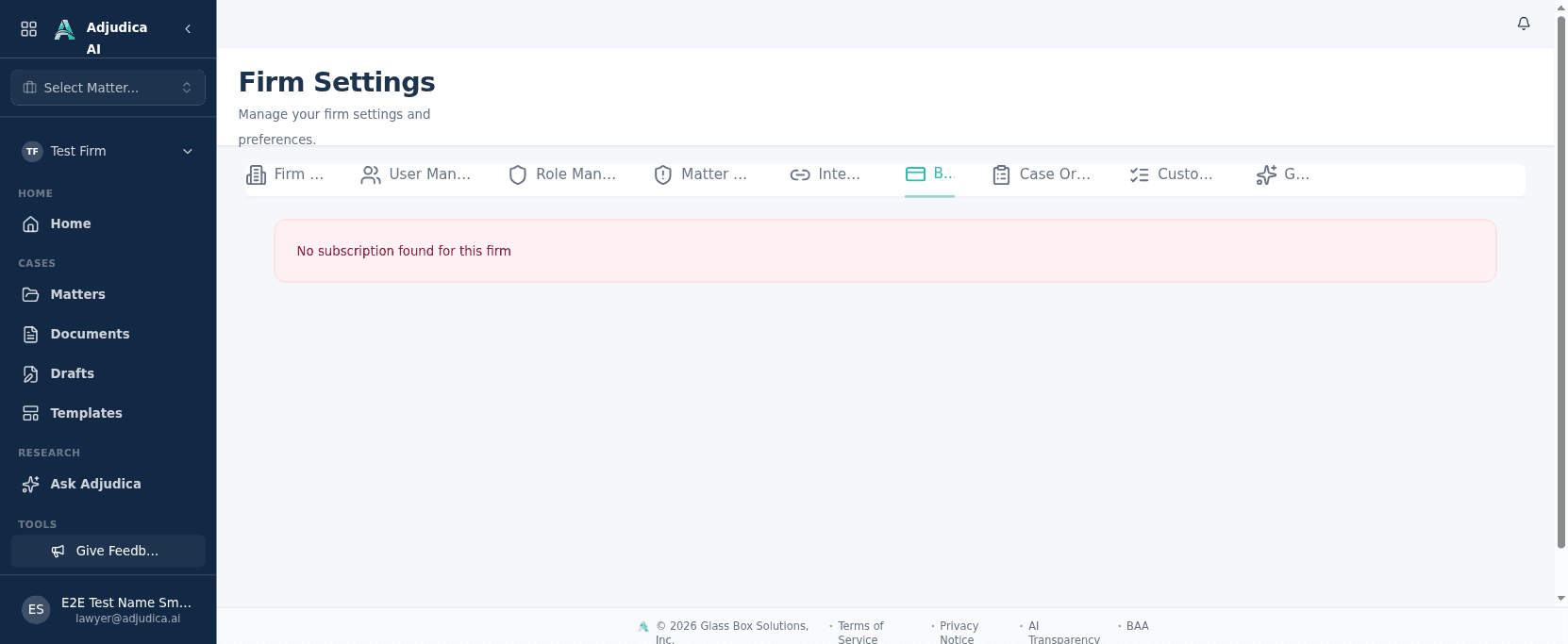
Source configuration includes plan, usage, invoice, and matter-cap surfaces. Confirm current commercial and enforcement behavior in the customer environment.

  • Source UI includes tier, usage, trial, and invoice fields. This release did not observe their completeness or current commercial accuracy.
  • Checkout and the billing portal run through Stripe; writes are admin-only.
  • Usage gating (matter caps, overage) is enforced server-side, not just displayed.
Role management
Settings · Roles

Role Management

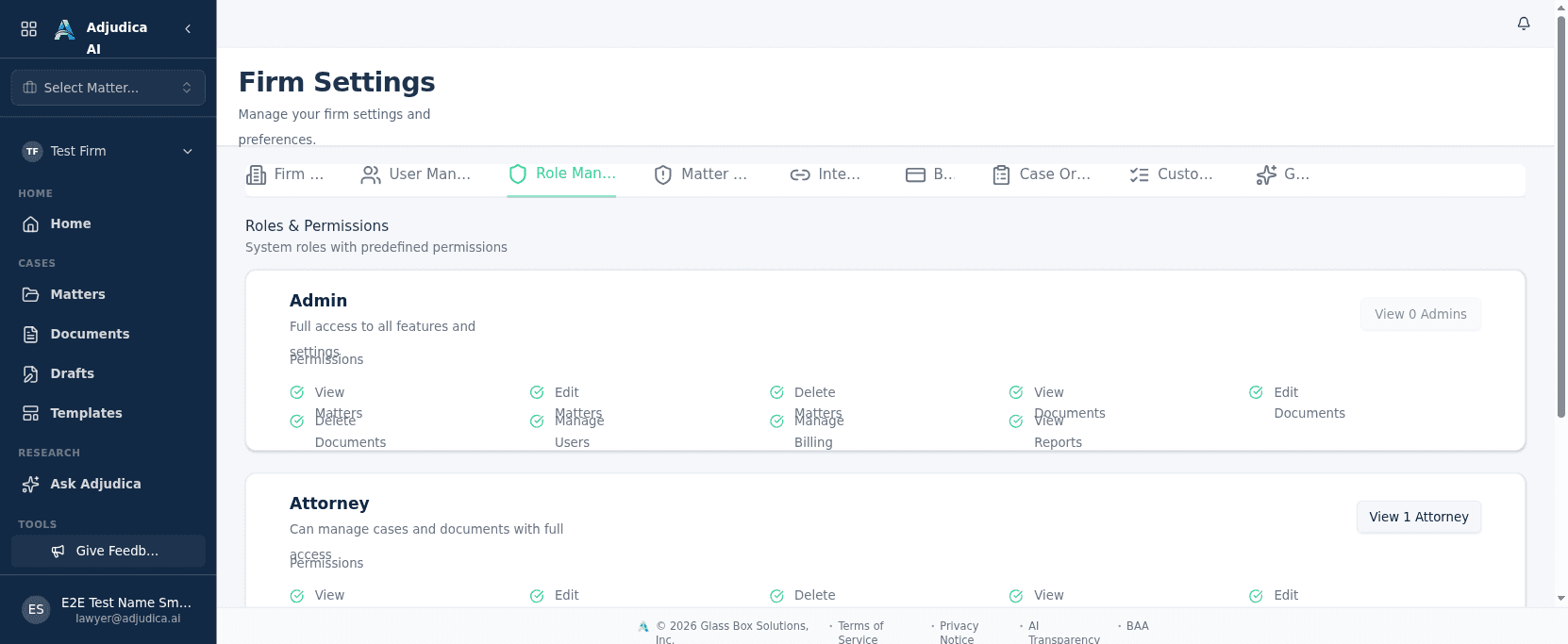
A transparent view of the firm’s roles, the permissions each carries, and who holds them.

  • Read-only map of roles → permissions → members, so access is legible at a glance.
  • Capabilities are membership-driven and enforced across the app.
  • Admin-gated, like the rest of the firm-administration surfaces.
Per-matter access deny-list
Settings · Access control

Matter Deny-List

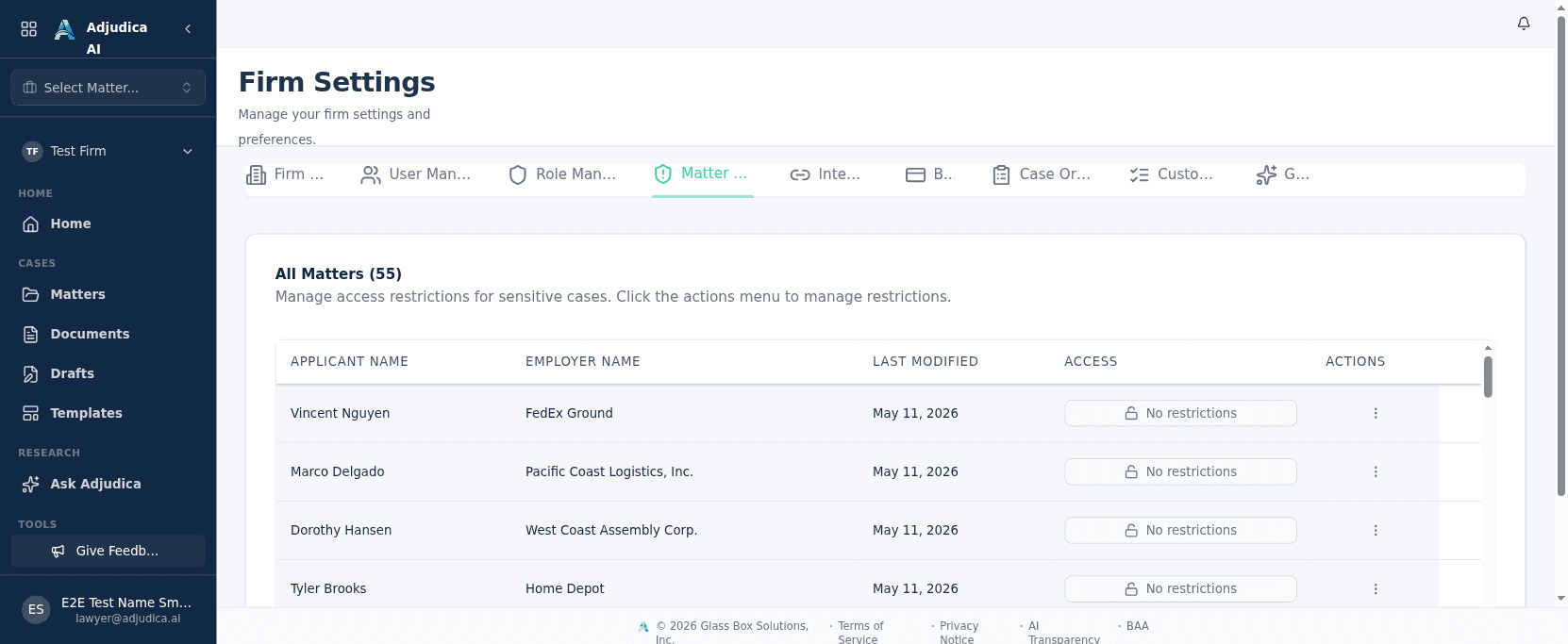
Fine-grained, per-matter access control: restrict which members, and therefore which AI context, can touch a sensitive case.

  • Source UI describes adding or removing per-matter restrictions for selected members and excluding some roles or self-actions. Confirm effective permissions, admin and self restrictions, runtime enforcement, and saved state.
  • Controls both human access and the AI’s view of a matter. This creates a real data-isolation boundary.
  • Part of the platform’s defense-in-depth around claimant PHI.
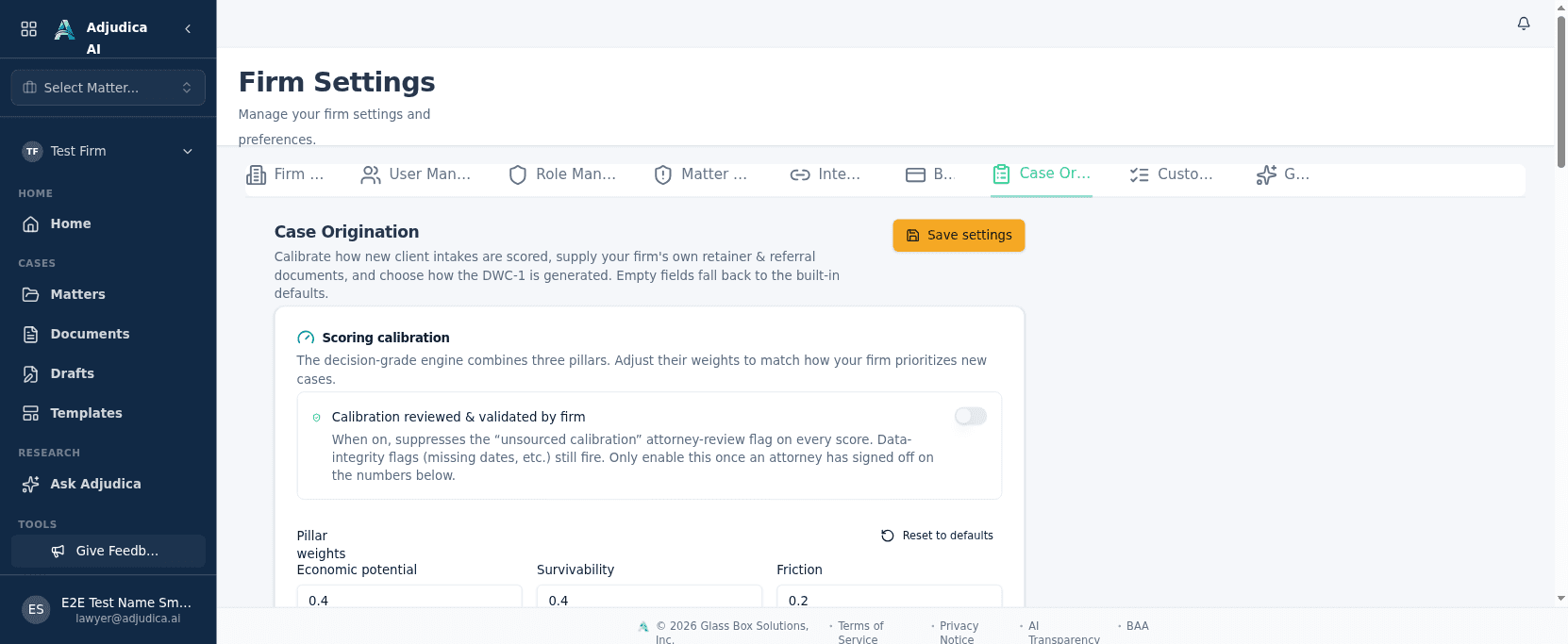
Case origination configuration
Settings · Origination

Case Origination config

Configure how new business is scored and intaken: the weights and templates behind the firm’s origination engine.

  • Tune scoring-pillar weights, retainer/referral templates, and DWC-1 intake mode.
  • Feeds the origination/intake flow (conflict checks, document generation, case scoring).
  • Admin-configured; shapes how prospective matters are evaluated.
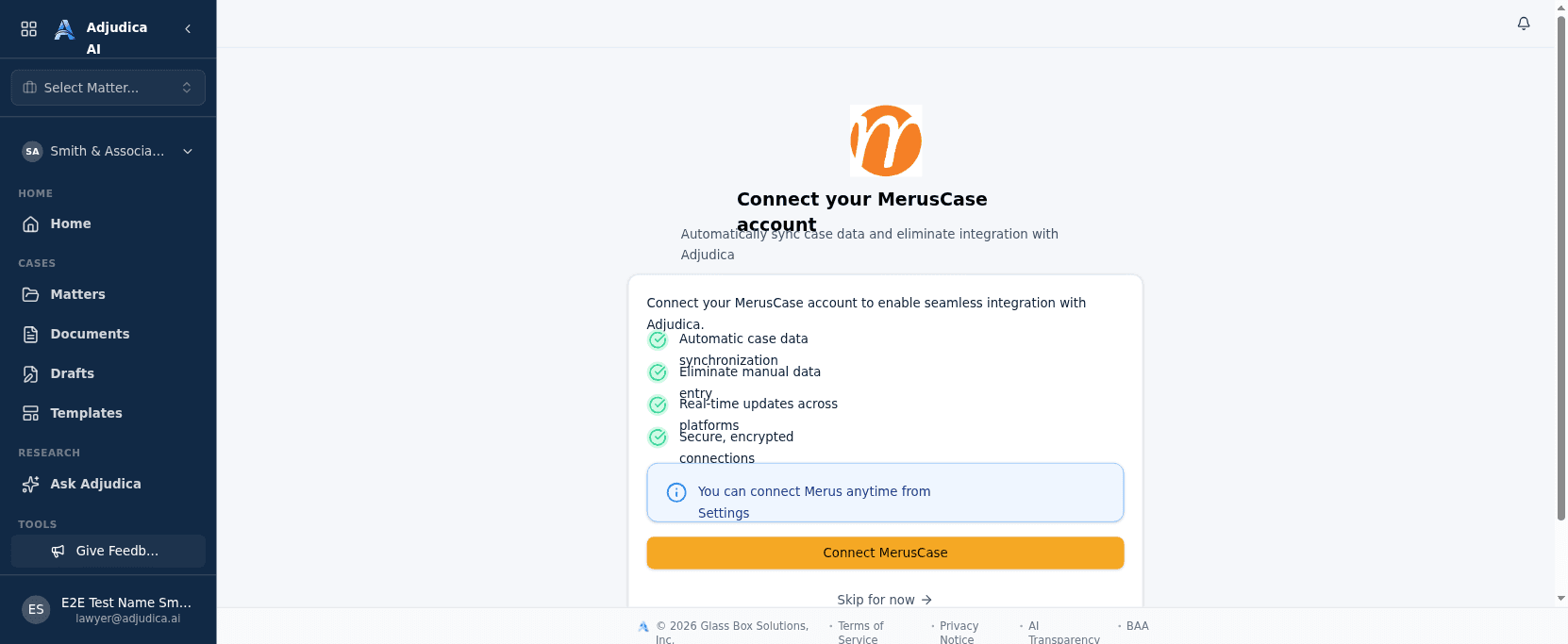
MerusCase connection setup
Integration · MerusCase

MerusCase: Connect

The onboarding step that links a firm’s existing MerusCase account so its cases and documents migrate into Adjudica.

  • Prompts the firm to connect MerusCase (or skip for now).
  • Connection is via OAuth; tokens are stored encrypted, per-firm.
  • Once connected, existing cases and claimant documents import into Adjudica.

Personal settings

Your account, secured

Individual profile and account-security controls, including two-factor and password management, protect access to a platform holding protected health information.

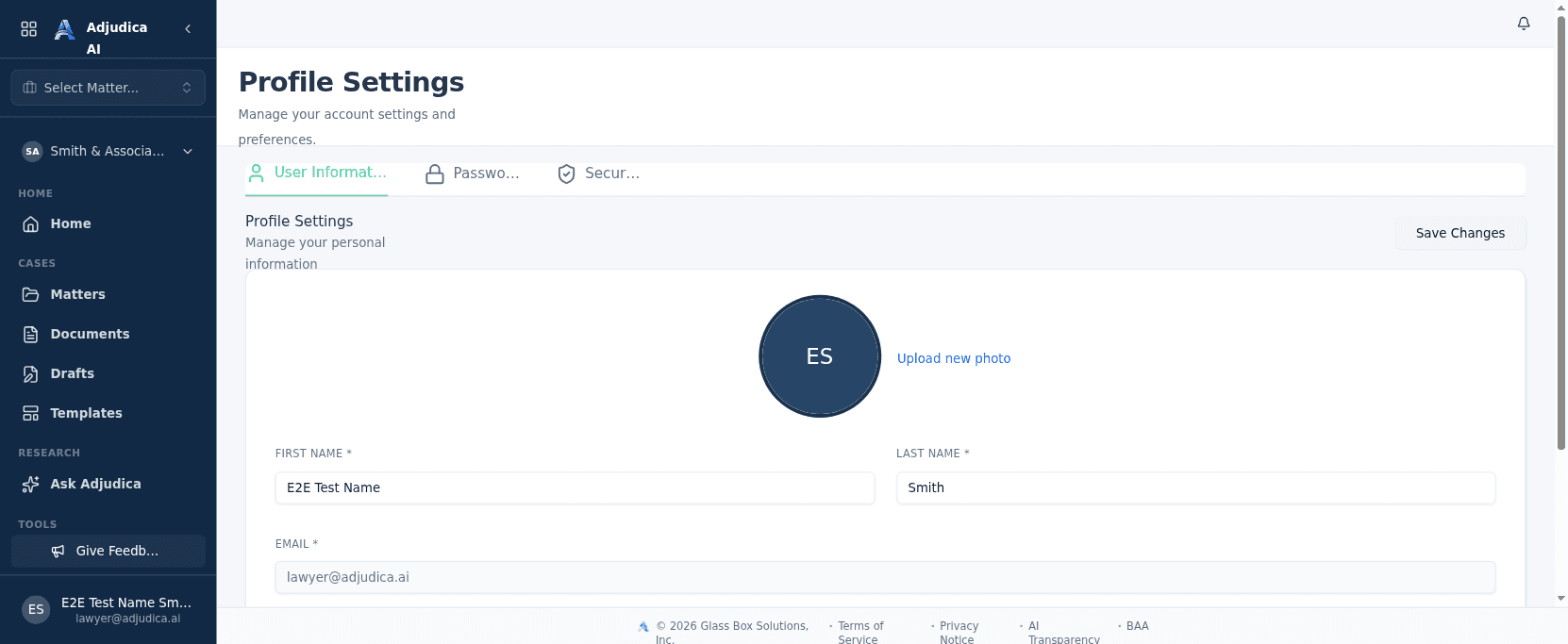
User profile settings
Your account

Your profile

Personal settings for each user: name, contact details, and the California Bar number that identifies an attorney on filings.

  • Edit personal info; email is read-only (it’s the account identity).
  • The Bar number flows into generated documents and filings.
  • Separate from firm settings, this is the individual’s account.
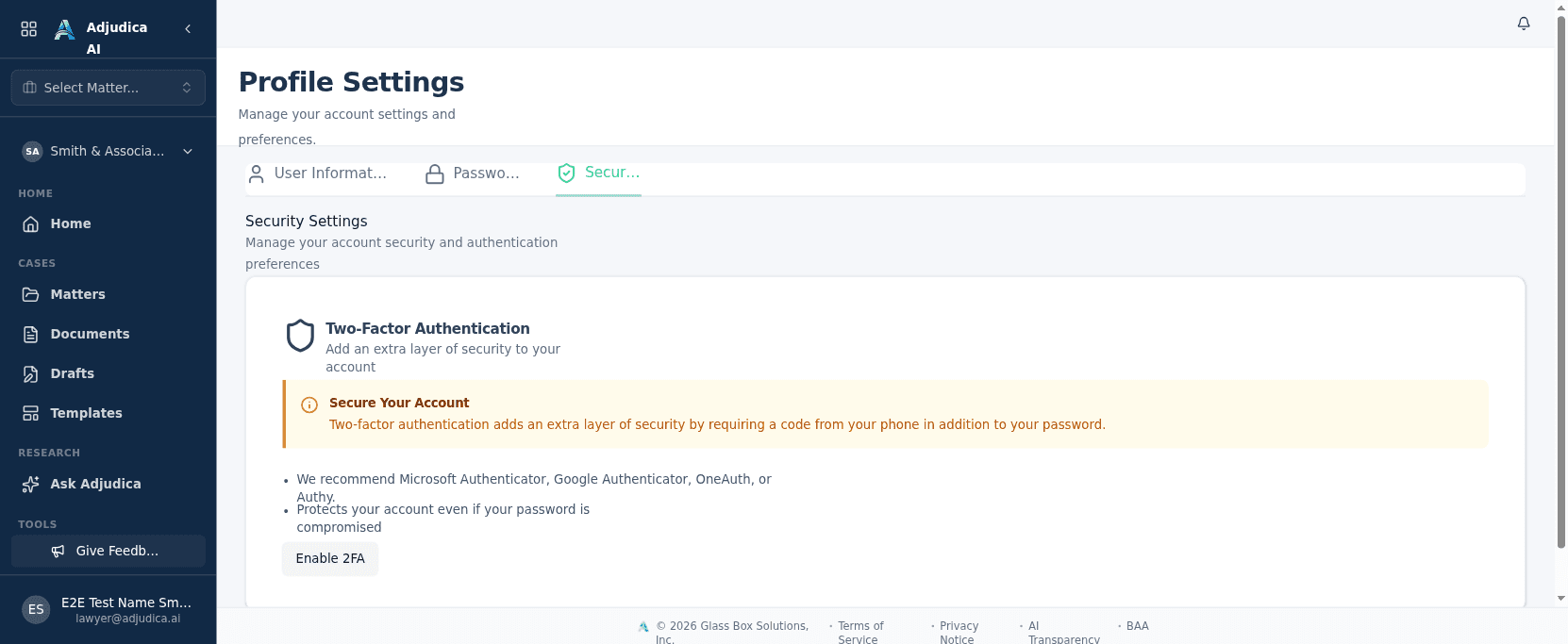
Security and two-factor settings
Your account · Security

Security & 2FA

Account-security controls include password changes and two-factor authentication, enforced for the most privileged roles.

  • Enable TOTP two-factor with backup codes; required for Super Admins.
  • Change password with current-password verification.
  • Protects access to a platform that holds protected health information.

Augmented Intelligence, not a black box

Adjudica does the homework — the intake, the extraction, the first drafts — so attorneys can make the decisions. Generated outputs require attorney review and may be incomplete or wrong.