The AI does the homework. You make the decisions.
Adjudica is an AI-assisted case-work platform for California Workers' Compensation. Configured workflows can process uploaded documents, propose form values, build draft timelines and letters, and answer questions with source links where available. These outputs may be incomplete or wrong and require attorney verification against the record. This guide describes source configuration, not observed-live availability in a particular environment.
What Adjudica Does
Source materials position Adjudica as an intended case-management workspace for matters, documents, drafts, deadlines, and assisted work product. This release did not observe a customer cutover or establish system-of-record completeness; the firm must reconcile migration and designate its controlling record.
The important part: The AI proposes; the attorney reviews, corrects, and decides. Firms must confirm that enabled approval and filing workflows enforce their required sign-off. Treat generated material as an unverified draft, not legal advice or a substitute for professional judgment.
Source-linked review. Some workflows provide document or legal-source links, explanation context, and confidence cues. Availability, completeness, and accuracy vary. Follow the available links and verify the proposed answer against the complete record.
Security and PHI. Source configuration describes encryption, tenant scoping, and fail-closed provider routing. Production/staging chat is configured for BAA-covered Azure OpenAI, development chat for Vertex AI, form filling for Anthropic, and OCR for Google Document AI; direct/public OpenAI is prohibited for PHI. These are configured-enabled facts, not observed-live control or contract verification. Confirm the customer-specific BAA, provider terms, enabled route, and runtime controls before PHI use.
Quick Reference
The whole platform in a dozen rows.
| I want to... | Where |
|---|---|
| Upload documents | Mailroom → drag and drop |
| Open a new case | Matters → "New Matter" (or drop in the pleadings and let the AI build it) |
| Fill a court form with AI | Matter → Drafts → "Create Draft" → select a DWC form |
| Generate a demand letter | Matter → Drafts → "Create Draft" → "From Template" |
| Write a custom document | Matter → Drafts → "Create Draft" → "Custom Draft" |
| Ask about my case | Click the sparkles icon on any matter page |
| See the case timeline | Timeline → select your matter |
| Build a reusable template | Templates → "Create New Template" |
| Automate a workflow | Workflows → "Create Workflow" |
| See what the AI knows about a case | Matter → Case Intelligence |
| Migrate a case from MerusCase | Settings → Integrations → Connect MerusCase, then "Import" on a matter |
| Invite a team member | Settings → Team Members |
| Turn on two-factor auth | Profile → Security |
Read on for the details, or just start. Hover over any sidebar item for a tooltip explaining what it does.
Logging In & Navigation
Logging in
Go to app.adjudica.ai and enter your email and password. Authentication is session-based, with org and team management built in.
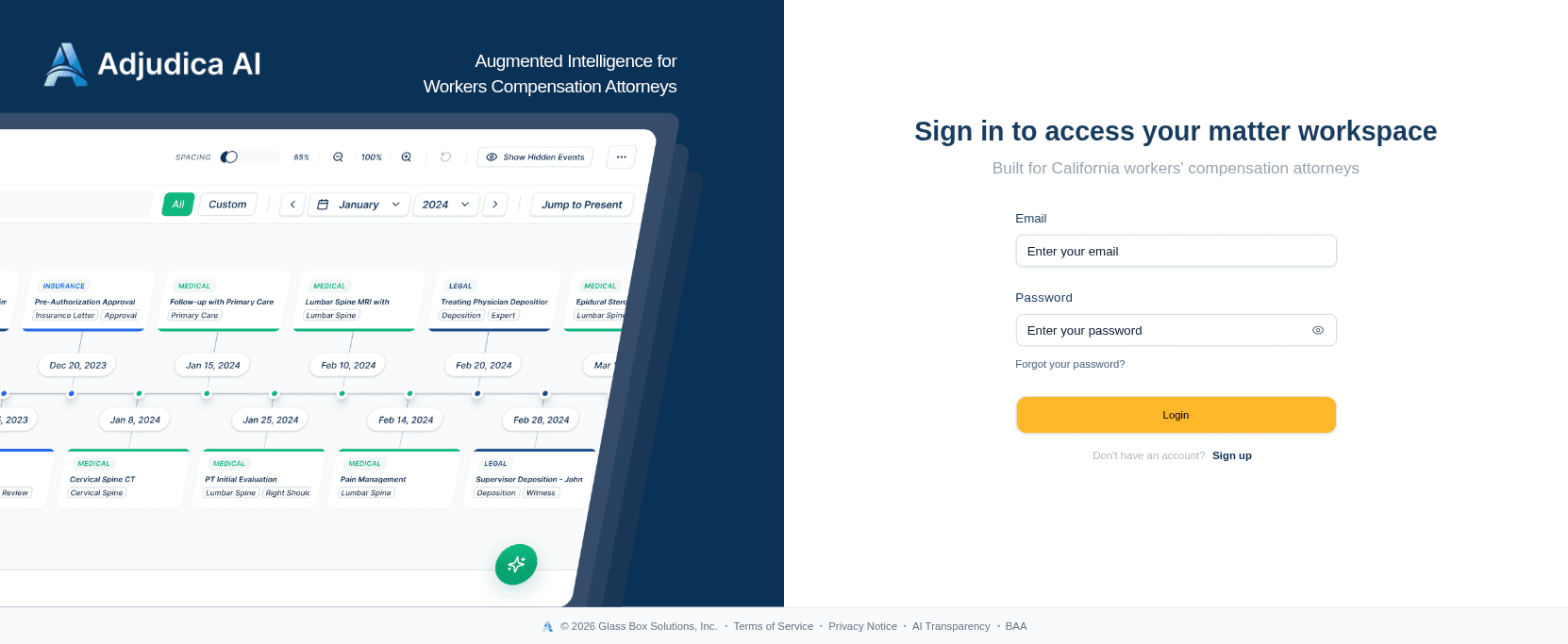
- First time, with an invitation? Click the link in your invitation email. Your email is pre-filled. Set a password and you're in.
- First person from your firm? Source configuration describes firm setup, team invitations, and a BAA-acknowledgement workflow. Confirm current availability and executed terms before PHI use.
- Forgot your password? Source UI includes "Forgot Password." Expiration, delivery, and recovery behavior depend on the enabled environment and were not observed.
- Email verification. New accounts require email verification before you can access the platform.
The source layout includes Terms, Privacy, AI Transparency, and BAA-acknowledgement links. Their presence does not establish legal approval, execution, or compliance.
The sidebar
The left sidebar is your home base, and it adapts to your role. It only ever shows the surfaces your permissions allow.
| Sidebar item | What it does |
|---|---|
| Home | Your ranked caseload: what needs attention right now |
| Mailroom | Upload and process incoming documents |
| Documents | Browse processed case files available to your firm |
| Drafts | Court forms, template drafts, and custom documents |
| Timeline | Chronological case event history |
| Matters | All your cases in one place |
| Templates | Reusable document templates |
| Workflows | Automation rules |
| Tools | Worklist, Calendar, Reports, Contacts, and Vendors |
| Settings | Firm details, team, integrations (Admin only) |
Collapse the sidebar with the toggle at the top when you need more room. Your profile lives at the bottom. Click it to manage your name, password, security settings, and to log out.
Home: Your Ranked Caseload
Source UI describes a dashboard that can rank selected matters and tasks. Coverage and priority accuracy were not observed; verify against the complete record and firm calendar.
- Four KPI tiles at a glance: Active Cases, Need Attention Now, Drafts Pending Review, and Settlement Pipeline value.
- The Hot List surfaces the matters that need you most, each with a plain-language reason it's ranked where it is. There are no mystery scores.
- Today / This Week is a source-observed deadline surface. It may omit or misstate dates and does not replace the firm's authoritative docketing process.
- The Inbox routes you straight to drafts awaiting your review and to mailroom documents waiting to be classified.
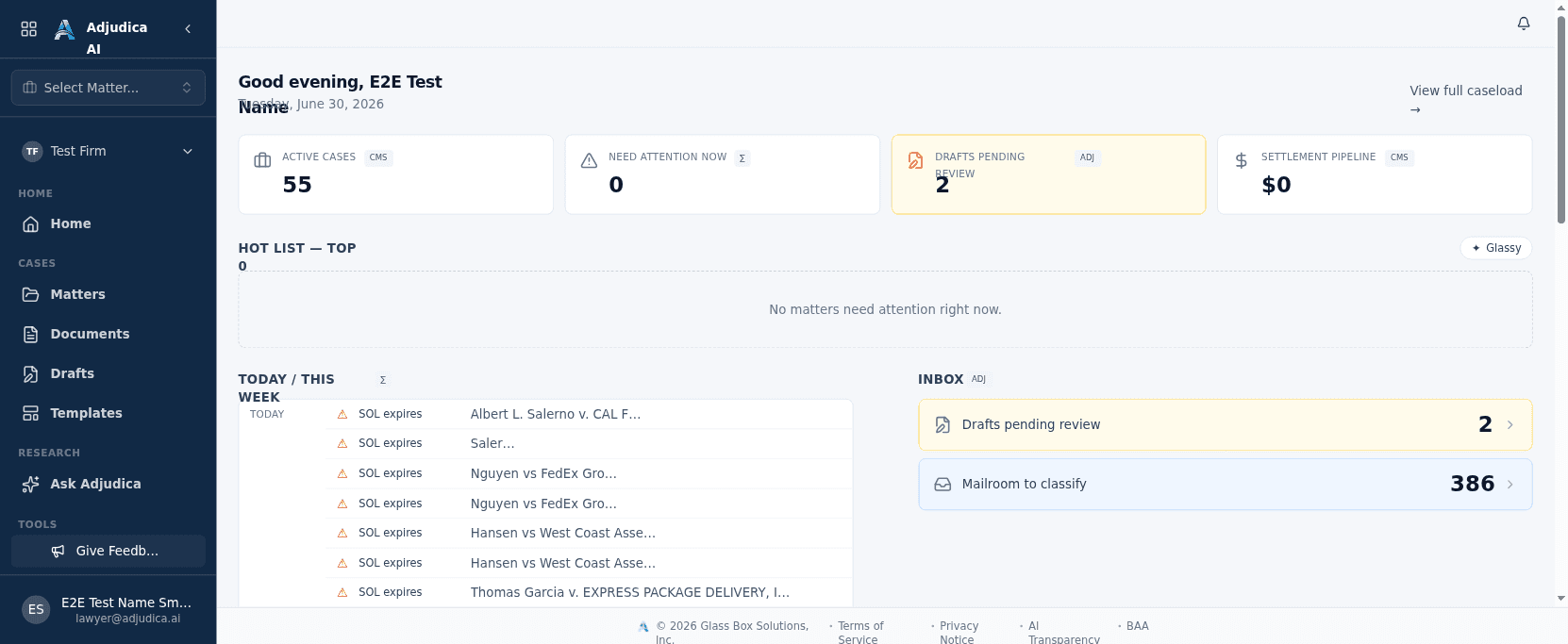
The dashboard isn't trying to show you everything. It shows you what needs your attention right now. If nothing's on it, your inbox is clear.
The activity panel
The activity panel shows what's happening in the background:
- Blue: the system is working on something (OCR, an AI form-fill, building a timeline).
- Green: a task finished successfully.
- Red: something needs your attention (a document failed processing, an AI task hit an error).
Click any activity item to jump straight to the relevant page.
Matters
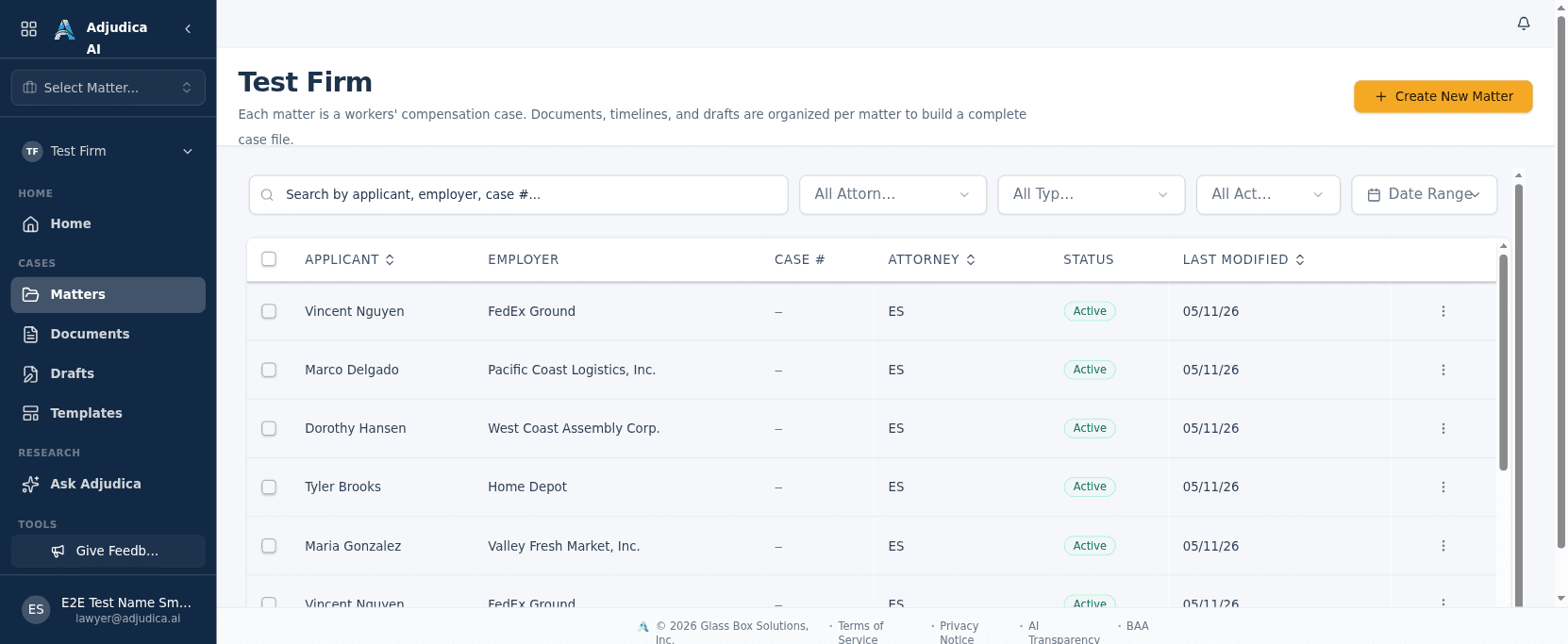
A matter is a case, one per injured worker, per date of injury. Open a matter and you get a single workspace for everything about it: parties, injury and insurance details, documents, drafts, the case chat, the timeline, and the knowledge graph.
Create a matter
Matters → "New Matter" → fill in the applicant name, case number, employer, date of injury, and claim type → Create.
Open a case from documents
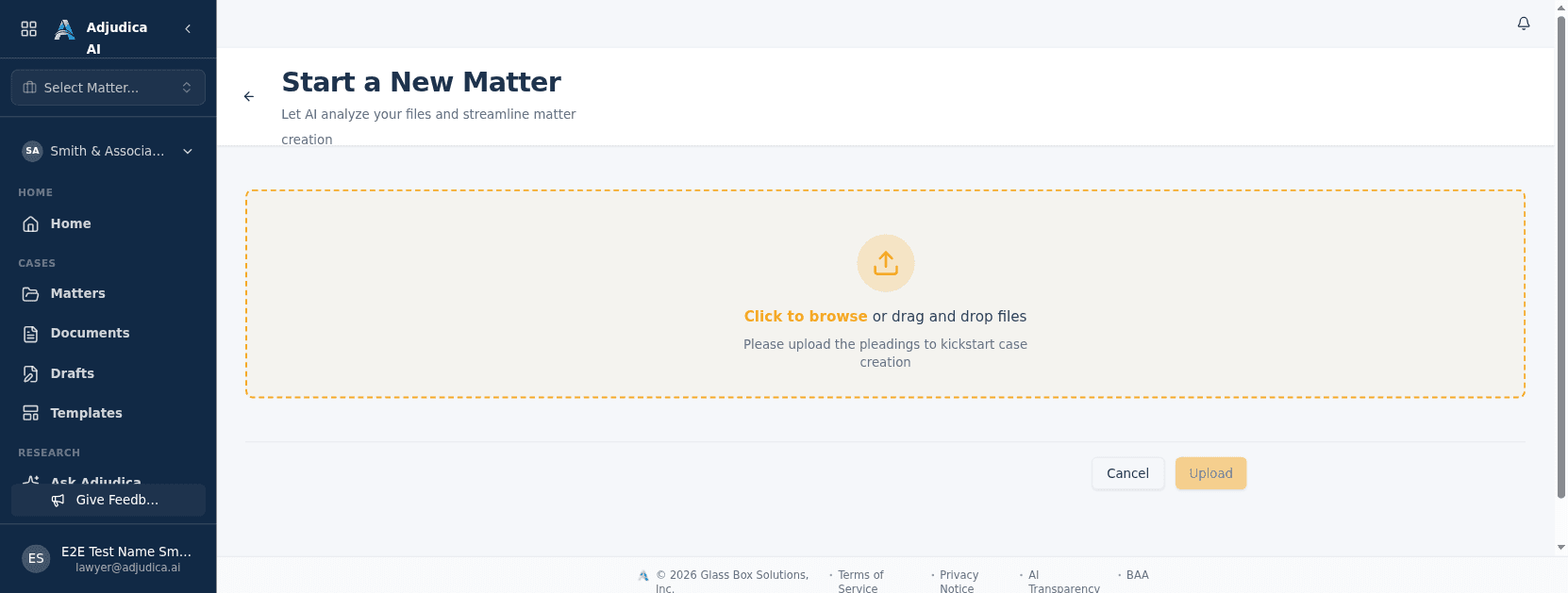
A case can be born from a stack of paper. Drag the pleadings into a new matter and Adjudica's multimodal AI reads the actual documents, not just the filenames. It extracts the parties, employer, injury, and dates, and stands up the matter pre-filled. The most tedious part of intake becomes a review-and-confirm step.
Find a matter
The matter list is searchable and filterable: by applicant name, case number, or employer; by assigned attorney; by status (Intake, Active, Pending Settlement, Settled, Archived); and by date range. Sort any column by clicking its header.
Matter Home
Click into a matter and you land on Matter Home, with everything about the case in one view. Summary cards across the top show Documents, Drafts, Events, and Days Active; click any to jump to that section. Quick actions put Upload Document and Create Draft one click away. Case details show the applicant, employer, insurance carrier, assigned attorney, involved parties, and current status.
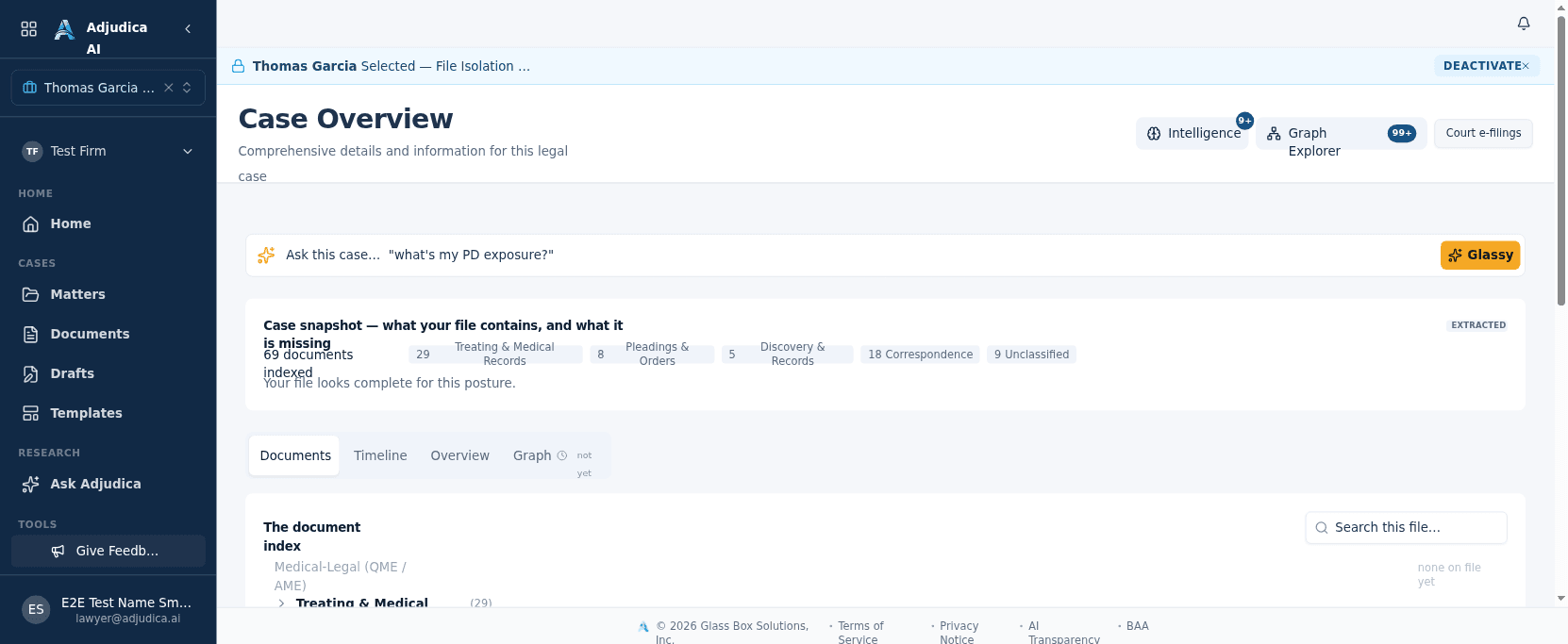
Insurance & claim details. Source configuration describes carrier, claim-number, adjuster, and MerusCase-import fields where available. Role and server authorization remain authoritative; a displayed or hidden action is not proof that access enforcement succeeded.
Case status lifecycle
| Status | What it means |
|---|---|
| Intake | Setting up the case: gathering documents and information |
| Active | In active litigation |
| Pending Settlement | At the negotiating table |
| Settled | Resolved |
| Archived | Closed and read-only |
Migrating from MerusCase
Moving onto Adjudica from MerusCase? The integration is a one-way migration bridge: during onboarding, connect your MerusCase account (Settings → Integrations) and Adjudica imports your existing cases and their documents. On any matter you can hit "Import from MerusCase" to pull case details and files in. The goal is simple. The practice runs on Adjudica, not alongside a legacy tool.
Mailroom
Source configuration routes uploaded documents through the Mailroom, a transparency-oriented intake pipeline that can expose processing and review state. Status detail may be incomplete, and runtime behavior was not observed for this release.
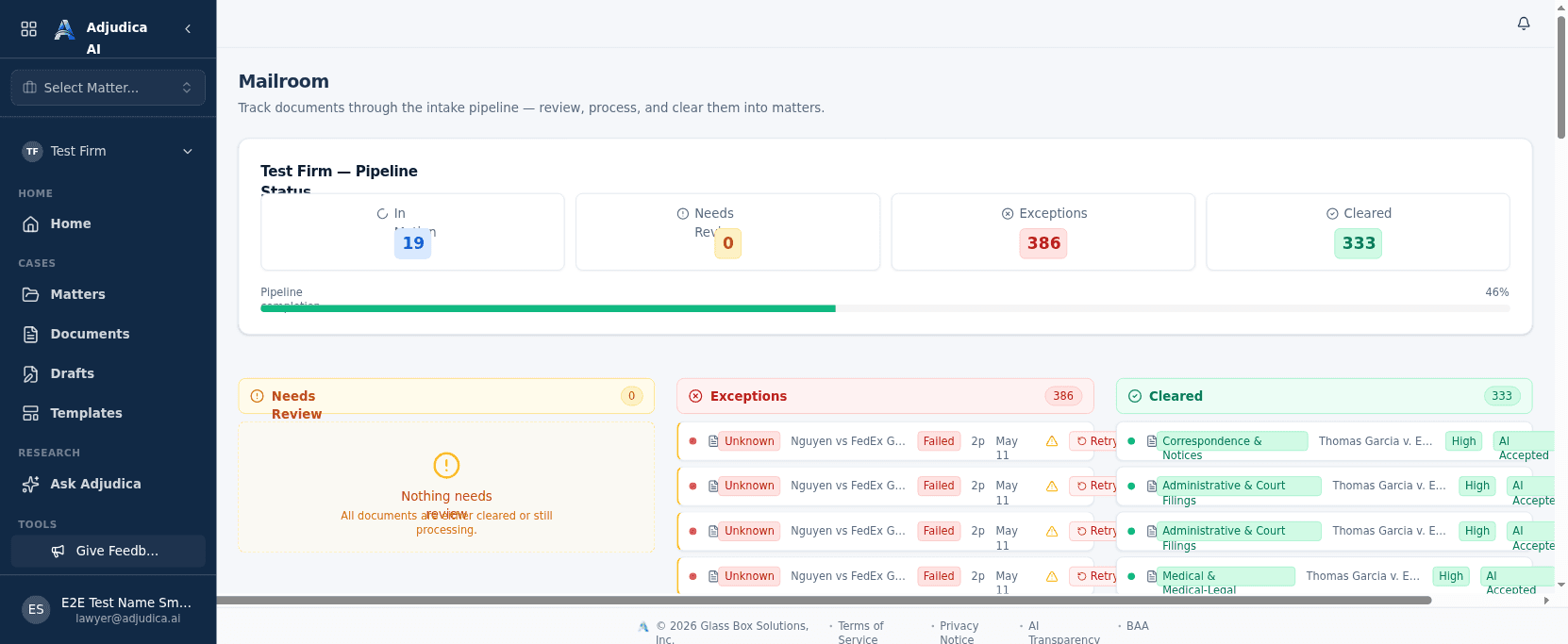
Upload
- Go to Mailroom.
- Drag and drop files into the upload area (or click to browse).
- Assign each document to a matter. Start typing the applicant name, case number, or employer and pick from the dropdown.
- Click Upload.
Supported formats: PDF, DOCX, JPG, PNG, WEBP, TXT, and Outlook .msg, up to 500 MB per file. PDFs give the best results by a wide margin.
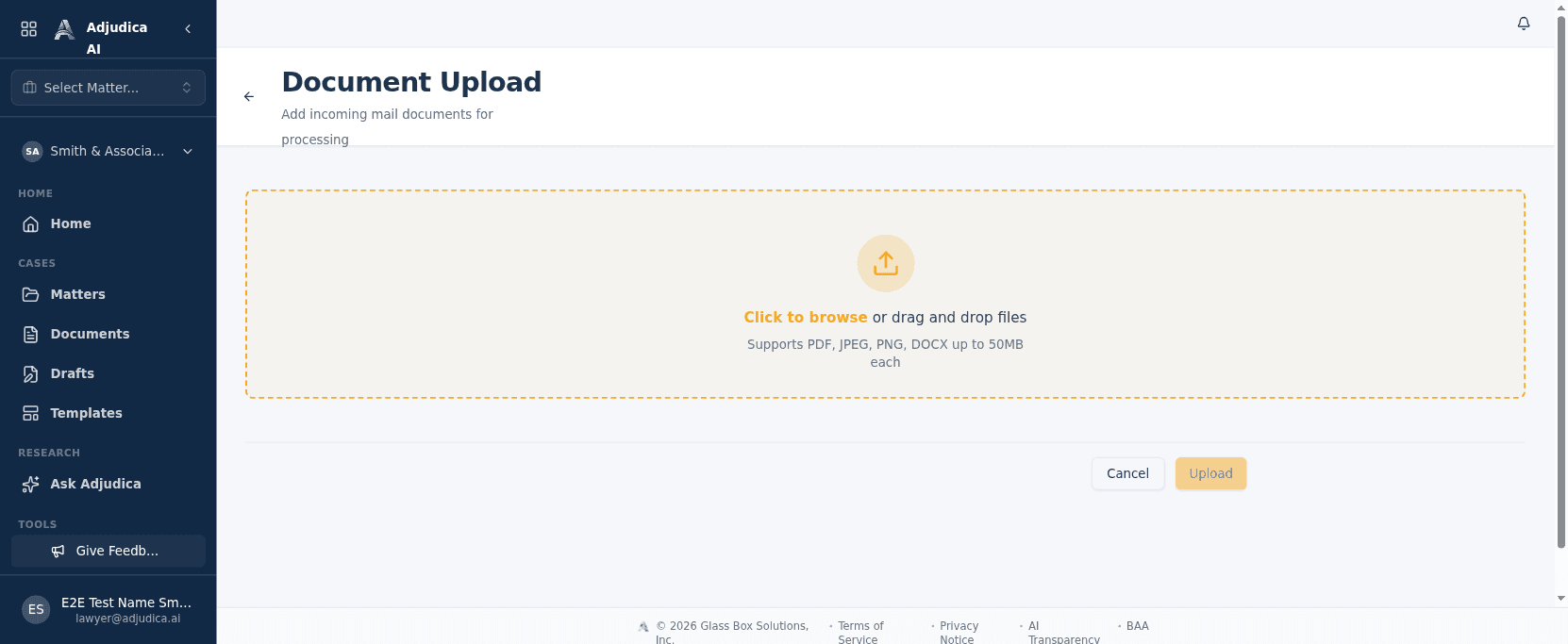
Three lanes, so the pipeline is legible
Source configuration describes document-processing stages and three UI lanes. Runtime transitions, error handling, and completeness were not observed:
| Lane | What's happening |
|---|---|
| Needs Review | The AI has read and classified the document. It is your turn to review and approve. |
| Exceptions | A processing issue requires review; available labels depend on the error path. |
| Cleared | A configured final-disposition state; verify the underlying review record. |
A file that can be re-processed shows a Retry; one that genuinely can't (encrypted or unsupported) doesn't pretend it can. Filter by document type, subtype, or matter, search by filename, and select multiple documents to classify or route them in bulk.
Tips for better results
- Better scans = better AI. If your fax from 2003 looks like it went through a sandstorm, the AI will tell you it can't read it. Honestly, neither can you.
- Upload the relevant source record before running AI-assisted workflows. More documents do not guarantee better results; inspect for missing, duplicate, or conflicting material.
- Attorney-client privileged material? Only upload it if you want the AI to read it. The AI doesn't know something is privileged; it reads and cites it like any other document.
- You may add documents later where the enabled workflow allows it. Processing duration, downstream availability, and feature coverage were not observed; confirm status before use.
How it works (the Glass Box). Source configuration describes OCR, correction assistance, document-type classification, confidence cues, and human-review states. Confidence is not legal accuracy, may be absent, and does not guarantee correctness. Confirm that the enabled workflow enforces the firm's required approval before relying on processed text.
Documents
Source UI describes a searchable Documents library. Coverage across matters and system-of-record status depend on migration, permissions, and the enabled environment; reconcile against the firm's controlling record.
Browse and find
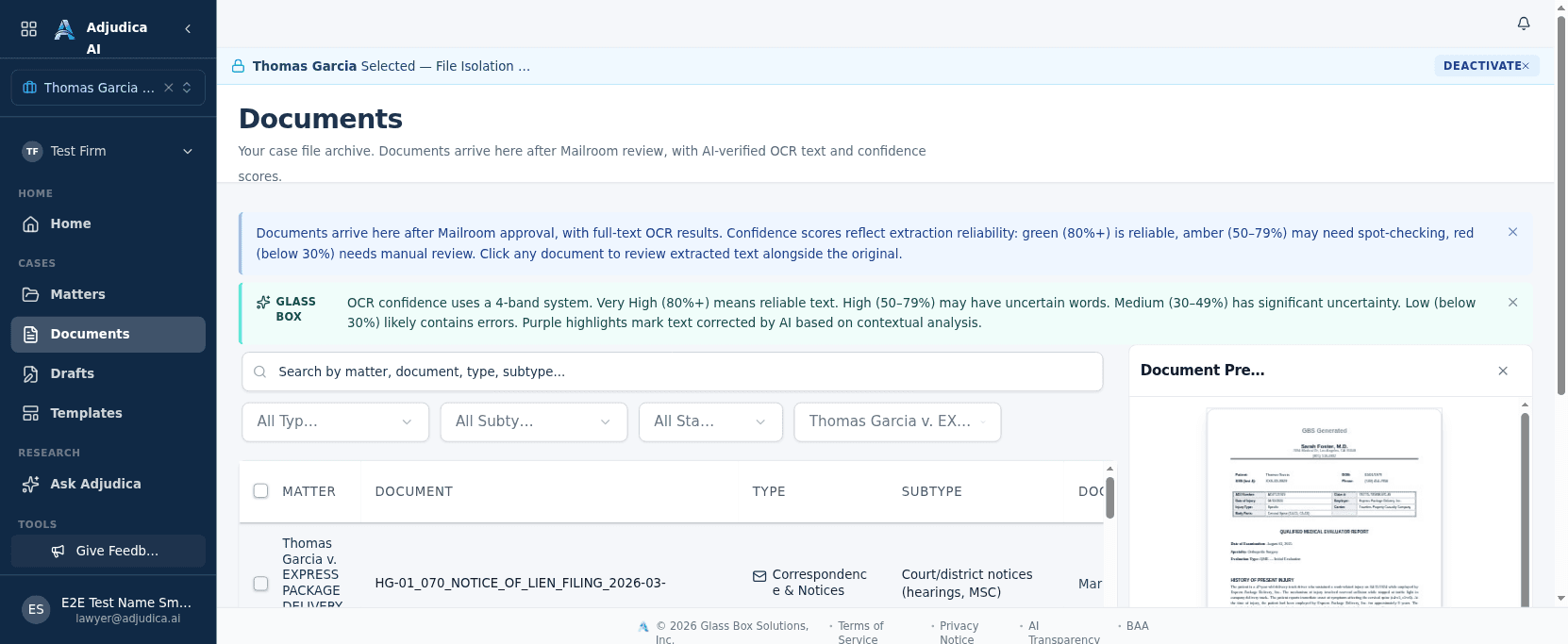
Search by filename; filter by matter, document type, subtype, status, or date range; paginate at 25, 50, or 100 per page. When you're hunting a specific QME report across the whole caseload, this is where you go.
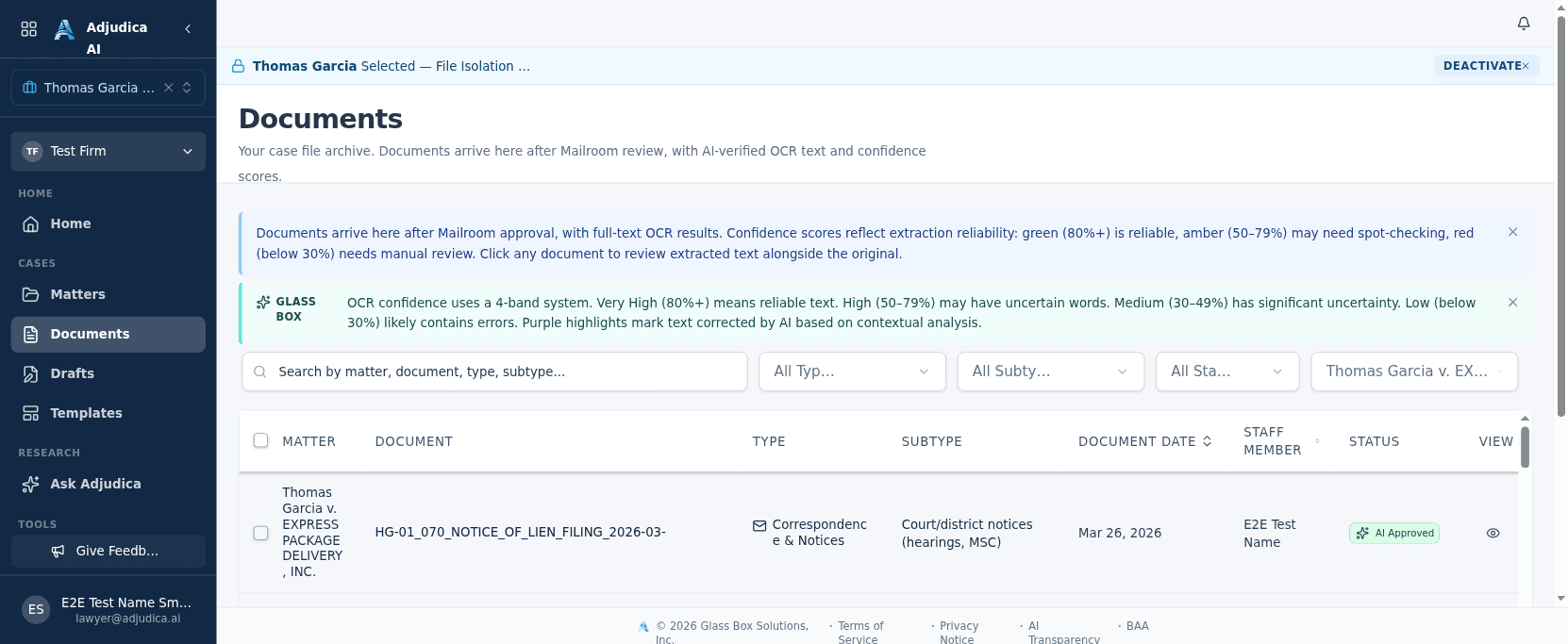
The document viewer
The configured document viewer can place a source file alongside available AI-derived type, classification, and extracted evidence. Review context may be incomplete or wrong. Source code describes server-side access controls for PHI-sensitive fields; this release did not observe runtime enforcement.
OCR review: the Glass Box gate
Source UI includes a side-by-side OCR review and correction state with paragraph-level confidence cues. Firms must confirm that the enabled workflow requires and records their intended approval before relying on extracted text.
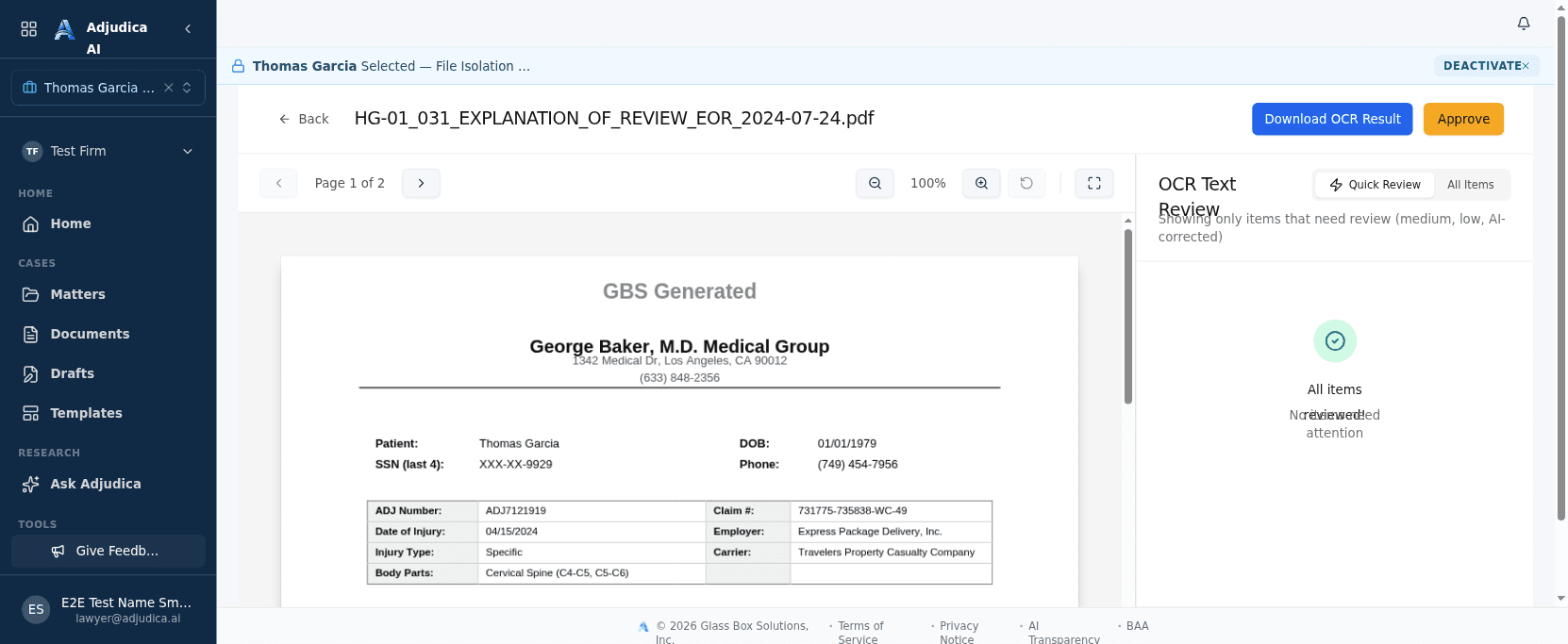
How it works (the Glass Box). Source UI includes confidence labels intended to describe OCR legibility, not legal accuracy. Thresholds and labels are configuration details and were not independently validated for this release. Review the complete extraction against the source page regardless of confidence; a higher score is not permission to skim or presume correctness.
Review proposed extractions against the source, correct mistakes, and follow firm policy for approval or deletion. Source configuration can use approved text in downstream form, timeline, and chat workflows; runtime propagation and resulting accuracy were not observed.
Drafts
Source configuration describes three draft paths: court form, template, and custom. They produce proposed material for attorney review; speed and accuracy are not guaranteed.
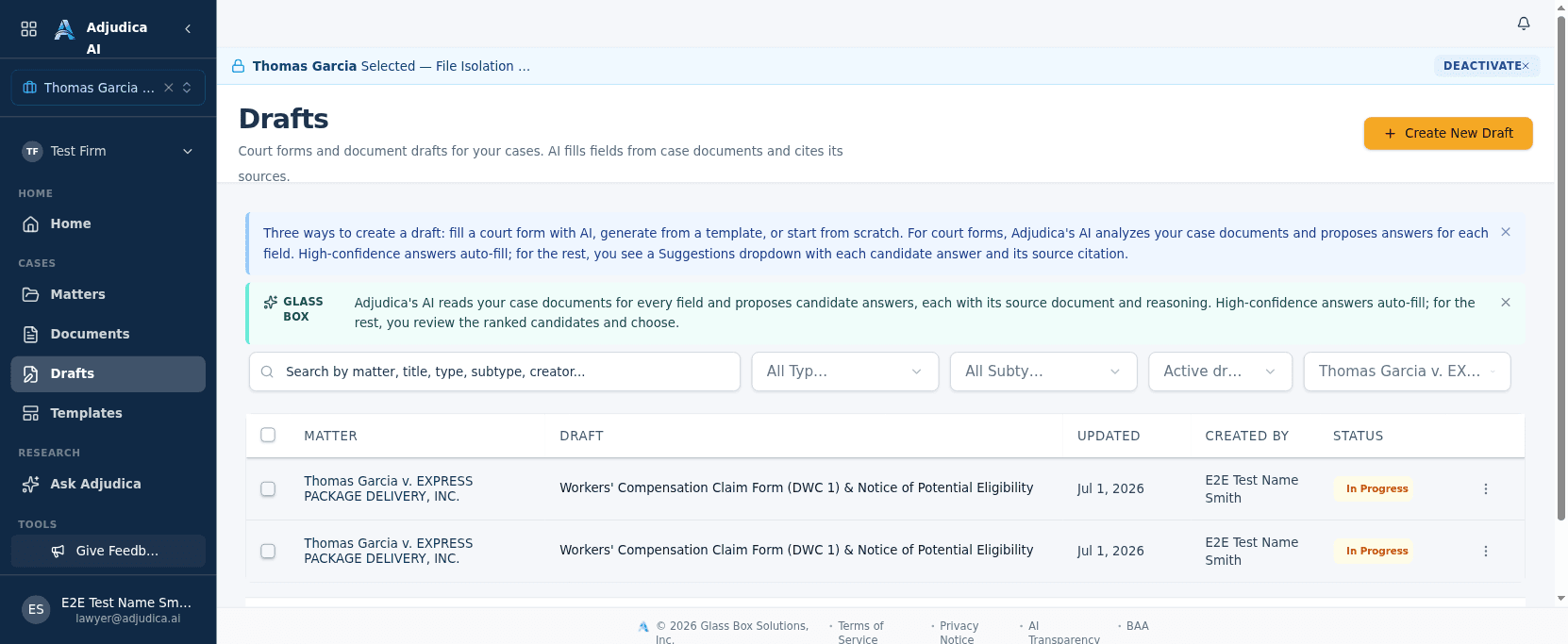
| Draft type | What it does |
|---|---|
| Court Form | You pick a DWC form. The AI fills it from your case documents. |
| Template | You pick a firm template. The AI fills in the placeholders. |
| Custom | You describe what you need in plain language. The AI writes it. |
To create any draft: matter → Drafts → "Create Draft" → pick your type.
Court Form drafts
The feature that saves the most time.
- Open your matter → Drafts → "Create Draft".
- Select "Court Form" and pick a DWC form from the library.
- Click "Re-fill Form With AI".
- Wait two to four minutes (longer for matters with many documents).
- Review the proposed form. Supported fields may be populated or flagged; inspect blank, populated, and rendered fields against the record.
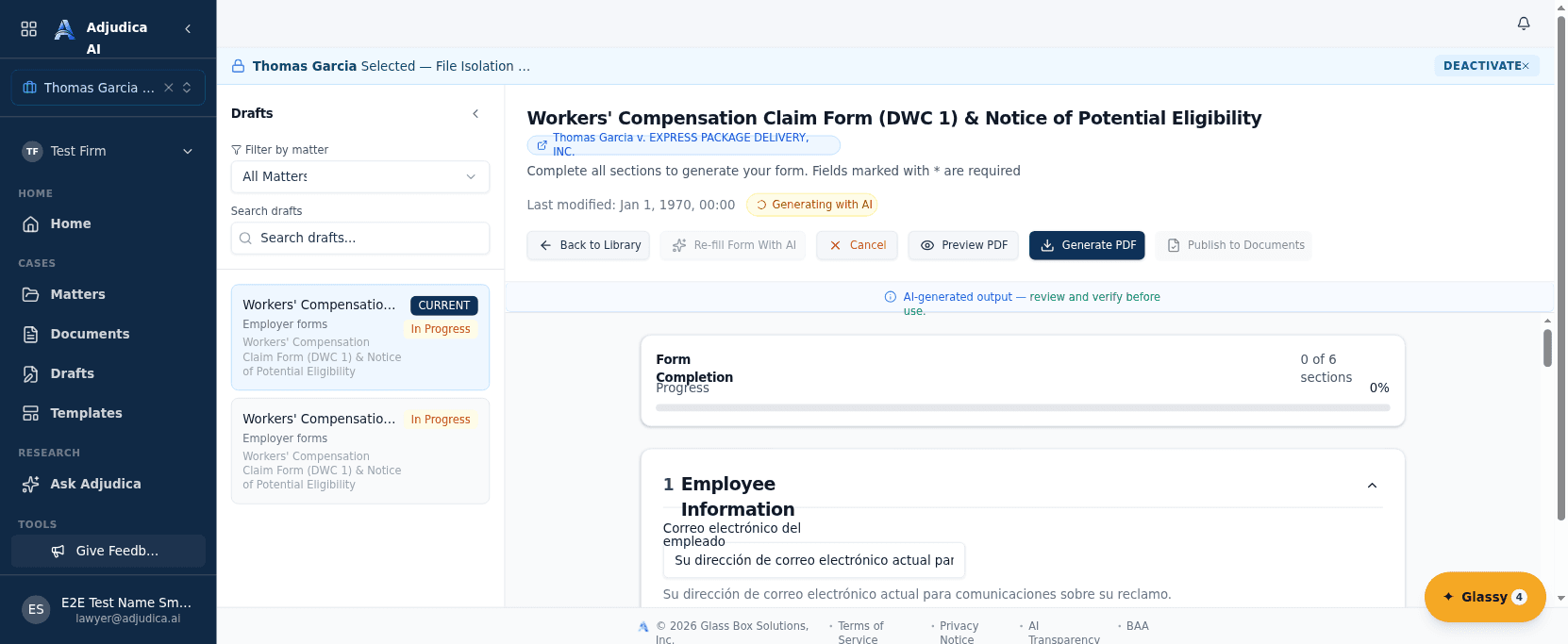
Confidence indicators. Source UI includes confidence and candidate-answer cues in selected paths. Confidence is not legal or factual accuracy, and thresholds, pre-fill, warning, and blank-field behavior may vary. Verify every proposed and blank field against the record.
A pre-filled answer doesn't mean it's correct. It means the AI thinks it's correct. The AI is confident, not infallible, much like that one opposing counsel we all know.
Multi-candidate answers. Sometimes the AI finds more than one possible answer for a field. You get a dropdown of candidates, each showing which document and paragraph it came from. Pick the right one, or type your own.
Source citations. When a proposed answer includes a source link, use it as a review aid. Links may be absent, incomplete, or incorrect. Inspect the complete source record, and correct or reject any unsupported answer.
Override a field. Source UI includes an edit action and selected activity records. Confirm that required changes are saved and that audit coverage meets firm policy; this release did not observe runtime persistence.
How it works (the Glass Box). When you click "Re-fill Form With AI," source configuration routes the request to Anthropic to evaluate available matter documents and propose entries. Confidence treatment and blank-field behavior may vary. Direct/public OpenAI is prohibited for PHI; contract-approved fail-closed Azure OpenAI chat routing is a separate path. Available source links and the "AI-generated: verify before use" notice support attorney review. What this means for you: you receive a draft to verify and correct; speed, completeness, and accuracy are not guaranteed.
Template drafts
Select a firm template, one you've created or one from the pre-built library. The AI reads the matter's case data and documents, fills the placeholders (applicant name, date of injury, employer, medical providers), and presents the draft for review. Great for demand letters, MSC statements, and anything the firm writes repeatedly. The AI does a good job with factual placeholders; narrative sections may need more of your attention. It writes competently but generically, and your voice and strategy make the difference.
Custom drafts
Describe what you need in plain language. For example, "Write a letter to the carrier requesting authorization for the recommended surgery based on the QME report." The configured workflow can use available matter documents to propose a draft. It may omit or misstate facts, sources, or legal requirements. Verify it against the complete record before use.
The editor
All three draft types open in the same editor:
- Auto-save: your work is saved continuously.
- Refine with AI: select any block of text and rewrite just that portion: tighten the phrasing, adjust the tone.
- Preview PDF: see exactly how the document will look before exporting.
- Export to PDF or Word (DOCX).
- Publish: finalize the draft. Published drafts are locked and versioned; create a new version if you need changes later.
A note on rendering. Always download and review the final PDF before filing. Formatting occasionally shifts between the editor and the exported PDF. A table cell wraps differently, or a page break lands awkwardly. Check the PDF. Every time.
Court filings
Source code describes package assembly and a SHA-256 reference for reviewed contents. Confirm the enabled certification and identity-binding behavior before relying on it. Electronic filing appears in preview source; availability, court integration, and runtime operation were not observed for this release.
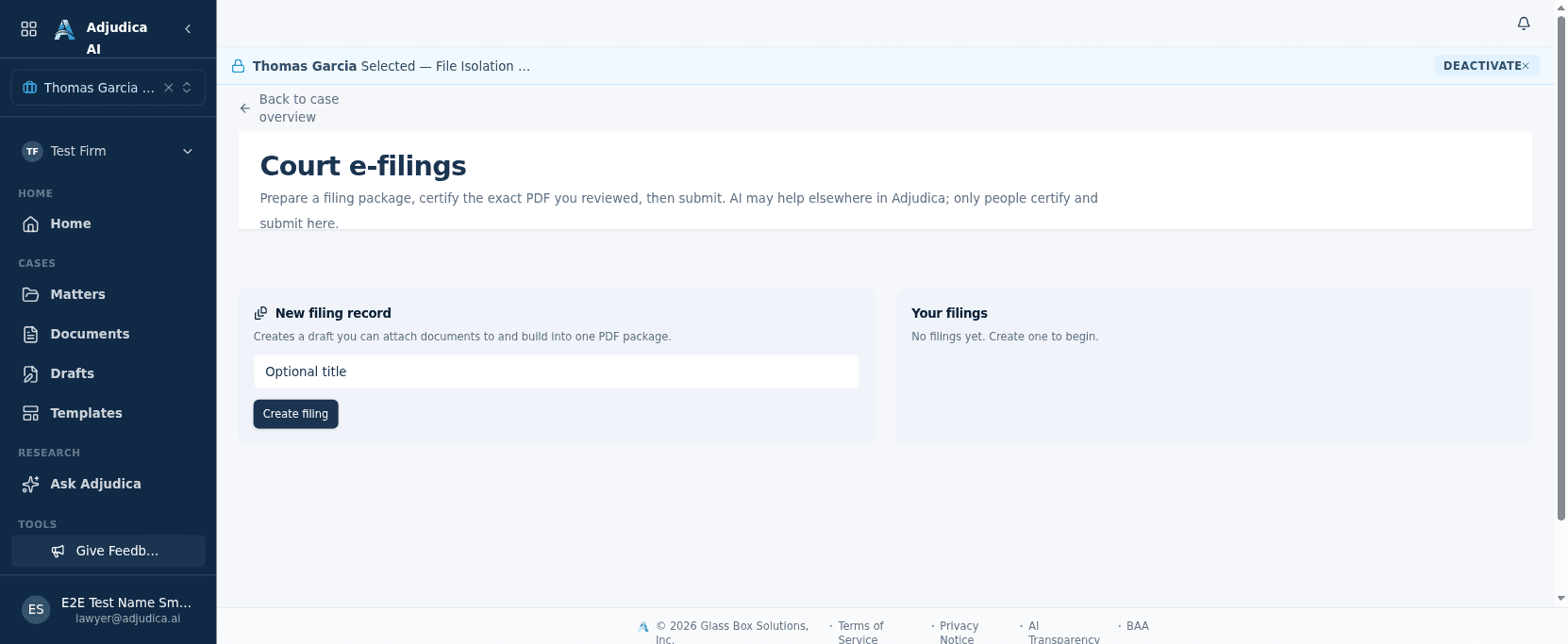
Pre-filing checklist
The AI did the first pass. Before filing or serving anything:
- Proposed values, blanks, and constrained fields reviewed against the source record
- Every red or blank field completed with verified information
- All dates accurate and in the correct format
- Dropdowns and radio buttons reflect the legally correct option
- Generated PDF downloaded and reviewed as a complete document
- A licensed California attorney has reviewed and approved the form
- The form reflects the most current case information
The AI shows its work. Your job is to check it. That's the deal.
Timeline
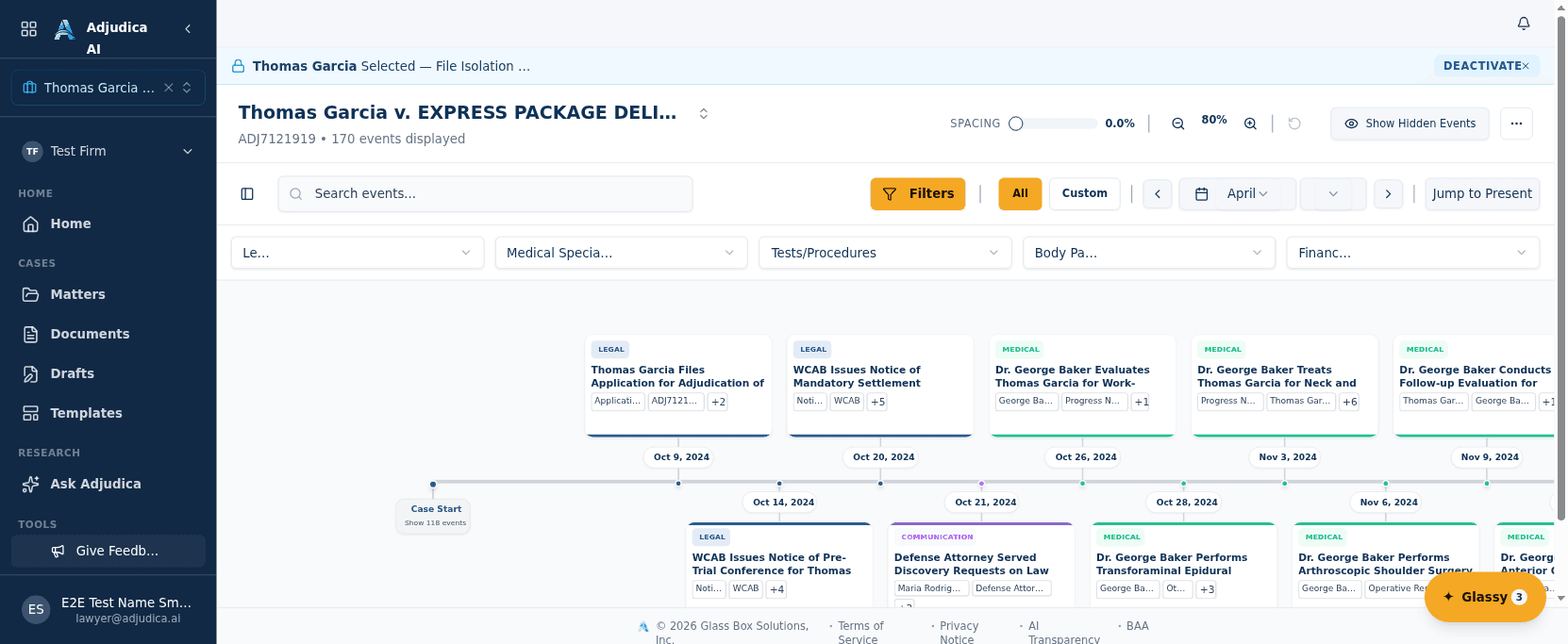
Processed case documents can feed a proposed chronological timeline with available descriptions, categories, and source links. Events may be missing, duplicated, or misordered; counsel verifies against the complete record and adds or corrects entries as needed.
Event types
Four color-coded categories let you scan the history at a glance:
| Event type | What it covers |
|---|---|
| Legal | WCAB hearings and conferences, filings and applications, decisions, awards, orders, and settlements |
| Medical | Treatment, appointments, surgeries, and QME, AME, and PQME evaluations |
| Insurance | Claim filings, denials, acceptances, and benefit notices |
| Communication | Correspondence, service of documents, and notices between the parties |
How to use it
Go to Timeline, select your matter (type to search), and events appear as documents are processed. The more you upload, the more complete the timeline. Filter by category or date range, use the zoom controls to focus on a period, and click Jump to Present for the most recent events.
Duplicate merging. If three documents mention the same hearing on the same date, you get one entry with three citations, not three duplicates.
Details on click. A configured event view may show descriptions, available source links, and document navigation. Links and passages may be absent or wrong; verify them in the complete record.
Add or edit manually. The AI will miss things not in your documents: phone calls, verbal agreements, things you just know. Click "Add Event" to create one, or edit any existing event.
AI chat on the timeline. Click the sparkles icon while viewing the timeline and ask questions like "Summarize the treatment history" or "What happened between the QME evaluation and the hearing?" This is great for MSC prep and getting up to speed on an inherited case.
How it works (the Glass Box). The configured timeline workflow extracts dates and descriptions from processed matter documents and may group related mentions and attach source links. It may omit, duplicate, merge incorrectly, or misorder events. Verify the proposed chronology against the complete record.
Case Chat
Ask questions about your case in plain English. The AI searches all your uploaded documents and proposes an answer with available citations for you to verify against the record.
Click the sparkles icon on a matter page and type your question. The configured workflow may return an answer with source links where available; both can be incomplete or wrong.
Good questions
- "What does Dr. Johnson's QME report say about work restrictions?"
- "Summarize the treating physician notes from January through June."
- "Which document mentions the average weekly wage?"
Not-so-good questions
- "Should I take this settlement offer?" The AI doesn't give legal advice. That's your job, and it always will be.
- "What does Labor Code 4660.1 say?" Case chat only reads your uploaded documents, not external legal databases. (For research across CA WC law, see Ask Adjudica.)
- "What did the client say on the phone last week?" If it isn't in an uploaded document, the AI doesn't know. It reads files, not minds.
Draft chat. While editing a draft, the sparkles icon opens a chat scoped to that specific draft. Ask about form fields, request language for narrative sections, or ask the AI to explain why it chose an answer.
A few details worth knowing: source documentation describes independent chat sessions, but this release did not observe session, cache, or context behavior. Be specific, and verify every answer and available citation against the complete record.
How it works (the Glass Box). Source configuration describes semantic retrieval over selected matter documents and source links where available. Retrieval can omit relevant passages, surface irrelevant material, or return an incomplete or wrong answer. Tenant scope, session independence, and citation coverage require verification in the enabled environment. What this means for you: inspect every available source link and the complete matter record before relying on an answer.
Case Intelligence & the Knowledge Graph
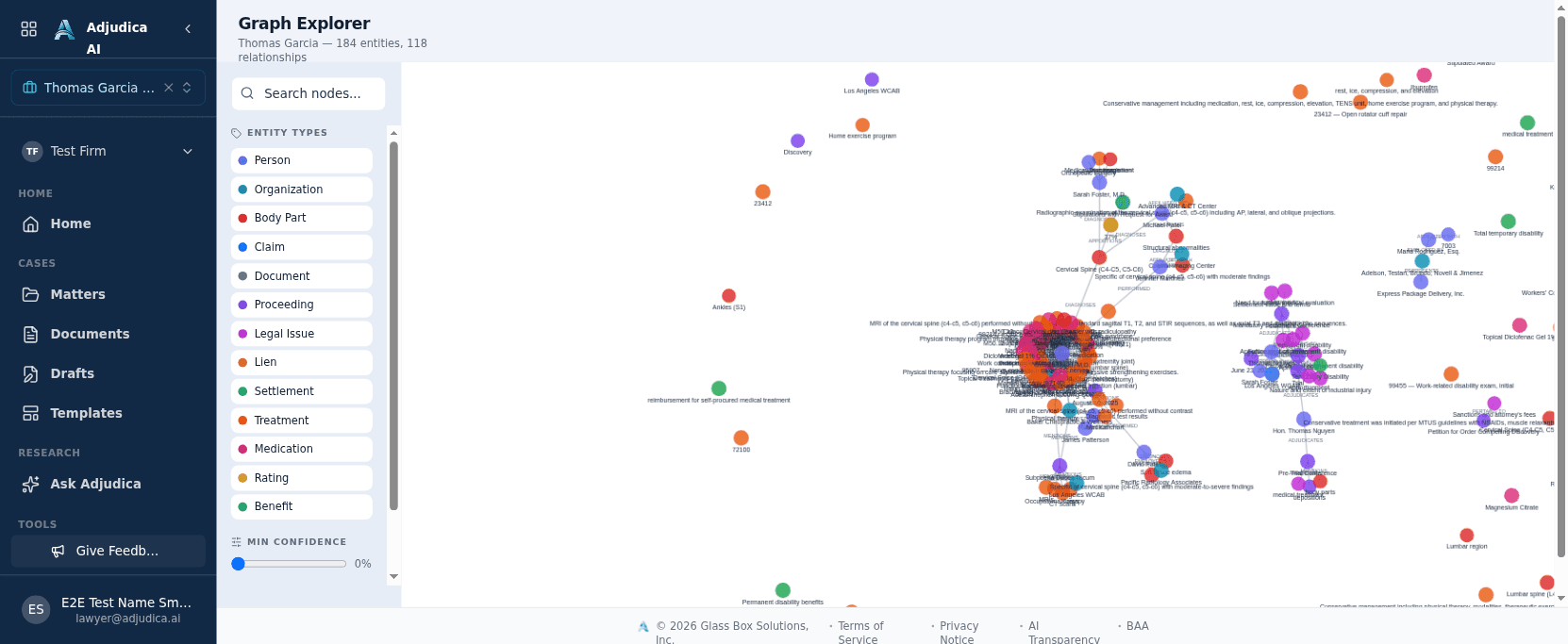
Source configuration describes a knowledge graph that can propose people, organizations, body parts, claims, treatments, and relationships from processed case files. Availability was not observed for this release. Where enabled, verify proposed entities, relationships, omissions, and conflicts against the record.
Open it from the Case Intelligence button in the matter header. A panel slides in with four tabs.
Overview
Your at-a-glance intelligence dashboard: a maturity bar (Nascent → Developing → Established → Mature) showing how much the AI has learned; a coverage metric for how many documents have been analyzed; summary cards for entities found, relationships mapped, and attention items; an entity breakdown by type; and View Full Graph to open the interactive explorer.
Entities
Source UI provides entity search and filters with available confidence, document, alias, and contradiction context. Extraction and indicators may be incomplete or wrong.
| Badge | What it means |
|---|---|
| GOLD | Human-verified and locked. Authoritative. |
| HIGH | Strong multi-source evidence |
| VERIFIED | Multiple sources corroborate |
| PARTIAL | Some support. Check the sources. |
| LOW | Weak extraction from a single source |
| NONE | No supporting evidence yet |
Click any entity to expand and see all properties, clickable source documents, aliases, and related entities.
Relationships
Browse the connections between entities: who treats whom, who employs whom, which body part was injured in which incident. Each card shows the connection (e.g. "Dr. Garcia TREATS John Smith"), a weight bar for how strong the connection is, a corroboration count, a traversal count (how often the AI has used the relationship to answer questions), verified/locked indicators, and contradiction flags with a Resolve button.
Attention Required
Source UI includes an action queue and badge count for selected review items. It may not identify all matters requiring review.
- Date conflicts: two documents disagree about a date. See both sources side by side and choose: Keep A, Keep B, Keep Both, or Dismiss.
- Merge candidates: the AI thinks two entities might be the same ("Dr. M. Garcia" and "Dr. Maria Garcia"). Merge, mark as different, or review later.
- Low-coverage areas: the AI hasn't found entity types it would expect given the case size, hinting at missing documents.
Source configuration describes selected activity records and downstream graph updates. Audit coverage, persistence, and answer effects were not observed for this release.
How it works (the Glass Box). Source configuration describes graph extraction, mention merging, confidence changes, conflict flags, and relationship-use signals. These behaviors may be incomplete or wrong and were not observed live. What this means for you: treat the graph as a proposed review aid and verify it against the source record.
Graph Explorer
View Full Graph opens an interactive visualization of the entire case. Nodes are entities (size = how many documents mention them, color = type, transparency = confidence); edges are relationships (thickness = strength, color = status: green verified, red contradiction, gold locked). Drag to rearrange, scroll to zoom, filter by type or status, and right-click a node to Verify, View Sources, or Merge. It's the same data as the panel tabs, visualized. This is useful for seeing the shape of a complex case and where the gaps are.
Routing transparency
When supported, source UI may show route, tier, confidence, or pipeline metadata. These fields can be incomplete or model-derived; they do not reveal hidden reasoning or establish exactly how an answer was produced.
Templates
Source configuration includes reusable templates and placeholders that may propose values from case data. Field coverage and accuracy vary; verify every proposed or blank value before use.
Create a template. Templates → "Create New Template", then choose a starting point:
- From Samples: upload your best demand letter; the AI converts it into a reusable template with placeholders where case-specific information goes.
- From Scratch: describe the document type; the AI generates a starting structure you refine.
- From an Existing Document: upload any document and the AI suggests where placeholders should go (applicant name here, DOI there); you approve or adjust.
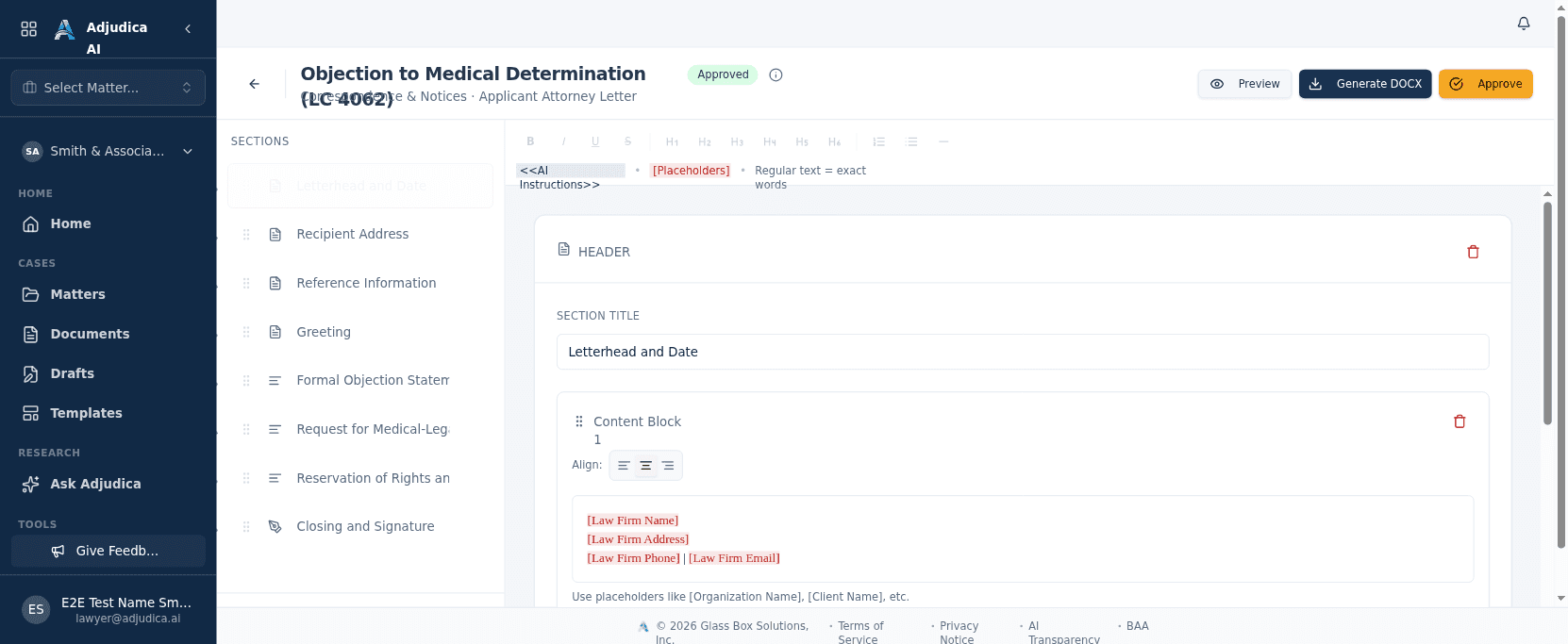
Edit and organize. Use the editor to add, remove, or reorder sections; drag-and-drop to rearrange; preview with real case data; save. Placeholders like [Law Firm Name] and [Date] mark the raw inputs the AI resolves per matter.
Pre-built templates. A starter set ships for common WC documents: Letter of Representation, IMR Application, LC 4062 objection letters (applicant and defense), UR Determination Letter, QME Panel Strike Letter, Answer to Application, and Pre-Trial Conference Statement. Clone any of them and make it yours; the originals stay untouched.
Use a template. Matter → "Create Draft" → "From Template" → pick the template → the AI fills the placeholders → review and adjust → export as PDF or Word.
Workflows
Source configuration includes rules that can propose drafts or tasks when configured conditions are met and route them for human review. Runtime execution, timing, and completeness were not observed for this release.
Example configuration: "When a new medical report uploads to a matter, propose a Medical Summary draft." This release did not observe trigger, timing, source coverage, or failure behavior. Test the workflow and retain human review.
Set one up. Workflows → "Create Workflow" → pick the trigger (the document type/subtype that fires the rule) → pick the action (the template or form to generate) → Enable and Save. A workflow needs at least one template to fire, which is why Templates and Workflows are designed as a pair.
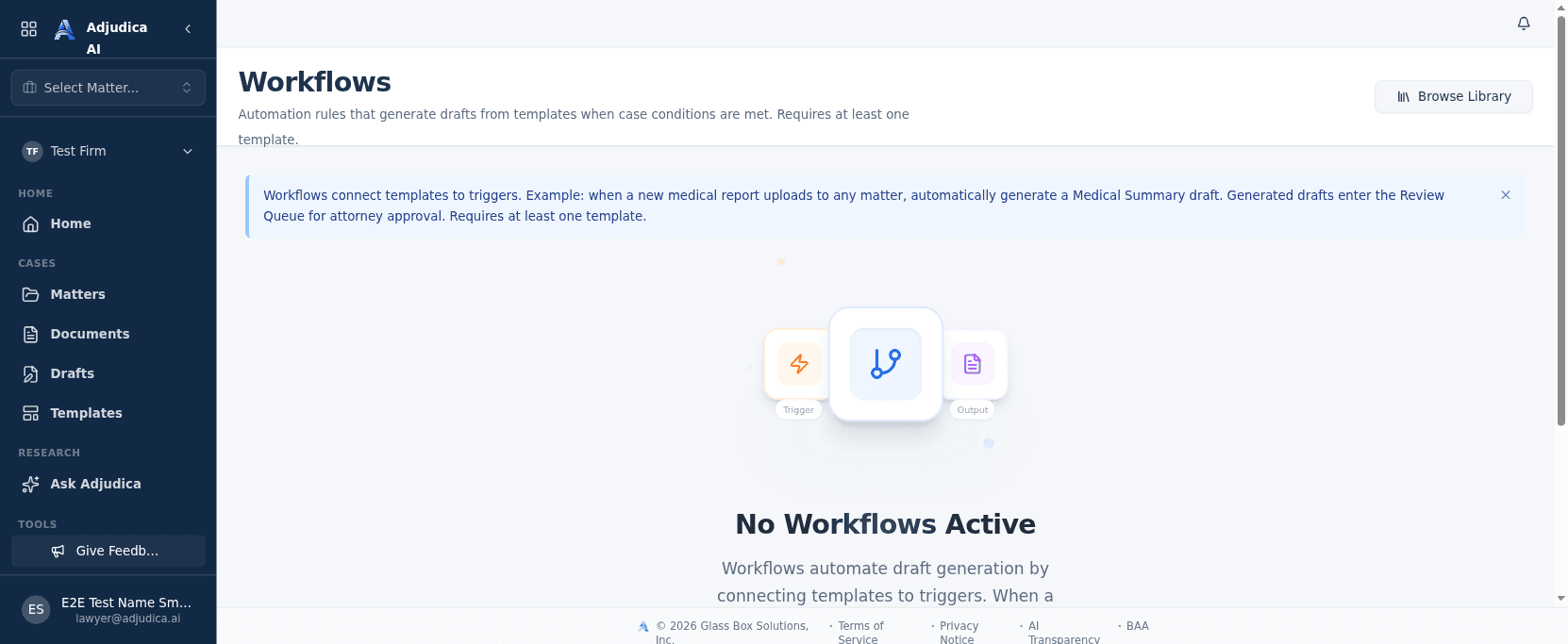
The Common Workflow Library. A catalog of pre-built California WC automations you can deploy in one click. Each is a ready-made rule (e.g. auto-generate a Medical Summary when a medical report is approved). Only admins can deploy or retract them.
Manage. Toggle any workflow on or off; the page shows the last-fired timestamp for each rule; edit or delete as your processes change. And remember: the workflow creates the draft, but a human still reviews it. Automation handles the initiation; quality control is still yours.
Productivity & Coordination
Beyond the case work, a set of capability-gated tools help you run the day. Each lives under Tools in the sidebar and appears only for roles whose permissions allow it.
- Worklist: source configuration can consolidate selected tasks across the caseload. Coverage and deadline accuracy are not guaranteed; verify against the source record and firm calendar.
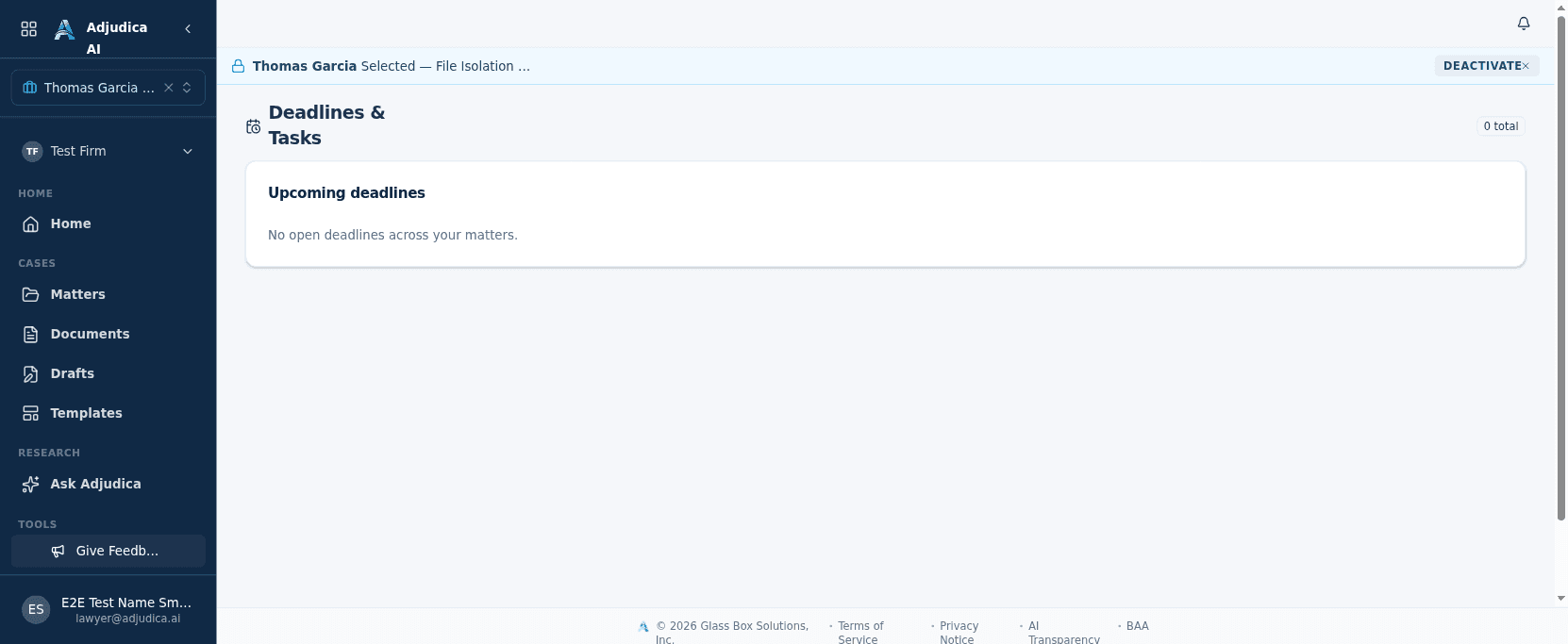
- Calendar: the time view of the practice: appointments, hearings, and the statutory deadlines that drive a WC matter, in a date-oriented layout. It surfaces the same SOL deadlines that flag on Home.
- Reports: firm-level analytics that aggregate caseload, pipeline, and throughput into reportable views. These are the metrics a managing attorney uses to see how the practice is performing.
- Contacts: a firm-wide directory of the people and organizations a WC practice deals with, in one searchable place.
- Vendors: a management surface for the copy services, providers, and court e-filing partners a firm coordinates with. Scoped vendor access ships as a visible preview, deliberately inert until a properly scoped, time-boxed, audited access model is in place. It uses least privilege by design, with honest labeling throughout.
Administration
Firm administration is visible only to users with the Admin role. If you don't see Settings in the sidebar, you don't have Admin access. Talk to whoever set up your firm's account.
Firm details. Edit the firm's name, address, phone, and contact information. This appears in templates and generated documents that reference firm details.
Team members. Invite people by email and assign a role; resend invitations to anyone who hasn't accepted; remove members who've left. Each user gets exactly one role.
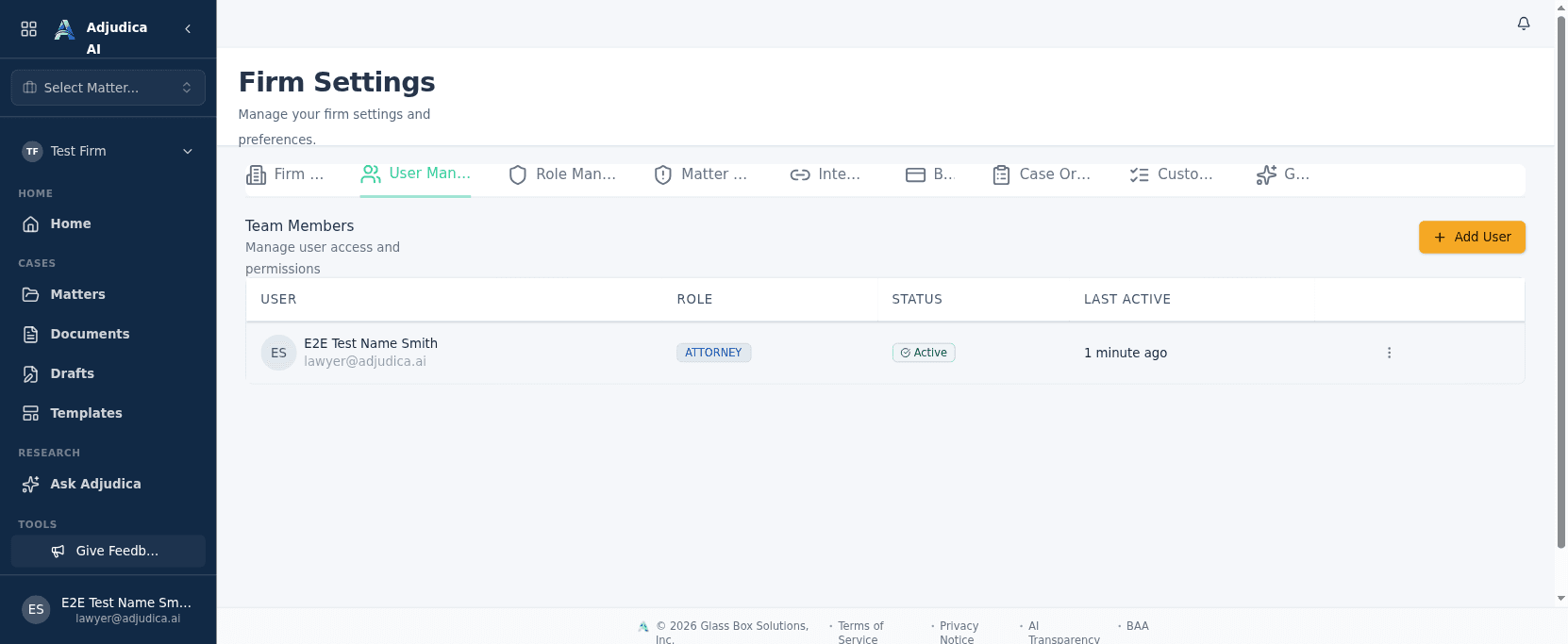
Roles. Capabilities are membership-driven and enforced across the whole app.
| Role | What they can do |
|---|---|
| Admin | Everything: cases, documents, users, settings, workflows, integrations. The keys to the building. |
| Attorney | Source configuration permits selected case, document, and AI-assisted workflows; confirm enabled permissions. |
| Clerk | View and edit cases and documents. Cannot delete matters or manage users or settings. |
Role Management gives a read-only map of roles → permissions → members, so who-can-do-what is legible at a glance.
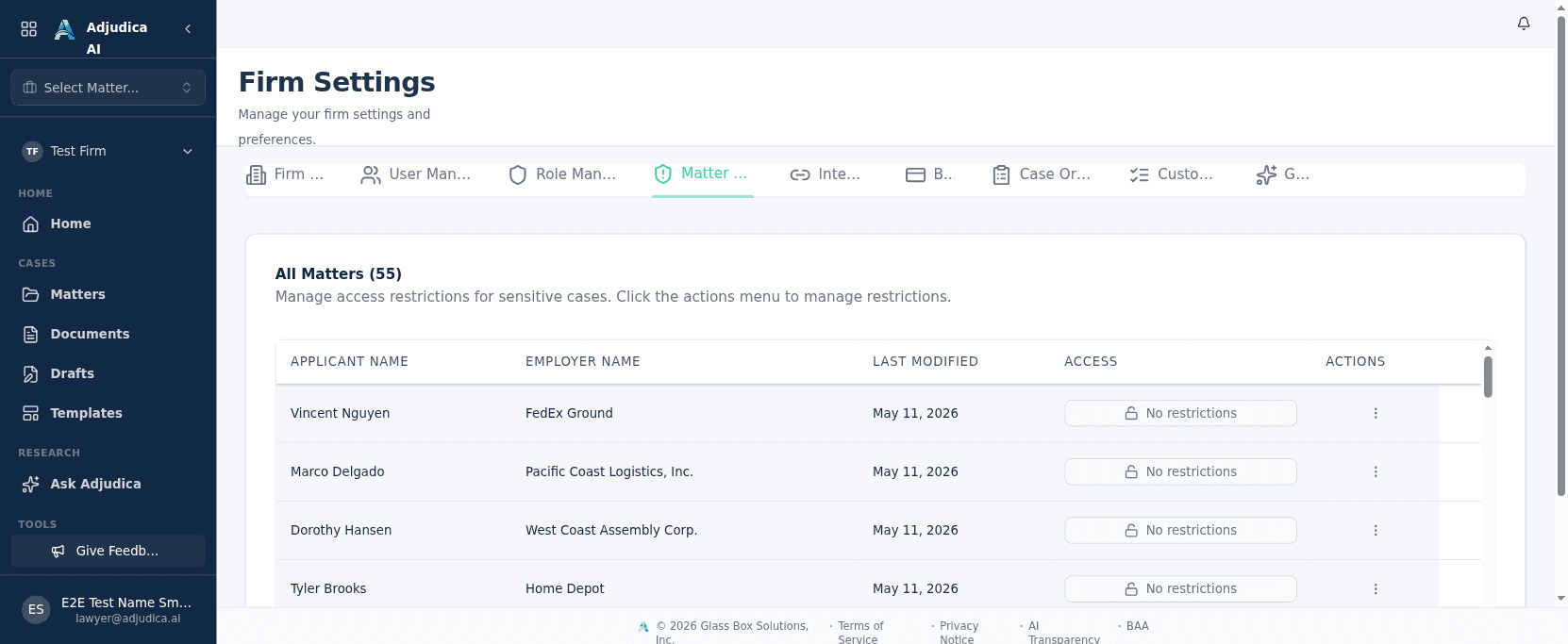
Matter Deny-List. Some cases need a smaller circle. Settings → Matter Deny-List → pick the matter → select which members should not see it. Those users won't see the matter anywhere, including the list, search, or dashboard. It also controls the AI's view of the matter, creating a real data-isolation boundary. Reversible at any time.
Case Origination config. Tune how new business is scored and intaken: scoring-pillar weights, retainer/referral templates, and DWC-1 intake mode. This is the engine behind conflict checks, document generation, and case scoring for prospective matters.
Integrations. Where external systems plug in. MerusCase import is first-class: connect via OAuth (per-firm credentials, admin-gated, tokens stored encrypted) and migrate existing cases and claimant documents onto Adjudica. The document/OCR pipeline configuration lives here too.
Your Profile & Security
Click your name at the bottom of the sidebar to reach your profile.
Personal information. Update your name, phone, California Bar number, and profile photo. Your Bar number flows into generated documents and filings. Keep it current. Your email is read-only; it's your account identity.
Password. Change it any time; you'll enter your current password first, then the new one twice. Use something strong and unique.
Two-factor authentication (2FA). Two-factor is like a deadbolt on your office door. Someone needs your password and your phone to get in.
- Go to Profile → Security.
- Click "Enable Two-Factor Authentication."
- Scan the QR code with an authenticator app (Google Authenticator, Authy, Microsoft Authenticator, or any TOTP-compatible app).
- Enter the 6-digit code to verify.
- Save your backup codes somewhere safe, such as a password manager or a printed sheet in a locked drawer. They're your emergency key if you lose your authenticator.
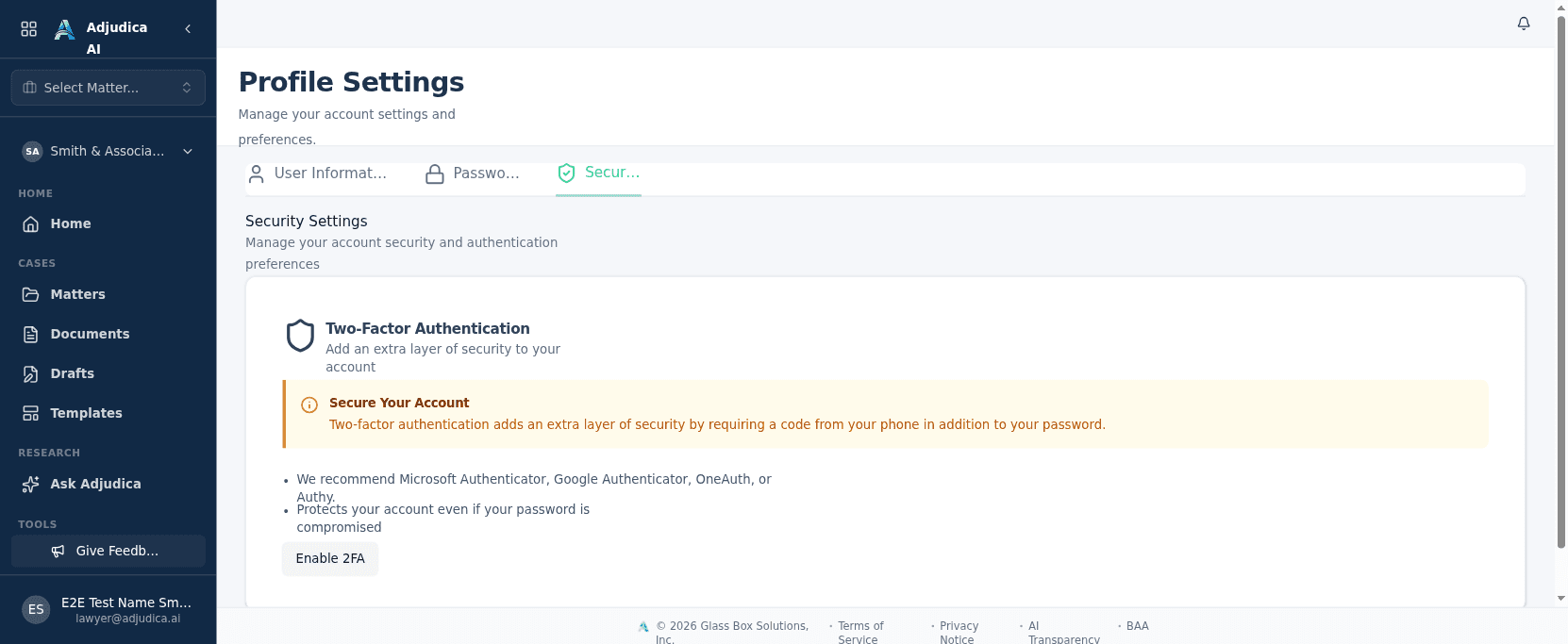
Source UI includes two-factor authentication settings. Use 2FA where required by firm policy and the enabled environment, and verify enrollment and recovery behavior. This release did not measure enrollment time or quantify risk reduction.
The Adjudica Ecosystem
Two companion tools sit alongside the case-management app:
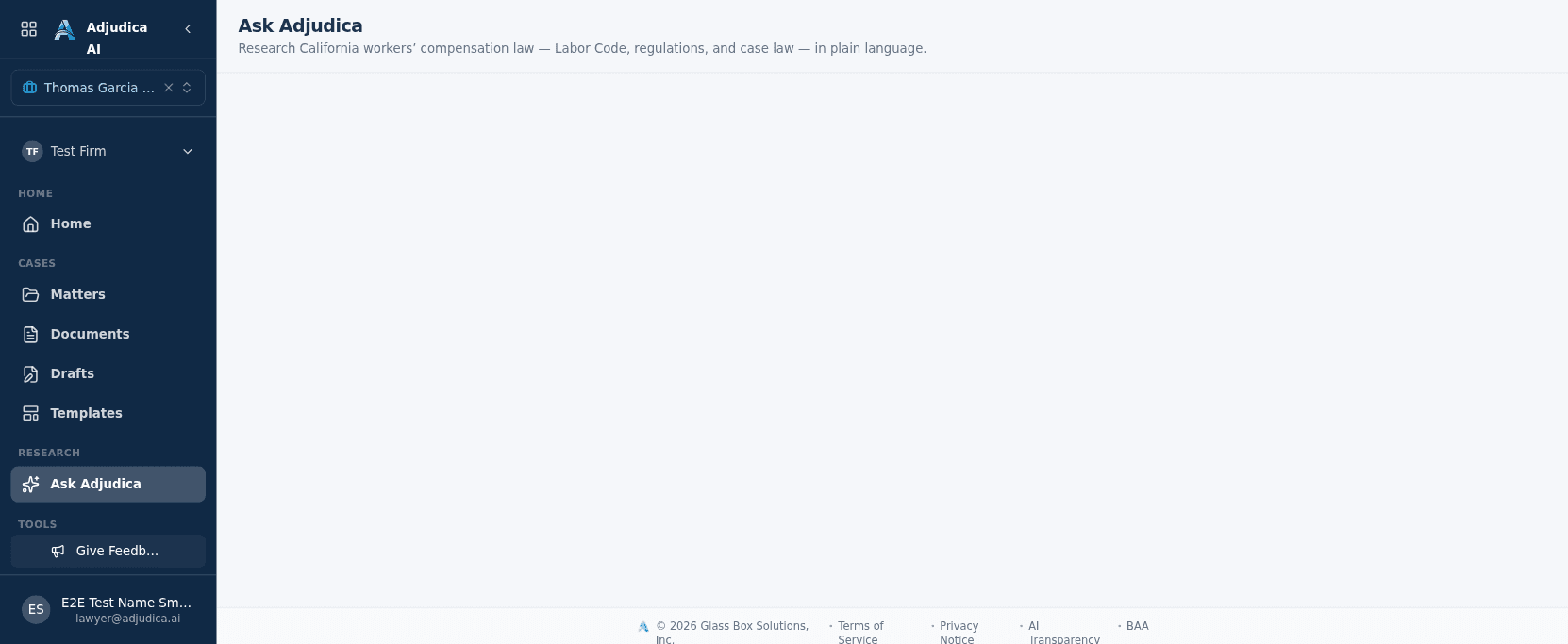
- Ask Adjudica: an AI legal-research surface tuned for California Workers' Compensation. Ask a question and receive an answer designed for source verification. Provider routing is environment- and workload-specific: direct/public OpenAI is prohibited for PHI, while approved fail-closed Azure OpenAI is a distinct chat route. Verify cited authority before relying on an answer.
- The PD Calculator: a free permanent-disability rating calculator for California WC, open to anyone.
Both reflect the same principle as the rest of the platform: show your work.
When to Override the AI
The AI is a tool, not an authority. Always override its suggestions when:
- You have information the AI doesn't: verbal conversations, privileged strategy, settlement terms discussed off the record. The AI only knows what's in the uploaded documents.
- The case has unusual facts: atypical injury mechanisms, complex apportionment, novel legal arguments. The AI looks for patterns; unusual cases can produce answers that are technically sourced but strategically wrong.
- The citation doesn't support the answer: click it, read the source paragraph, and if it doesn't say what the AI thinks it says, override the field.
- Legal strategy requires framing facts differently: the AI presents facts neutrally; your job often requires framing them persuasively. An AI-generated description is a starting point, not final copy.
- In doubt: your professional judgment always wins. The AI doesn't have a law license. You do.
The pattern is simple: use AI as a review aid, not an authority. It can miss or misstate information and has no legal judgment. Licensed counsel independently inspects the complete record, verifies current authority, and makes every decision; no speed or accuracy improvement is guaranteed.
Support
| Need | Contact |
|---|---|
| General support | support@adjudica.ai |
| Security or data concern | security@adjudica.ai |
| Billing | support@adjudica.ai (subject: "Billing") |
| Legal or BAA | legal@adjudica.ai |
| Privacy (CCPA / HIPAA) | privacy@adjudica.ai |
Source-listed support hours: Monday to Friday, 9 AM to 5 PM Pacific. Current staffing and security-monitoring coverage were not independently observed for this release.
Reporting an AI error. Source documentation lists support@adjudica.ai for error reports. Do not email PHI or privileged material unless the firm's approved channel and handling terms are confirmed. Response, review, remediation, and product improvement are not guaranteed.
The AI does the homework. You make the decisions. That is how it should be.