The AI does the homework. You make the decisions.
Adjudica is your firm's AI-powered case management platform for California Workers' Compensation. This guide is written for defense-side firms: attorneys and staff who represent employers and carriers, including lien defense. Adjudica reads your case documents, fills your forms, drafts your correspondence, and answers questions about the file, citing the exact document and page every time. On top of that foundation it adds a lien-defense layer: your home screen is built around exposure, your work queue, and case posture, so you can triage the desk each morning. Not a "read the whole manual" person? Jump to the Quick Reference and dive in.
What Adjudica Does for Defense Firms
Adjudica is the system of record for a defense practice, and it is built around the pressures the defense side actually feels: carrier ALAE, capacity, and a clean billing record. It moves the mechanical work (reading medical records, drafting routine correspondence and forms) to a verification workflow, so more of every hour goes to the analysis a law degree is for.
For lien defense specifically, Adjudica screens liens, values them against the fee schedule, recommends a settle-or-litigate posture, and helps generate the carrier reports and reduction letters that move a lien book toward disposition.
You are always in charge. The AI proposes. You review, correct, and approve. A recommended posture is a starting point for your judgment, never a directive, and nothing leaves the platform without an attorney's sign-off.
The Glass Box promise. Every AI answer comes with a citation to the exact document and paragraph it relied on, and every lien action is logged with an attribution showing whether the AI or a person took it. You can always see why the AI said what it said and how confident it is. That transparency is also what keeps your billing record clean: every step is documented.
Security. HIPAA compliant, with a BAA in place. All data is encrypted at rest and in transit and hosted in US-based, BAA-covered cloud data centers. Your firm's data is isolated from every other firm's, and Protected Health Information is never routed through any AI model that is not covered by a signed BAA.
Quick Reference
| I want to... | Where |
|---|---|
| See my exposure and lien queue | Home: your Defense Home dashboard |
| Work an individual lien end to end | Home, "Open Lien Desk" |
| Upload documents | Mailroom, drag and drop |
| Open or find a case | Matters |
| Fill a court form with AI | Matter, Drafts, "Create Draft", select a DWC form |
| Draft a defense letter or brief | Matter, Drafts, "Create Draft", "From Template" or "Custom" |
| Ask about a case | Click the sparkles icon on any matter page |
| See the case timeline | Timeline, select your matter |
| Migrate a case from MerusCase | Settings, Integrations, Connect MerusCase, then "Import" |
| Invite a team member | Settings, Team Members |
Hover over any sidebar item for a tooltip explaining what it does.
Logging In & Navigation
Go to app.adjudica.ai and enter your email and password. First time with an invitation? Click the link in your invitation email, set a password, and you are in. First person from your firm? You will set up a firm profile, invite your team, and accept the BAA. New accounts require email verification before first access.
The left sidebar is your home base, and it adapts to your role, showing only the surfaces your permissions allow: Home, Mailroom, Documents, Drafts, Timeline, Matters, Templates, Workflows, Tools, and Settings (Admin only). Your profile lives at the bottom.
Your Defense Home
Log in as a defense attorney or admin and Adjudica takes you to the Defense Home, a lien-desk triage view you read top to bottom.
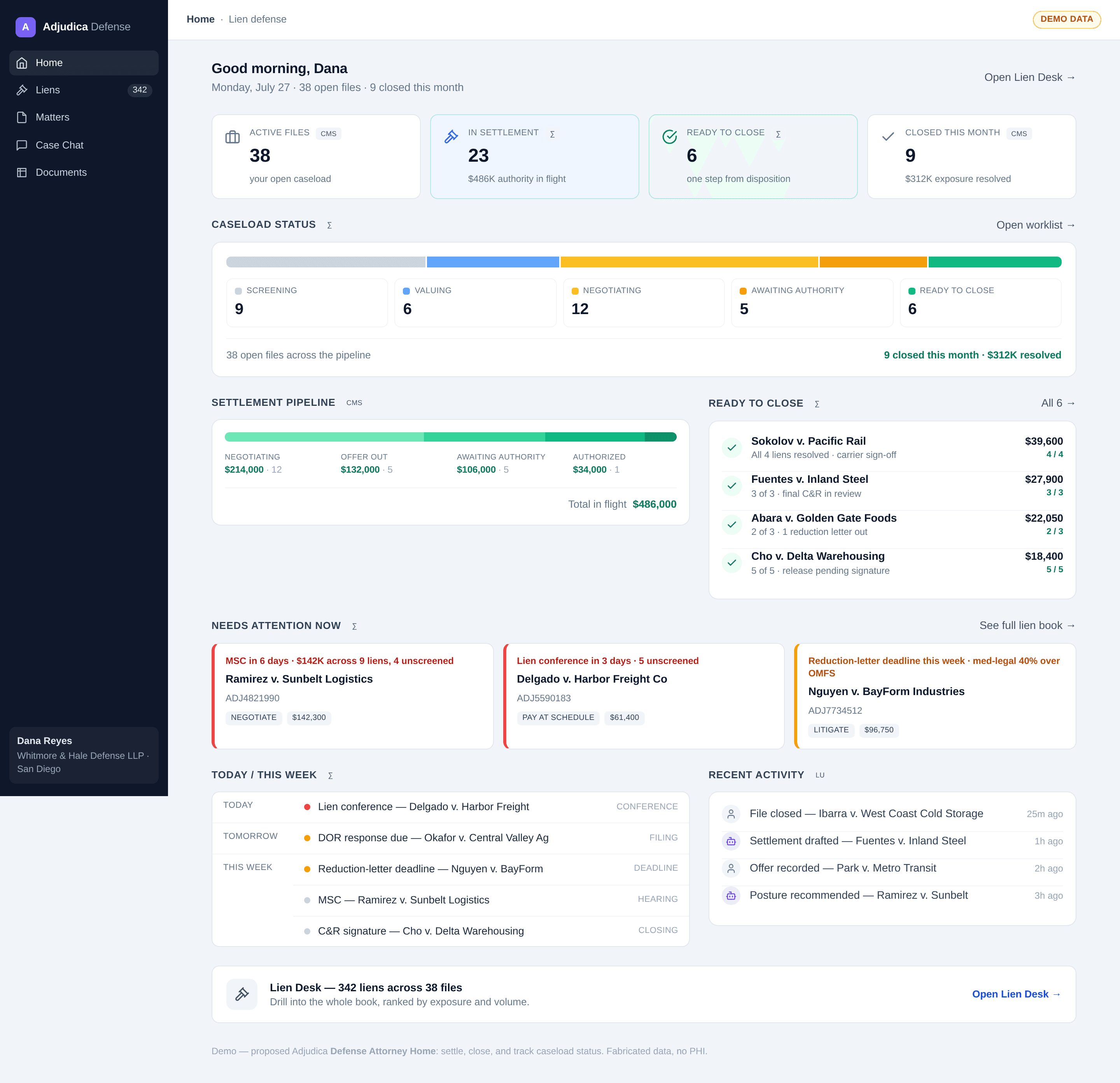
- Four KPI tiles are your vital signs: Total Exposure (realistic exposure across valued liens, net of payments, and it turns red when it is above zero), Total Liens (the firm-wide count on the desk), Unscreened (liens that still need a first-pass posture decision, in amber when above zero), and Realistic Reserve (valued exposure net of payments).
- Newest Liens shows what just landed, each row with the claimant, lien type, WCAB case number, and the amount in play. Treatment dates are Protected Health Information and are deliberately never shown here.
- Recent Activity is the lien-desk audit trail: who did what, and whether it was an AI action or a human one, shown with an attribution pill on every row.
- Posture Breakdown shows the shape of your lien book by recommended posture: pay at schedule, negotiate, or litigate.
The Defense Home is your dashboard inside Adjudica. To work an individual lien end to end, use the Open Lien Desk action in the header to reach the full lien-management surface at lien.adjudica.ai.
The Lien-Defense Workflow
The Defense Home surfaces the numbers; the Lien Desk is where you work each lien. The AI moves a lien through a defensible sequence, and every step is logged with its AI-or-human attribution.
- Intake. Liens land on the desk as they are filed against the firm's matters, with the claimant, type, WCAB case number, and amounts. Lien types include medical provider, med-legal, EDD or SDI, attorney fee, interpreter, copy service, SIBTF, and costs.
- Clearance and screening. The AI runs clearance checks and rule-based defense screening (provider and assignment standing, fees and statute-of-limitations issues, and medical standing) so dead or weak liens surface early, before you spend time on them.
- Valuation. The AI values the lien against the Official Medical Fee Schedule, net of payments, producing a realistic value and a reserve figure.
- Posture. A settle-versus-litigate calculus recommends a posture from the valuation: pay at schedule when the demand is at or below the schedule net; negotiate to a target when the realistic value is below the demand or below the cost to defend; and litigate when a dispositive procedural defense applies and the realistic value is effectively zero. Every recommendation states its rationale, and it is a starting point you review, not a directive.
- Negotiation and generation. Track offers and counteroffers, and generate the defense work product (carrier reports, conference packets, and reduction letters) grounded in the lien record.
Because Adjudica is built for licensed attorneys, it gives you the legal analysis your defense depends on: a recommended posture on every valued lien. The AI proposes; you decide.
Matters
A matter is a case. Open one and you get a single workspace for everything about it: parties, injury and insurance details, documents, drafts, the case chat, the timeline, and the knowledge graph. Create a matter from Matters, "New Matter", or drop in the pleadings and let the AI read the documents and stand up the matter pre-filled. The list is searchable and filterable by name, case number, employer, assigned attorney, status, and date range.
Moving onto Adjudica from MerusCase? The integration is a one-way migration bridge: connect your MerusCase account during onboarding and Adjudica imports your existing cases and their documents, so the practice runs on Adjudica rather than alongside a legacy tool.
Mailroom & Documents
Every document starts in the Mailroom, a transparency-first intake pipeline. Drag and drop your files, assign each to a matter, and click Upload. Supported formats include PDF, DOCX, JPG, PNG, WEBP, TXT, and Outlook .msg, up to 500 MB per file. Documents move through three legible lanes: Needs Review, Exceptions (with an attorney-friendly issue label, never a raw error code), and Cleared. Nothing is processed silently.
The firm-wide Documents library shows every case file across every matter. Before any AI-extracted text is trusted, an attorney reviews and corrects it side by side with the source page. Each paragraph carries a confidence score that measures legibility, not legal accuracy. For the defense side, this is where a 500-page medical file becomes a set of reviewable, cited summaries instead of a stack you read page by page.
Drafts
Three paths, one goal: get your documents done faster without sacrificing accuracy. Court Form drafts let you pick a DWC form and have the AI fill it from your case documents. Template drafts fill a firm template with the matter's case data. Custom drafts generate a one-off document from a plain-language description.
Court form filling is the biggest time saver: open your matter, create a Court Form draft, pick a form, and click "Re-fill Form With AI." The AI fills each field with high-confidence answers pre-filled, unsure ones flagged with a dropdown of candidates, and unanswerable ones left blank, and every answer links to the exact source paragraph. Form filling runs on Google's Gemini models; claimant PHI is never routed through OpenAI.
Your firm's recurring defense work product makes natural templates: defense counsel letters, trial briefs, MSC statements, and case-analysis memos. Note that lien-specific work product (carrier reports, conference packets, and reduction letters) is generated from the Lien Desk, where it draws on the structured lien record rather than a free-form matter draft.
All drafts open in the same editor: auto-save, "Refine with AI" on any selected block, PDF preview, and export to PDF or Word. Always download and review the final PDF before filing, and run the pre-filing checklist, ending with a licensed California attorney's review and approval.
Timeline & Case Chat
Upload your case documents and the AI builds a chronological Timeline with no manual data entry, plotting dates paired with events into four color-coded categories (Legal, Medical, Insurance, Communication), each cited to its source. Multiple mentions of the same event merge into one entry with multiple citations, and you can add or edit events manually. It is useful for MSC prep and for sizing exposure at a glance.
Case Chat answers plain-English questions about the file with citations to the exact paragraphs it relied on. Click the sparkles icon on any matter page and ask something specific, such as "What does the AME report say about apportionment?" Case Chat will not give legal advice, it only reads your uploaded documents (not external legal databases), and each session starts fresh. Always verify citations.
Case Intelligence
As documents flow through the pipeline, the AI builds a knowledge graph: a structured map of every person, organization, body part, claim, treatment, and relationship it finds across your case files. Open it from the Case Intelligence button in the matter header. Four tabs (Overview, Entities, Relationships, and Attention Required) let you see and steer it, with a confidence badge on every entity from GOLD (human-verified and locked) down to NONE. When documents disagree, the AI flags the conflict for your review instead of guessing, and every resolution is recorded in the audit trail. The AI builds the map; you verify the territory.
Templates & Workflows
Templates let you build reusable documents with smart placeholders that auto-fill from case data. Build a template from a sample, from scratch, or from an existing document, then use it on any matter. Workflows state a rule in plain English: when a case condition is met, generate a draft and route it for human approval. You set the trigger and the action, then enable it. The workflow creates the draft, but a human still reviews it. Automation handles the initiation; quality control is still yours.
Administration & Security
Firm administration is visible only to the Admin role. Admins edit firm details, invite team members and assign each a single role, and manage integrations. Capabilities are membership-driven and enforced across the whole app:
| Role | What they can do |
|---|---|
| Admin | Everything: cases, documents, users, settings, workflows, integrations. |
| Attorney | Cases and documents; all AI features. Cannot manage users or firm settings. |
| Clerk | View and edit cases and documents. Cannot delete matters or manage users or settings. |
A per-matter deny-list keeps sensitive cases in a smaller circle, and it also controls the AI's view of the matter, creating a real data-isolation boundary. On your own profile, keep your California Bar number current and enable two-factor authentication, which is required for the most privileged roles.
When to Override the AI
The AI is a tool, not an authority. Always override its suggestions, including posture recommendations, when you have information the AI does not (conversations with the adjuster, privileged strategy, terms discussed off the record); when the case has unusual facts a pattern-matcher can get technically-sourced-but-strategically-wrong; when a citation does not support the answer; and when your defense strategy requires framing the facts differently. When in doubt, your professional judgment always wins. The AI does not have a law license. You do. Trust the AI to find information, and trust yourself to interpret it.
Support
| Need | Contact |
|---|---|
| General support | support@adjudica.ai |
| Security or data concern | security@adjudica.ai (24/7) |
| Billing | support@adjudica.ai (subject: "Billing") |
| Legal or BAA | legal@adjudica.ai |
| Privacy (CCPA / HIPAA) | privacy@adjudica.ai |
Hours are Monday to Friday, 9 AM to 5 PM Pacific, with security monitored 24/7. Representing injured workers instead? See the Applicant Attorney User Guide.
The AI does the homework. You make the decisions. That is how it should be.