The AI does the homework. You make the decisions.
Adjudica is an AI-assisted case-work platform for California Workers' Compensation. This guide describes configured applicant-side document, form, timeline, drafting, and case-question workflows. Source links may be available, but outputs can be incomplete or wrong and require attorney verification. Runtime availability was not observed for this release.
What Adjudica Does for Applicant Firms
Source materials position Adjudica as an intended workspace for applicant matters, documents, drafts, deadlines, and assisted work product. This release did not observe a customer cutover, system-of-record completeness, or dashboard accuracy; reconcile against the firm's controlling record and calendar.
The attorney remains responsible. The AI proposes; you review, correct, and decide. Confirm that enabled approval and filing workflows enforce firm-required sign-off. Treat generated material as an unverified draft, not legal advice or a substitute for professional judgment.
Source-linked review. Some workflows provide document links and confidence context. Availability, completeness, and accuracy vary. Verify each proposed answer against the complete record.
Security and PHI. Source configuration describes encryption, tenant scoping, and fail-closed provider routing. These are configured-enabled facts, not observed-live control or contract verification. Confirm the customer-specific BAA, provider terms, enabled route, and runtime controls before PHI use; direct/public OpenAI is prohibited for PHI.
Quick Reference
| I want to... | Where |
|---|---|
| See what needs me today | Home: your ranked applicant caseload |
| Upload documents | Mailroom, drag and drop |
| Open a new case | Matters, "New Matter" (or drop in the pleadings and let the AI build it) |
| Fill a court form with AI | Matter, Drafts, "Create Draft", select a DWC form |
| Generate a demand letter | Matter, Drafts, "Create Draft", "From Template" |
| Write a custom document | Matter, Drafts, "Create Draft", "Custom Draft" |
| Ask about a case | Click the sparkles icon on any matter page |
| See the case timeline | Timeline, select your matter |
| See what the AI knows about a case | Matter, Case Intelligence |
| Migrate a case from MerusCase | Settings, Integrations, Connect MerusCase, then "Import" on a matter |
| Invite a team member | Settings, Team Members |
Hover over any sidebar item for a tooltip explaining what it does.
Logging In & Navigation
Source configuration describes email/password sign-in, invitations, firm setup, team invitations, email verification, and a BAA-acknowledgement workflow. Confirm current environment availability and executed terms before PHI use.
The left sidebar is your home base, and it adapts to your role, showing only the surfaces your permissions allow: Home, Mailroom, Documents, Drafts, Timeline, Matters, Templates, Workflows, Tools, and Settings (Admin only). Your profile lives at the bottom.
Your Applicant Home
Source UI describes a dashboard that can rank selected matters and tasks. Coverage and priority accuracy were not observed; verify against the complete record and firm calendar.
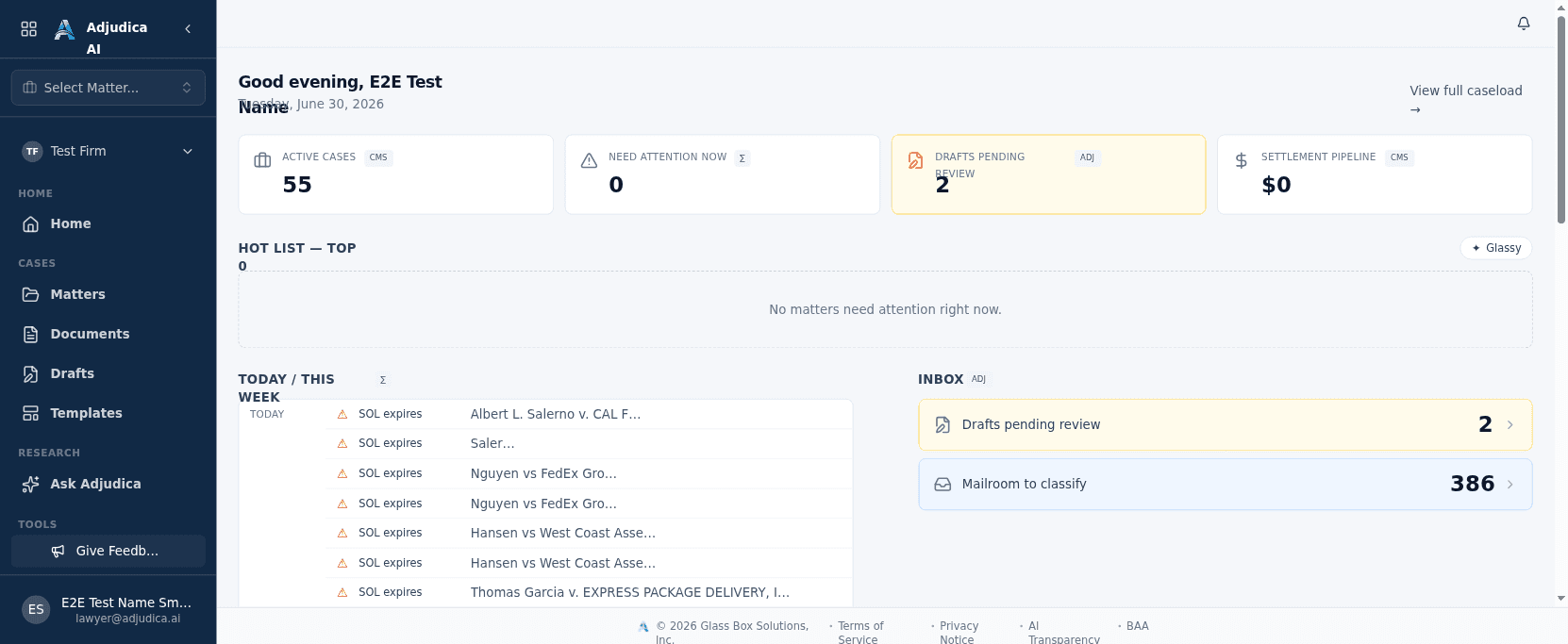
- Four KPI tiles at a glance: Active Cases, Need Attention Now, Drafts Pending Review, and Settlement Pipeline value.
- The Hot List surfaces the matters that need you most, each with a plain-language reason it is ranked where it is. There are no mystery scores.
- Today / This Week is a source-observed deadline surface. It may omit or misstate dates and does not replace the firm's authoritative docketing process.
- The Inbox routes you straight to drafts awaiting your review and to mailroom documents waiting to be classified.
The dashboard is not trying to show you everything. It shows you what needs your attention right now. If nothing is on it, your inbox is clear. An activity panel shows background work in progress (blue), finished (green), or needing attention (red); click any item to jump to the relevant page.
Matters
A matter is a case, one per injured worker, per date of injury. Open a matter and you get a single workspace: parties, injury and insurance details, documents, drafts, the case chat, the timeline, and the knowledge graph.
Create a matter. Source UI includes Matters, "New Matter" with applicant, case, employer, injury-date, and claim-type fields. Configured document assistance may propose selected values from uploaded pleadings. Extraction and pre-fill coverage can be incomplete or wrong; review the complete record and confirm every proposed or blank field.
Find a matter. The list is searchable and filterable by applicant name, case number, or employer; by assigned attorney; by status (Intake, Active, Pending Settlement, Settled, Archived); and by date range.
Migrating from MerusCase. Source configuration describes a one-way migration path. Availability, authorization scope, imported coverage, and cutover state depend on the enabled environment and were not observed for this release. Reconcile case and document counts before changing systems of record.
Mailroom & Documents
Source UI presents the Mailroom as an intake and review surface. Configured file types and size limits vary by environment; confirm the enabled limits before upload. Status labels may not describe every processing step, and no format guarantees extraction quality.
Source UI includes Needs Review, Exceptions, and Cleared states. This release did not observe every transition, error surface, or background path; confirm the configured workflow and inspect the source file before clearing it.
Source UI describes a searchable Documents library and side-by-side OCR review. Coverage across matters, confidence availability, and approval enforcement were not observed. Confidence is a processing cue, not legal accuracy or permission to skim; inspect the complete source document and correct extracted text before downstream use.
Drafts
This is where documents get made, and it is the core of the platform. Three paths, one goal: get your documents done faster without sacrificing accuracy.
| Draft type | What it does |
|---|---|
| Court Form | You pick a DWC form. The AI fills it from your case documents. |
| Template | You pick a firm template. The AI fills in the placeholders. |
| Custom | You describe what you need in plain language. The AI writes it. |
Court Form drafts can reduce manual entry. Open your matter, create a Court Form draft, pick a DWC form, and click "Re-fill Form With AI." The configured Anthropic route evaluates available matter documents and proposes entries when evidence is sufficient; uncertain or unsupported fields require manual completion. Available source links help you verify the proposal. Direct/public OpenAI routing is prohibited for PHI, while approved fail-closed Azure OpenAI chat routing is a distinct path. A pre-filled answer does not mean it is correct. Your job is to verify it.
Template drafts fill a firm template (a demand letter, an MSC statement, client correspondence) with the matter's case data. The AI does a good job with factual placeholders; narrative sections may need your voice and strategy. Custom drafts generate a one-off document from a plain-language description, grounded in your uploaded files. If you write the same custom draft repeatedly, turn it into a template.
Source configuration describes one editor with auto-save, selected-text refinement, PDF preview, PDF or Word export, and publication/versioning controls. Before filing, download and review the rendered output, compare proposed and blank fields with the source record, verify dates and constrained fields, and obtain a licensed California attorney's approval. Confirm the enabled workflow behaves as required.
Timeline
Processed case documents can feed a proposed chronology with available event descriptions, categories, and source links. It may omit, duplicate, or misorder events and does not replace review of the complete record. For applicant work, a verified treatment chronology can assist MSC preparation and settlement analysis.
Source UI includes Legal, Medical, Insurance, and Communication categories plus manual event editing. Deduplication and source-link coverage can vary, and uploaded documents may themselves be incomplete. Verify chronology, citations, omissions, and conflicts against the complete record and firm calendar.
Case Chat
Ask questions about your case in plain English. The configured case-chat surface may return an answer with source links where available. Links, passages, and answers may be absent, incomplete, or wrong; inspect the complete source record.
Good questions are specific: "What does Dr. Johnson's QME report say about work restrictions?" or "Which document mentions the average weekly wage?" Case Chat is not legal advice. Corpus, session, and retrieval behavior depend on the enabled configuration and were not observed live for this release. Treat every answer and source link as a review aid, then inspect the complete record.
Case Intelligence
Source configuration describes a knowledge graph that can propose selected entities and relationships from processed files. Coverage and attribution may be incomplete or wrong. Source UI exposes this area through Case Intelligence where enabled.
Source UI includes Overview, Entities, Relationships, and Attention Required tabs with confidence and review context where available. Extraction, conflict detection, resolution recording, and coverage may be incomplete or wrong. Verify the graph and selected activity records against the source record.
Templates & Workflows
Templates let you build reusable documents (demand letters, settlement proposals, client correspondence) with smart placeholders that auto-fill from case data. Build a template from a sample, from scratch, or from an existing document, then use it on any matter. A starter set ships for common WC documents, and you can clone any of them and make it yours.
Source configuration describes Workflows with triggers, actions, and human-review states. For example, a medical-report event can be configured to propose a Medical Summary draft. Runtime execution, source coverage, failure behavior, and review enforcement were not observed. Test the workflow, monitor it, and retain licensed review.
Administration & Security
Firm administration is visible only to the Admin role. Admins edit firm details, invite team members and assign each a single role, and manage integrations. Capabilities are membership-driven and enforced across the whole app:
| Role | What they can do |
|---|---|
| Admin | Everything: cases, documents, users, settings, workflows, integrations. |
| Attorney | Source configuration permits selected case, document, and AI-assisted workflows; confirm enabled permissions. |
| Clerk | View and edit cases and documents. Cannot delete matters or manage users or settings. |
Source configuration includes per-matter restrictions and role-dependent access. This release did not test runtime enforcement or establish a complete data-isolation boundary; verify tenant and matter access in the enabled environment. Keep profile data current and use two-factor authentication where required by firm policy and configuration.
When to Override the AI
The AI is a tool, not an authority. Always override its suggestions when you have information the AI does not (verbal conversations, privileged strategy, settlement terms discussed off the record); when the case has unusual facts that a pattern-matcher can get technically-sourced-but-strategically-wrong; when a citation does not support the answer; and when legal strategy requires framing the facts differently. When in doubt, your professional judgment always wins. The AI does not have a law license. You do. The pattern is simple: trust the AI to find information, and trust yourself to interpret it.
Support
| Need | Contact |
|---|---|
| General support | support@adjudica.ai |
| Security or data concern | security@adjudica.ai |
| Billing | support@adjudica.ai (subject: "Billing") |
| Legal or BAA | legal@adjudica.ai |
| Privacy (CCPA / HIPAA) | privacy@adjudica.ai |
Source-listed support hours are Monday to Friday, 9 AM to 5 PM Pacific. Current staffing and security-monitoring coverage were not independently observed. Defending employers or carriers instead? See the Defense Attorney User Guide.
The AI does the homework. You make the decisions. That is how it should be.